


1. To create a new push notification, log in to your account.
2. Go to Push Notifications.
3. Click the Create New Push Notification button.
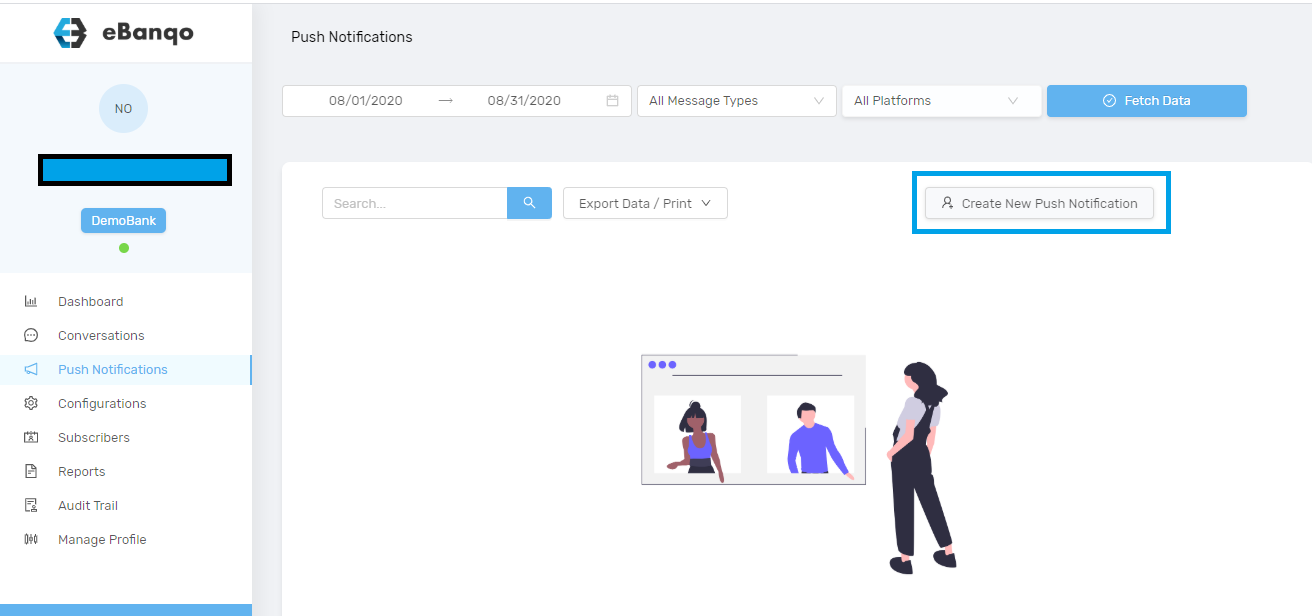
4. When you click the Create New Push Notification button, a modal opens.
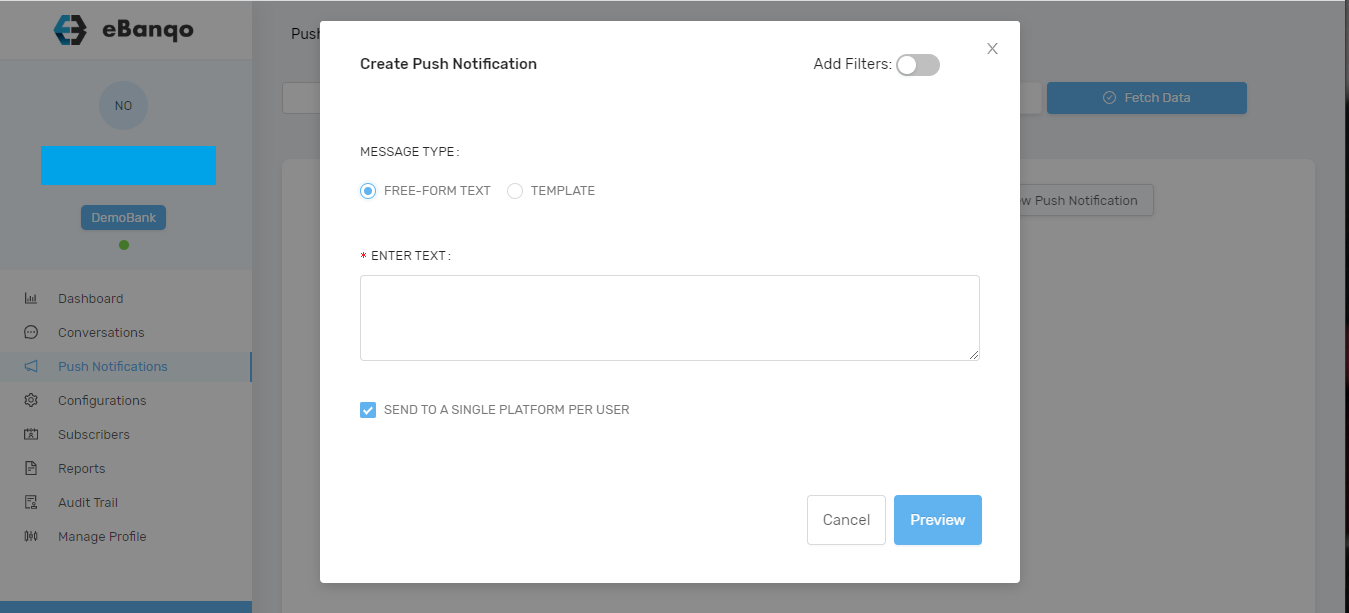
5. There are two options available:
- Freeform Text
- Template
a. Freeform Text
For a freeform text, compose a new message you intend to send to your customers.
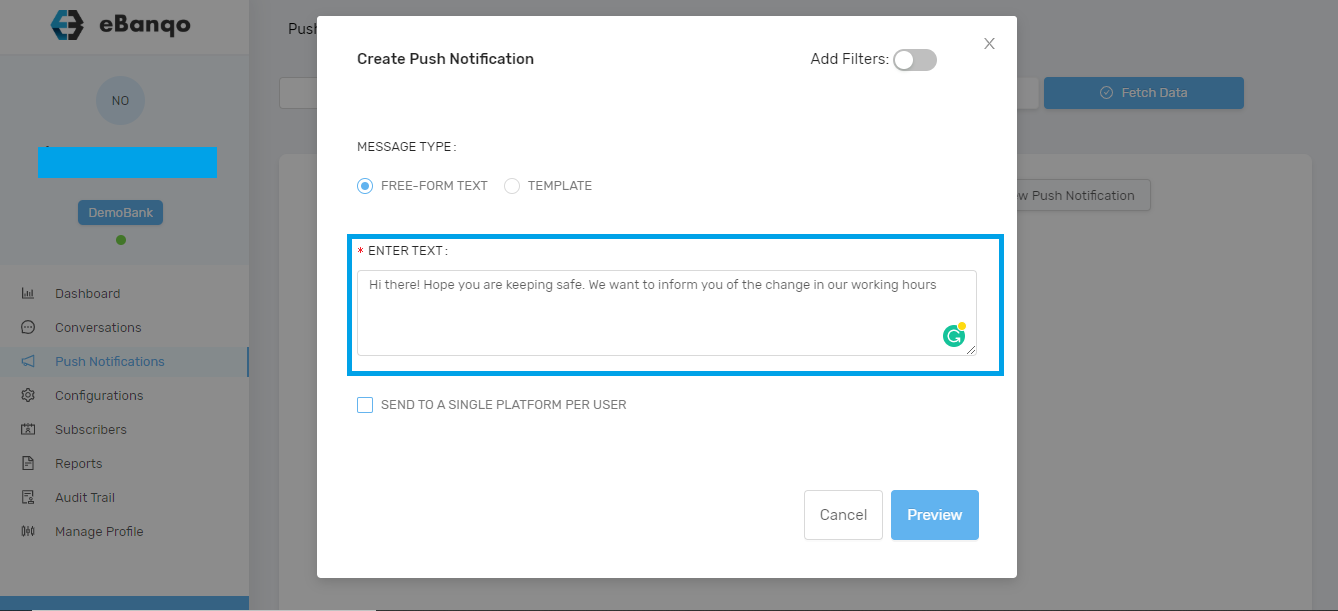
b. After entering your message, decide whether you want to send it to one platform per customer or to all the platforms each customer has used to interact with you.
To send to one platform for each customer, check Send to a single platform per user.
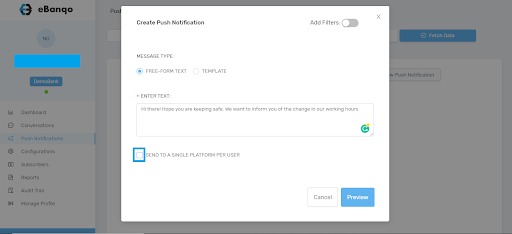
c. If you want customers to receive the push notifications on all the platforms they have used to contact you, leave it unchecked.
d. Preview your message before sending it by clicking the Preview button.
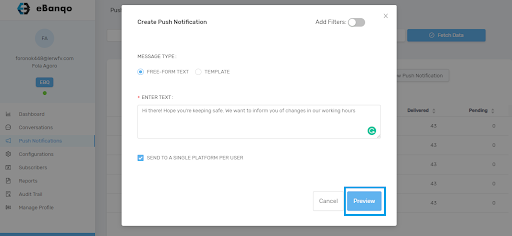
e. Once you click the preview button, a modal containing the details of your push notification appears.
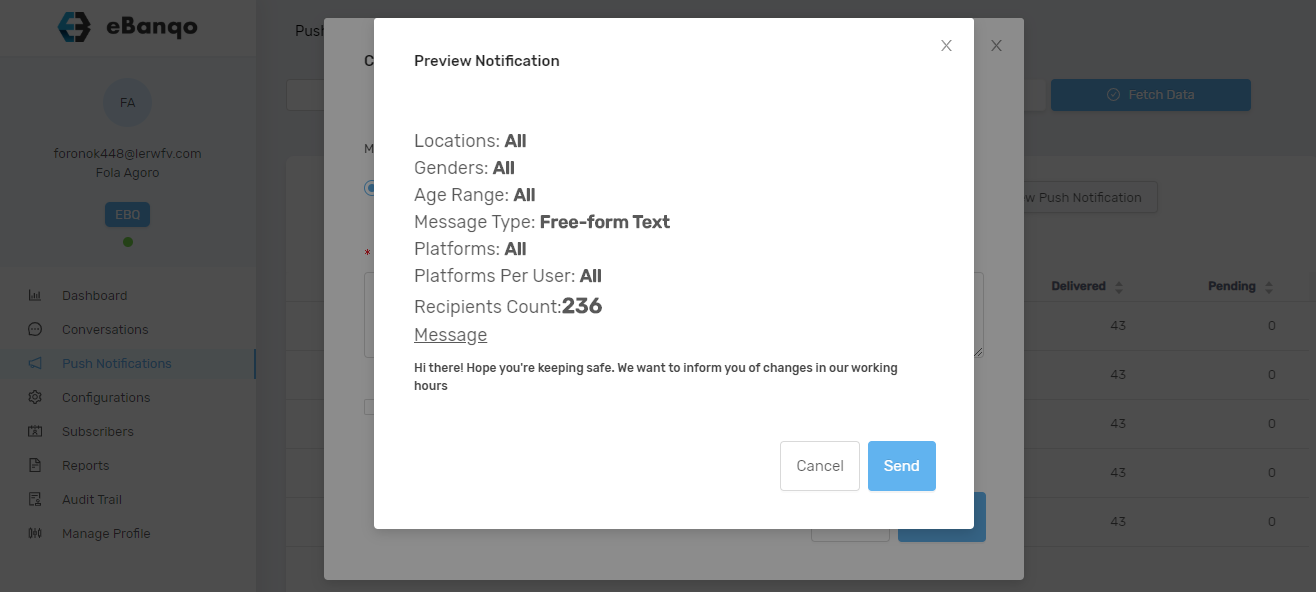
f. If you are satisfied, click Send. If not, click Cancel to return to the editor and make changes.
Template
The option to send push notifications using a template is not yet available. Once it becomes available, this article will be updated with the steps.