

Reports give you insight into platform analytics. Some reveal your agents’ activities, while others show how often your customers use the services in your chatbot.
eBanqo Messenger has six (6) broad categories of reports:
1. Messages
Messages show the total number of messages exchanged between customers, your bot, and support agents on the platform.
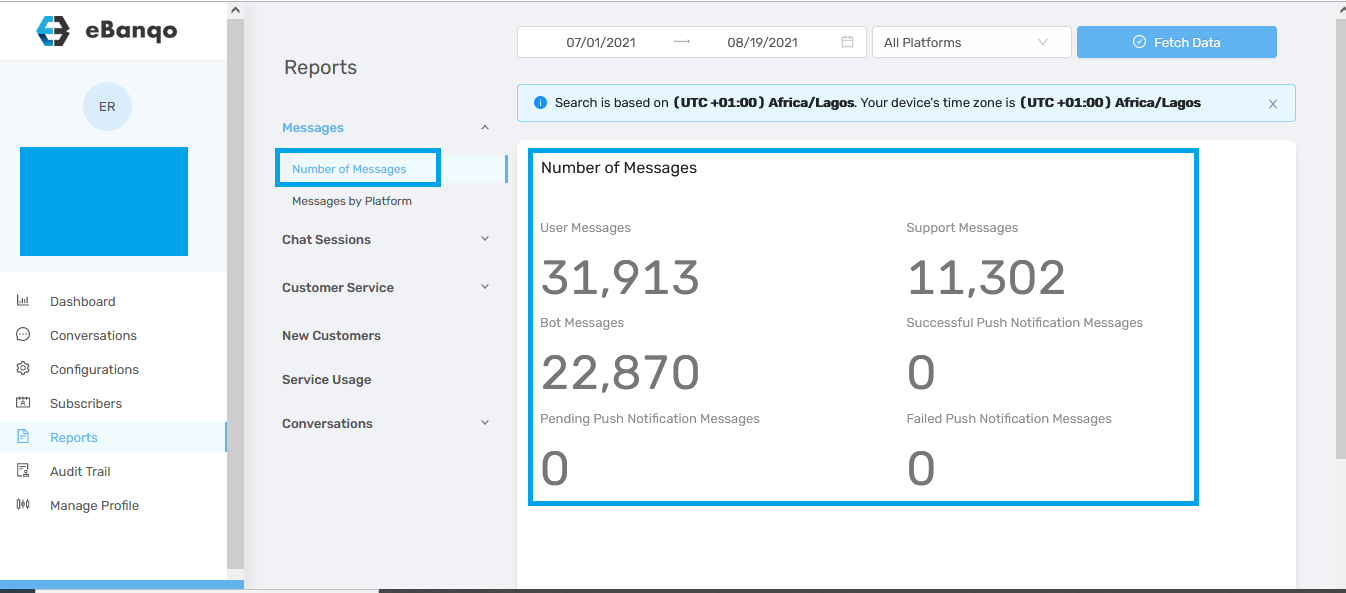
a. Number of Messages
This is the sum of all messages from a selected platform or across all platforms your bot is active on.
- User messages – all messages from customers
- Support messages – messages exchanged between customers and support agents
- Bot messages – messages exchanged between customers and the chatbot
- Successful push notifications – broadcast messages successfully sent
- Pending push notifications – broadcast messages yet to be delivered
- Failed push notifications – broadcast messages that were not delivered
b. Messages by Platform
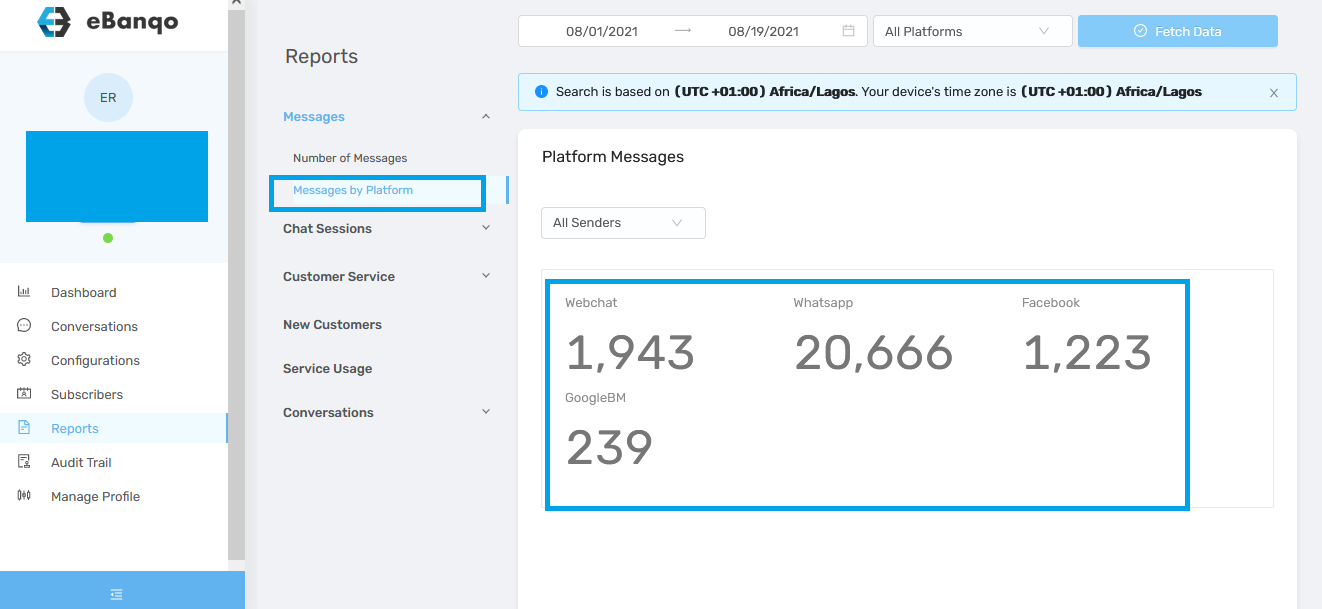
This report shows the total messages exchanged on each platform where your chatbot is active.
2. Chat Sessions
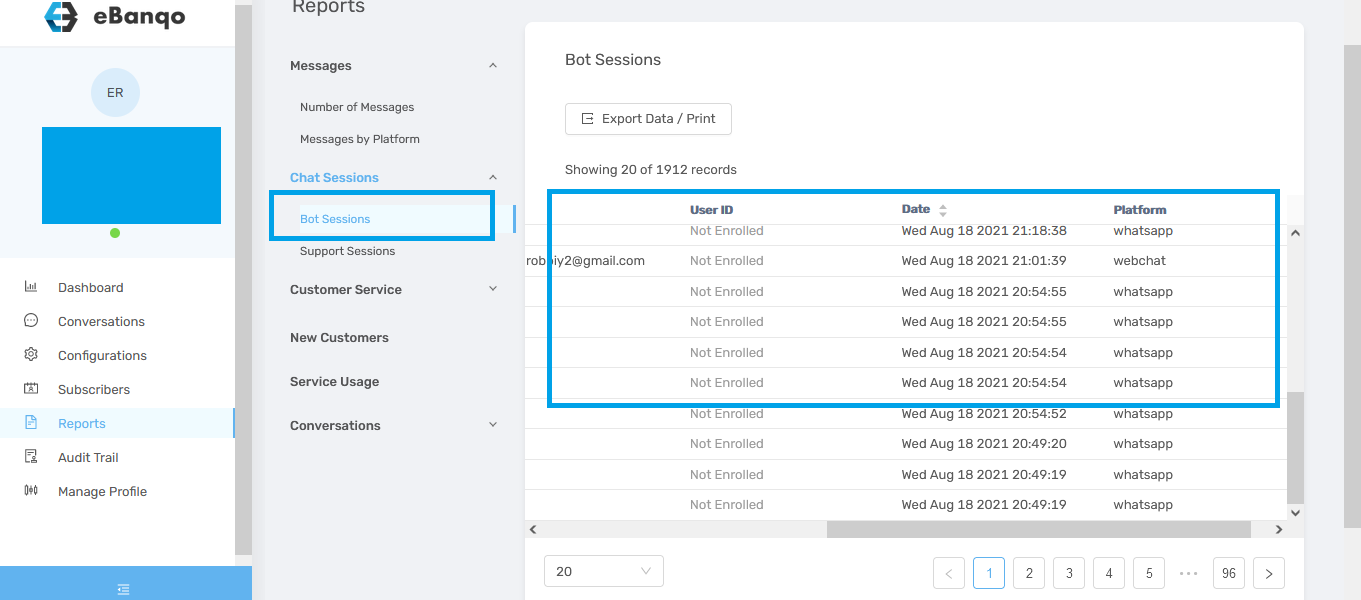
This report lists customers who have chatted with your bot or support team.
a. Bot Sessions – customers who chatted with the chatbot.
b. Support Sessions – customers who chatted with your support team.
Both include the customer name, platform, and last chat date.
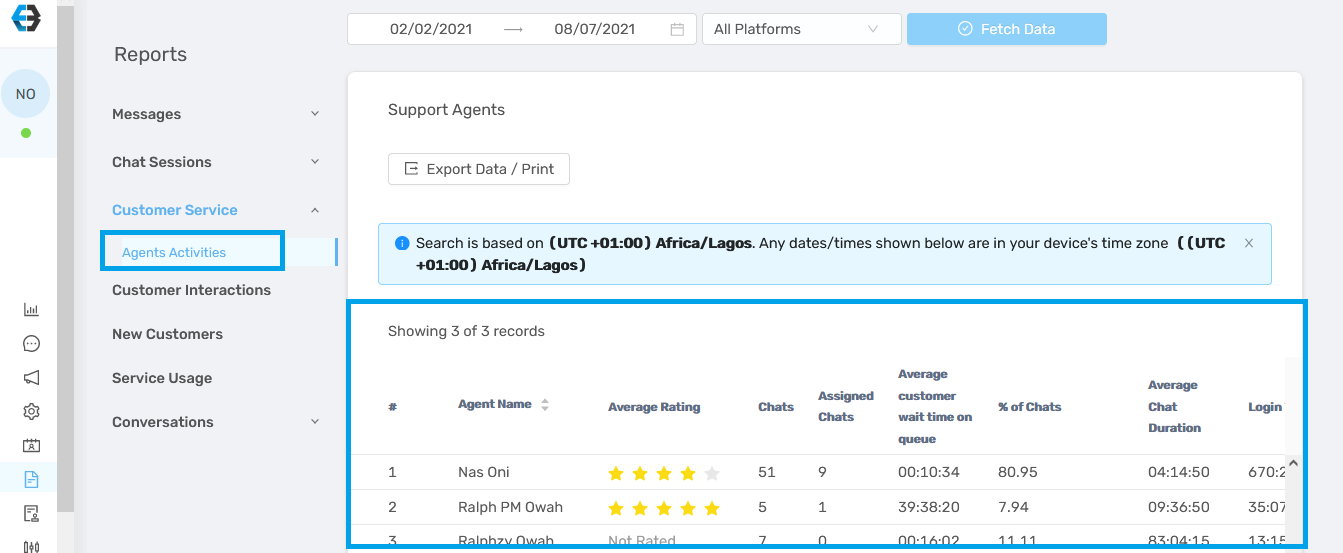
3. Customer Service
This report shows information about agent activity and performance.
It includes:
- Agent name
- Number of customers handled within a selected timeframe
- Average rating
- Login activity
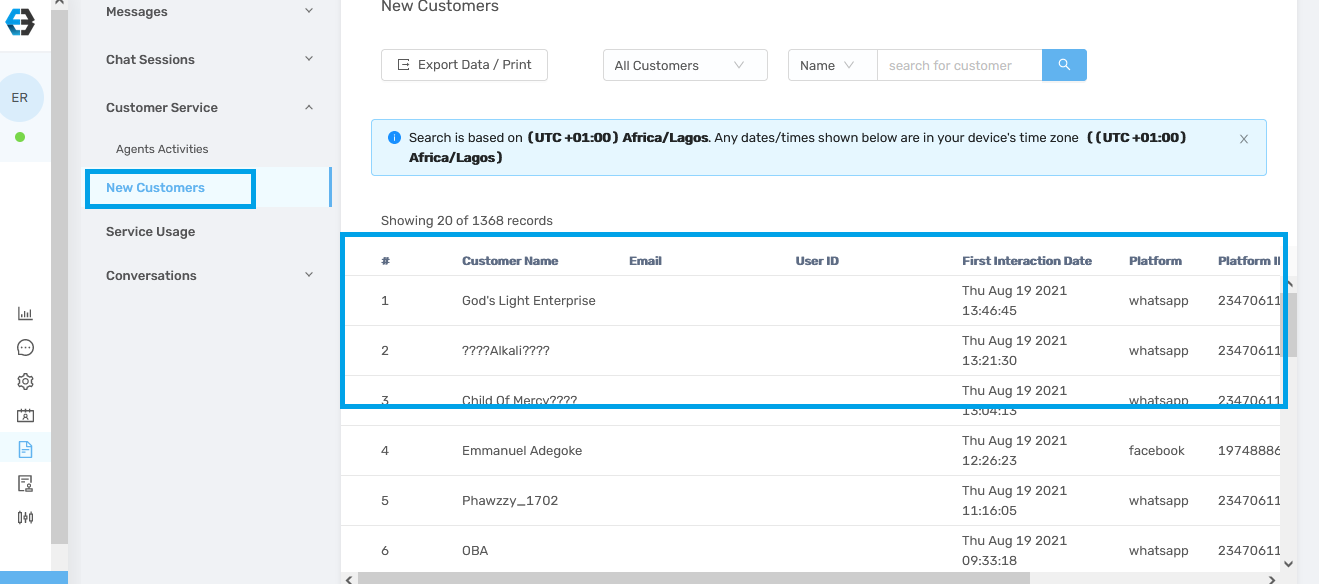
4. New Customers
This report shows the number of customers interacting with you for the first time within a selected timeframe.
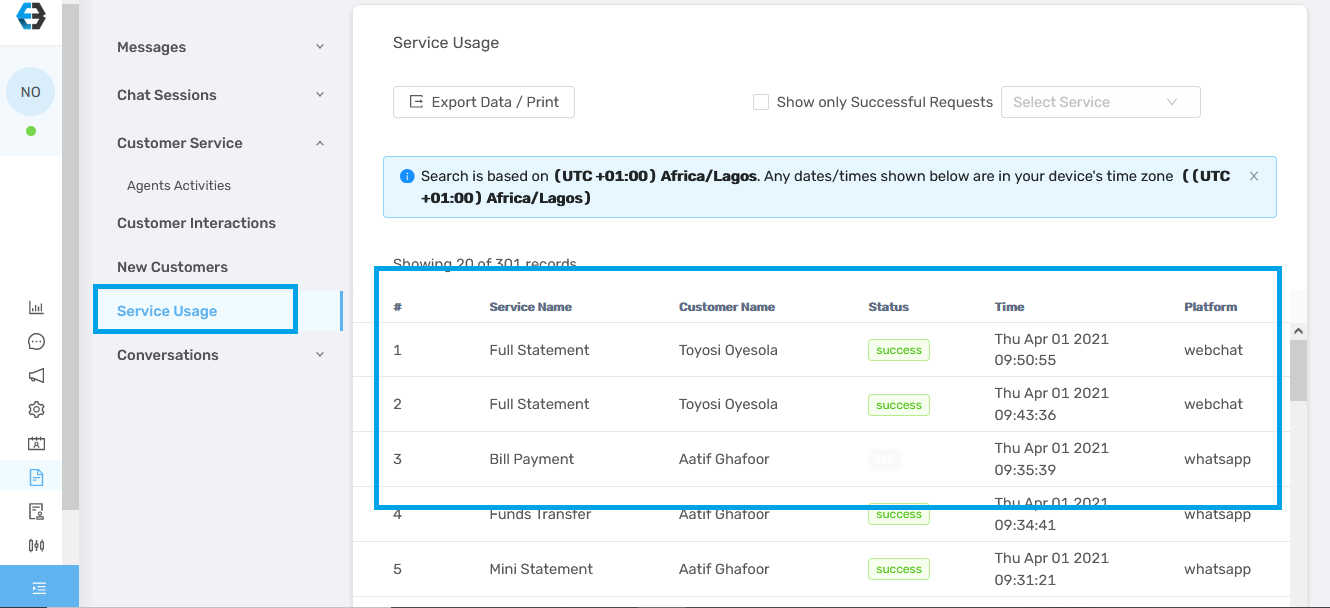
5. Service Usage
This report shows the services customers perform on your chatbot, the transaction status (successful or failed), the date, and the platform used.
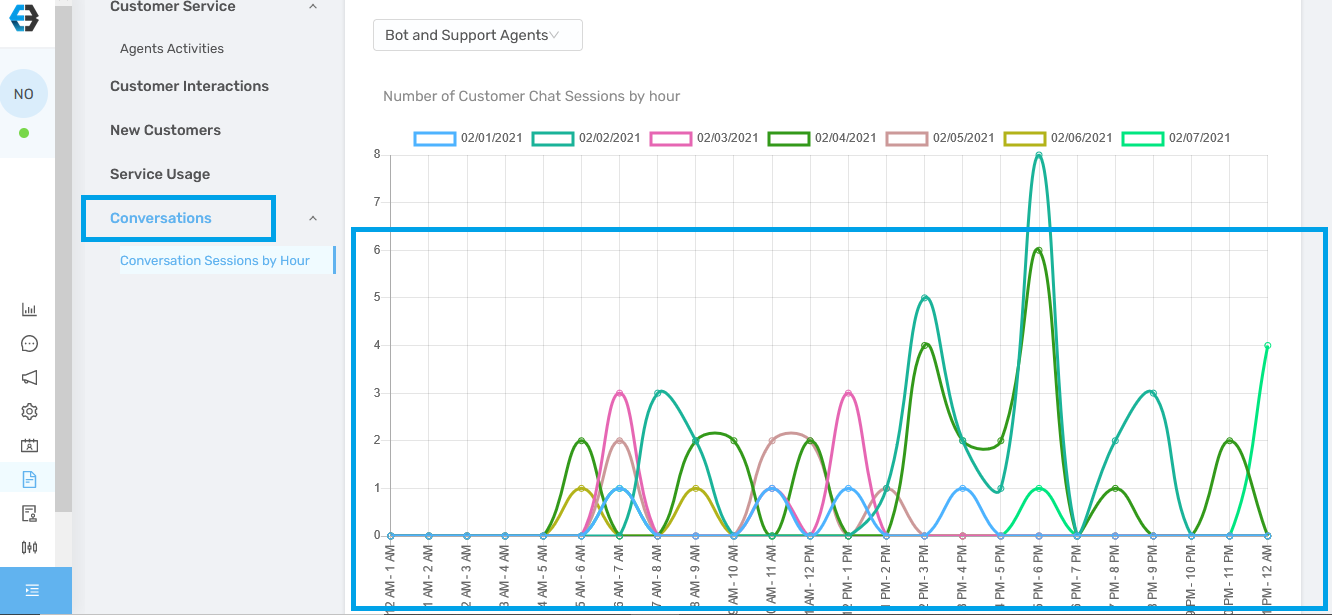
6. Conversations
This report shows conversation patterns and peak interaction hours.
How to retrieve reports
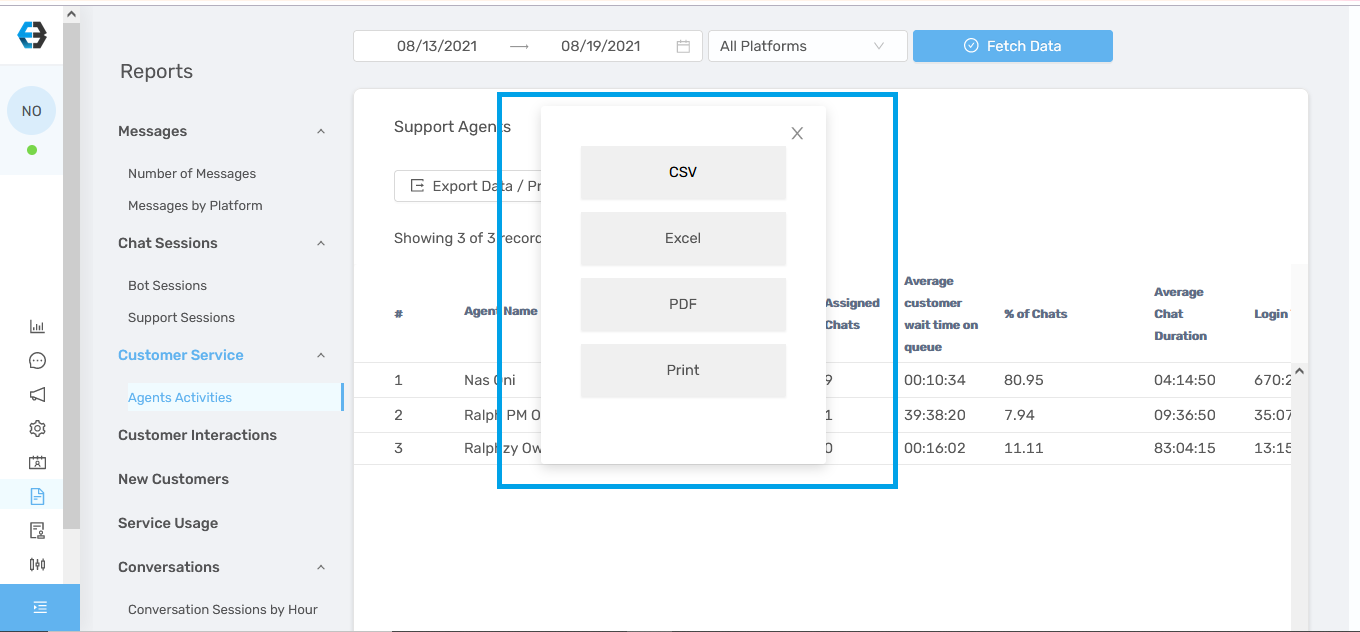
You can export reports as PDF, Excel, or CSV files.
1. Log in to your account and click Reports.
2. Select the report you want to download.
3. When the report loads, export it using the following steps:
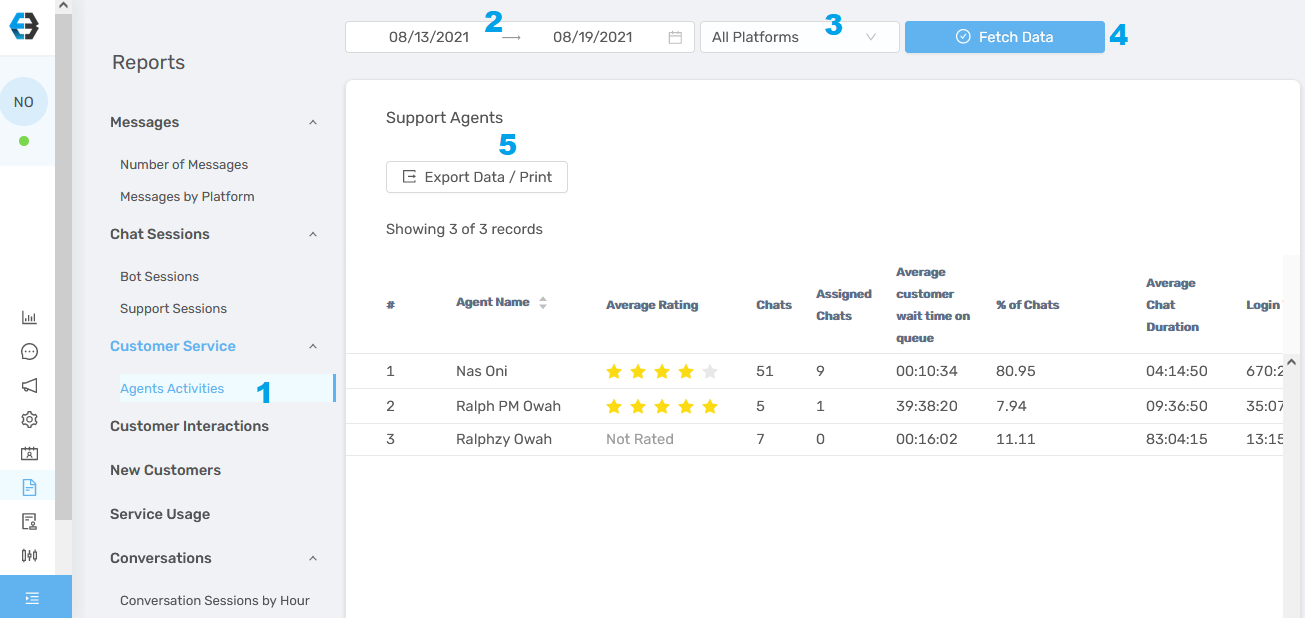
Step 1: Select the report you want.
Step 2: Choose the date range.
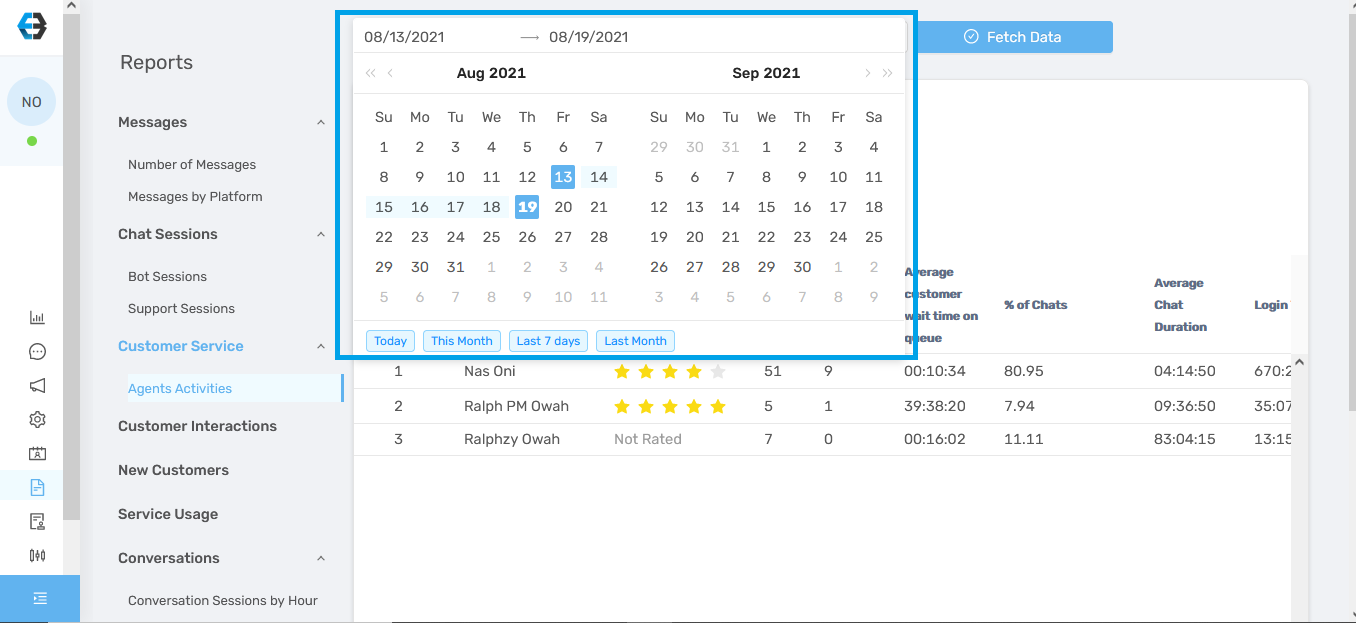
Note: Reports older than six (6) months cannot be viewed or downloaded.
Step 3: Select the platform.
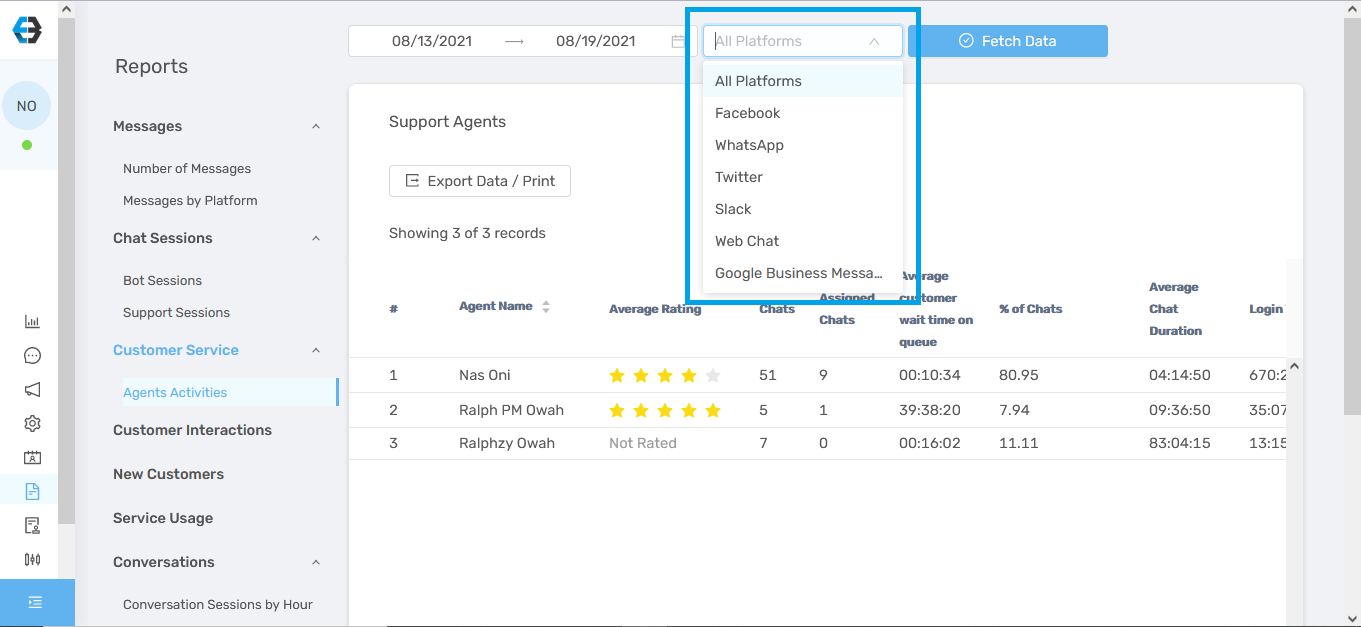
If you want reports across all platforms, choose All platforms.
Step 4: Click Fetch Data.
Step 5: Export or print the report (PDF, CSV, or Excel).