


With Auto-assign, you can set up specialized teams in eBanqo Messenger that handle specific requests. Customers are routed to these teams based on criteria you choose. Currently, the available routing criteria are:
- Department
- Issue type
- Branches
- Channels
- Customer type
Setting a routing criteria
To set your routing criteria:
1. Go to Configurations > Auto-Assign
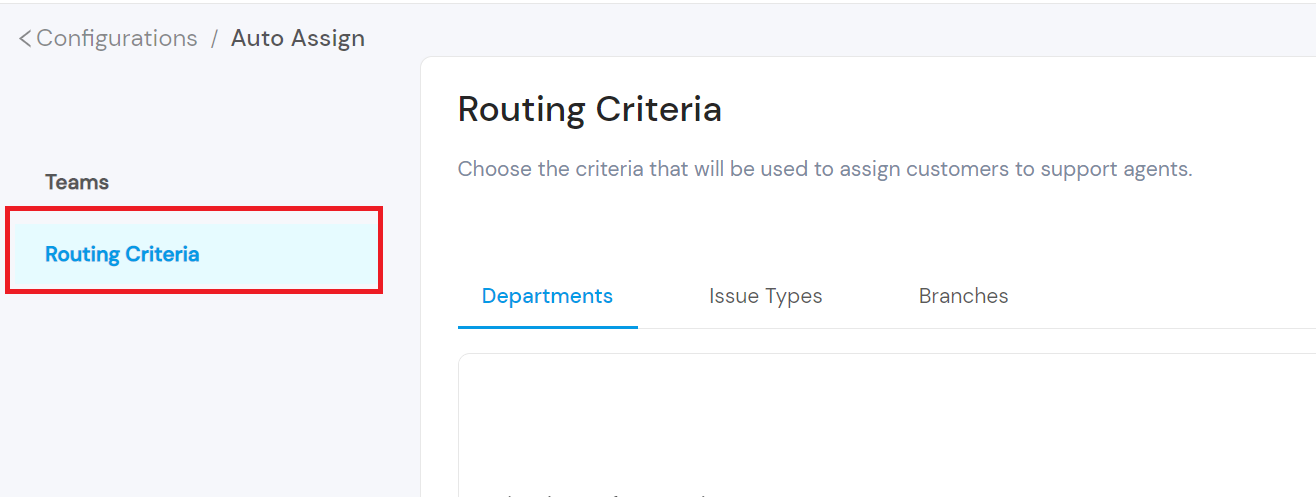
2. Click on Routing Criteria
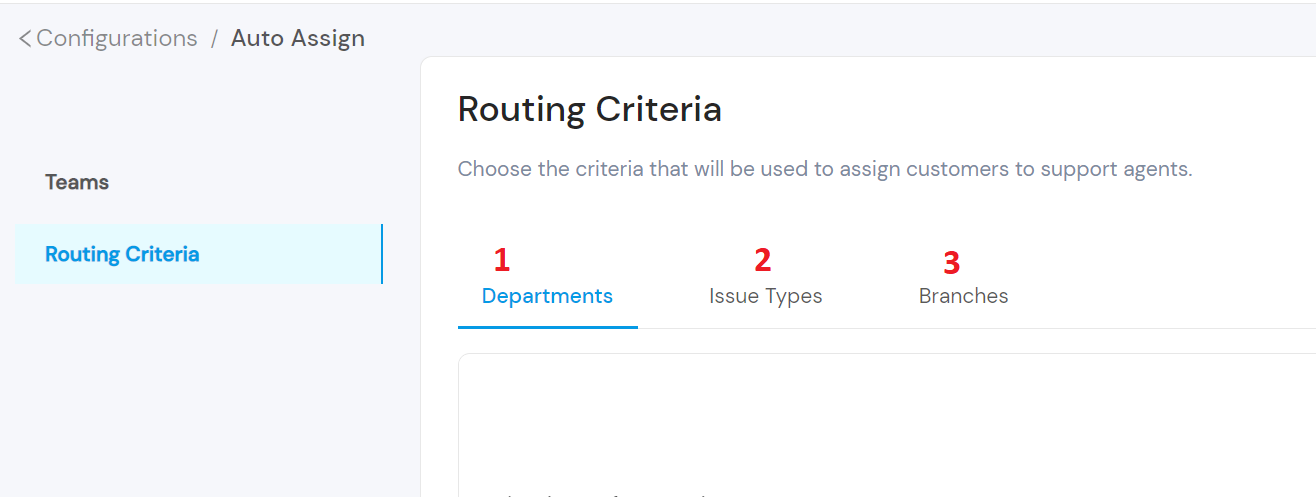
3. Choose from the routing criteria: department, issue type, or branch.
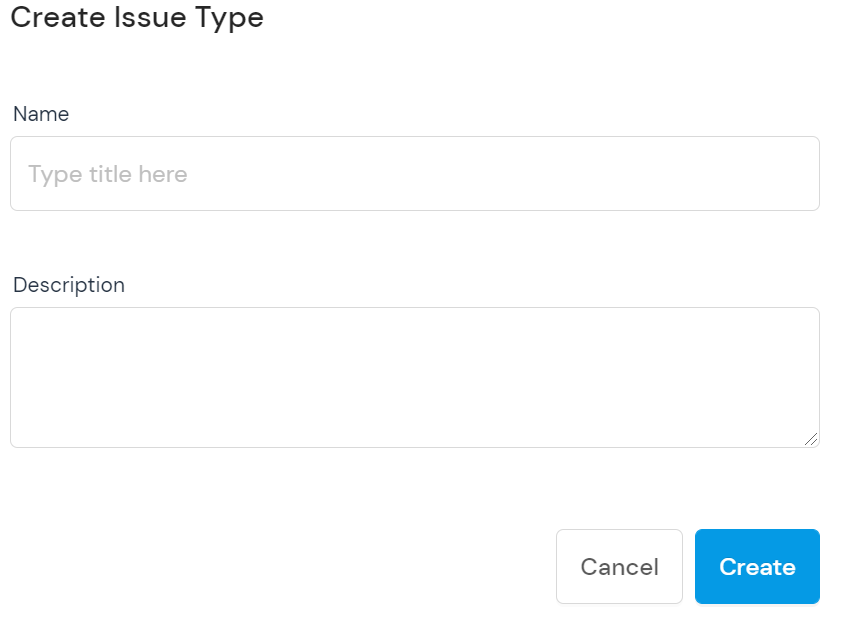
4. Move your mouse over your preferred criteria and click Create Issue Type.
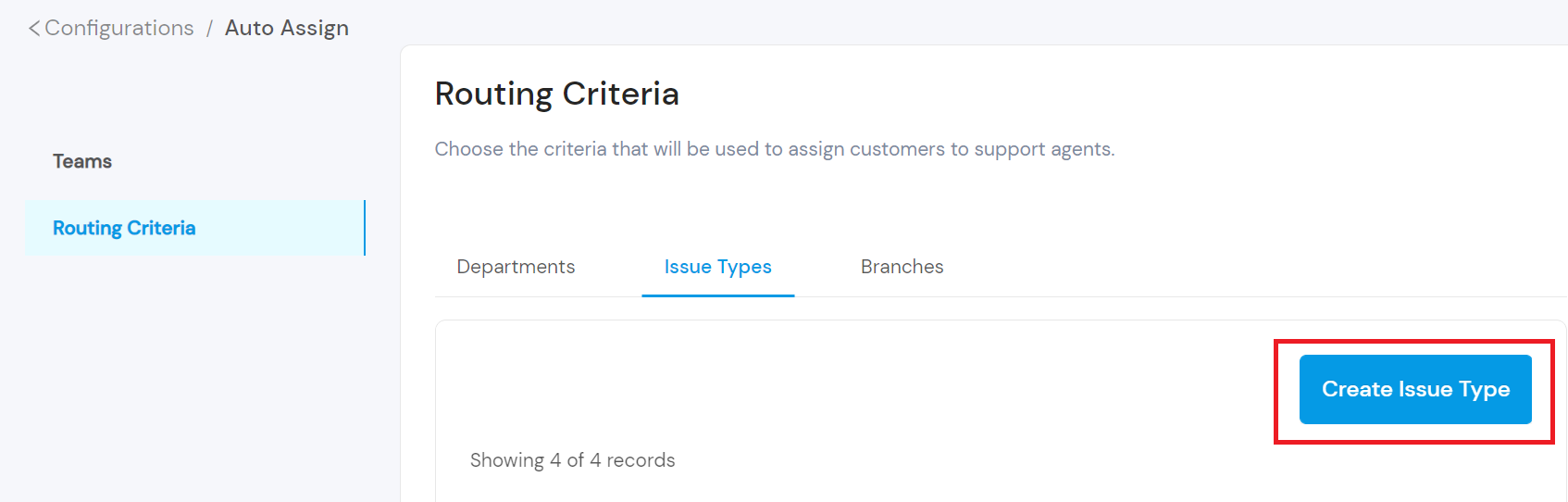
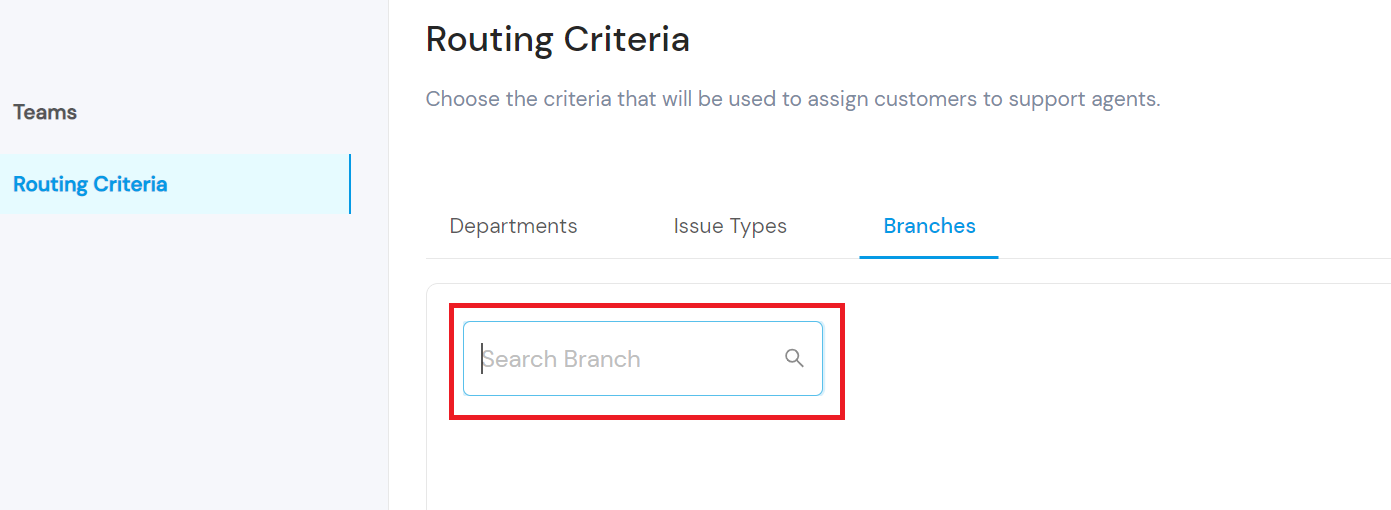
Note: The label Create Issue Type appears because the selected routing criteria is Issue Type. If you select Department, the option becomes Create Department. If you select Branch, you will be prompted to search for a branch.
The branch criteria is only available for customers using Google’s Business Messages channel.
5. Fill in the title of the issue and a short description.
How to create a team
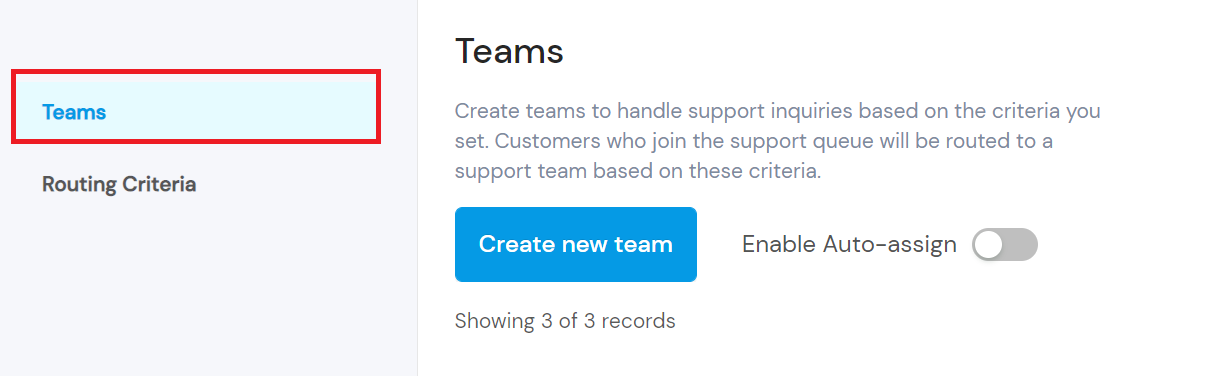
After setting your routing criteria, the next step is to create your team. Click on Teams.
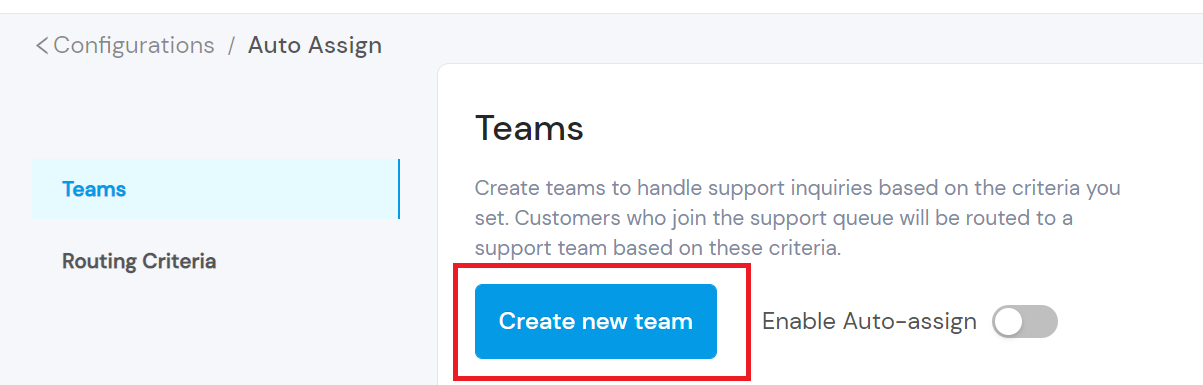
Next, click on Create New Team.
A modal opens. Fill in the information in the modal:
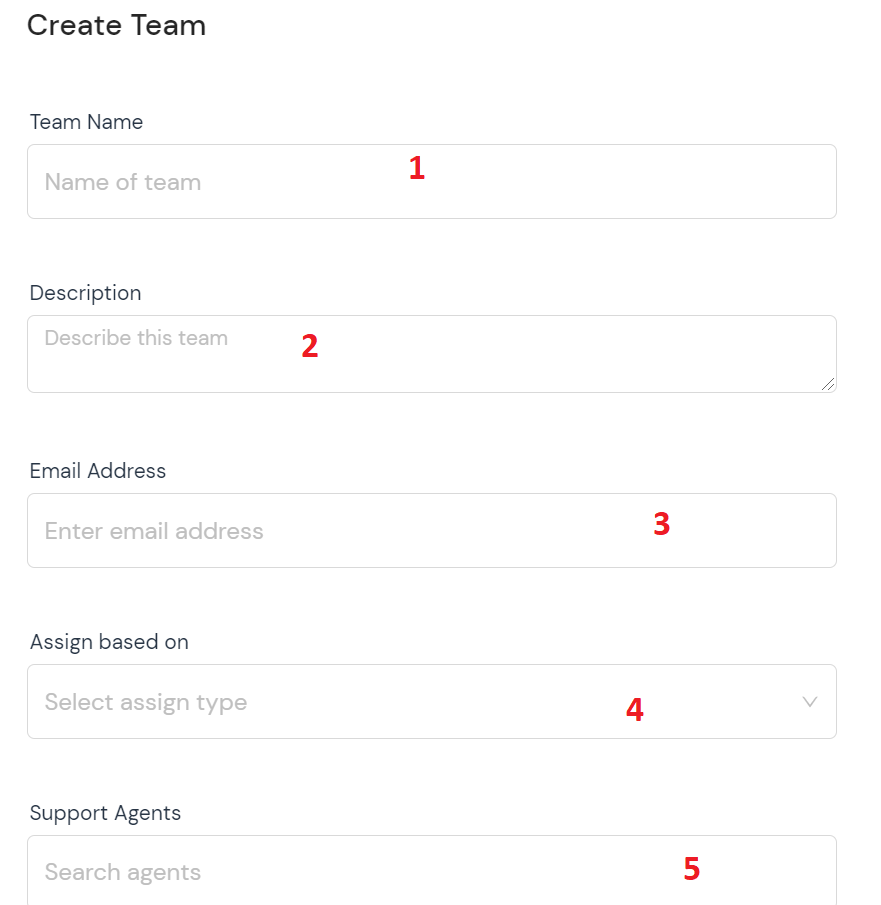
- Fill in the name of your team
- Provide a brief description of the team
- Fill in your email address
- Select the criteria you’re using for assignment (department, issue type, branch, channel, or customer type)
- Search for the agents you want to add to the team (these agents must be eBanqo Messenger users)