


This guide is designed to help you customize your bot to align with your organization’s structure and goals. Below, you’ll find detailed descriptions of each setting and how they can be configured.
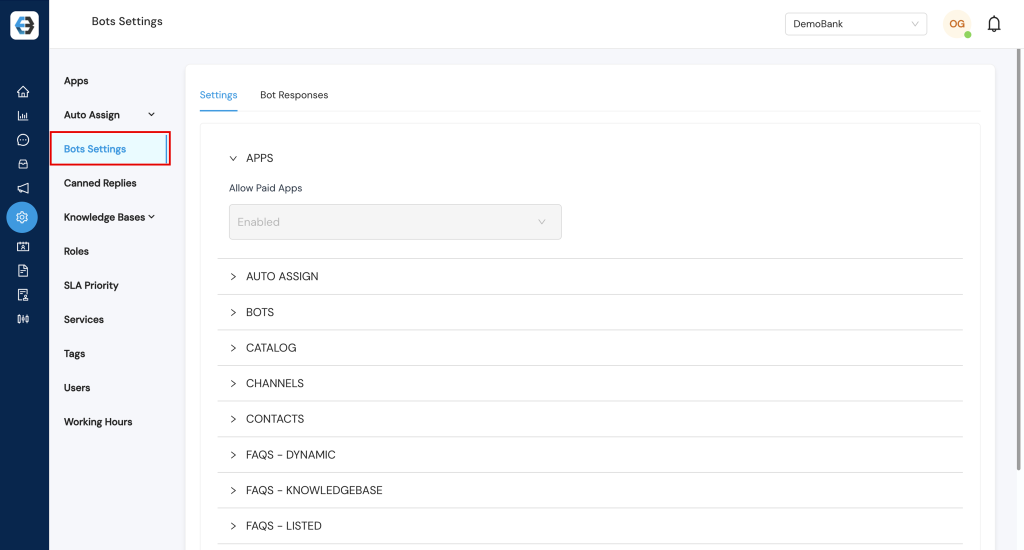
Overview
Bot Settings allow you to tailor your Bot to meet your specific operational needs. Whether it’s managing integrations with the apps, allowing instant responses, streamlining customer assigning, optimizing your support queue, providing feedback, or reporting customer issues, these settings give you the flexibility to enhance your customer experience.
1. APPS
Allow Paid Apps
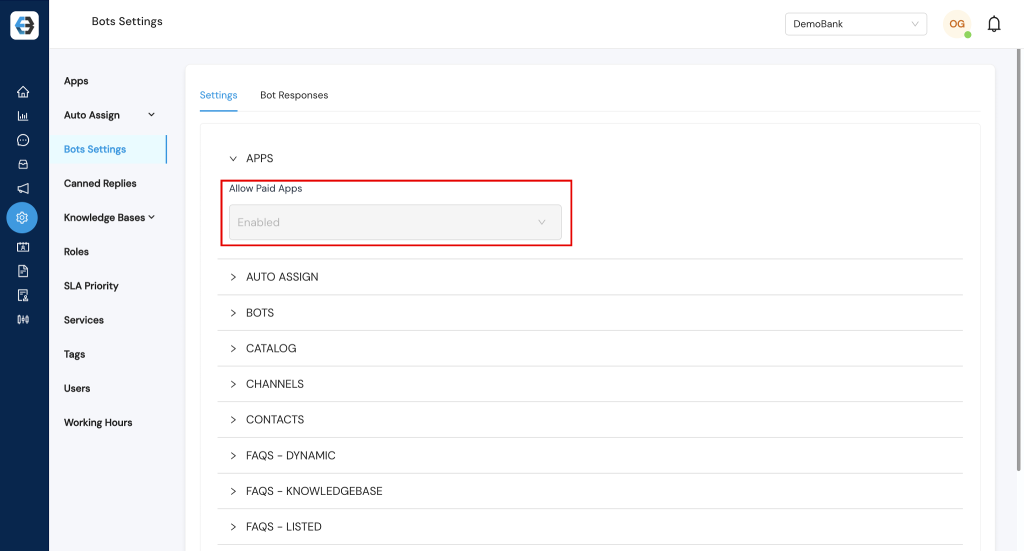
Description: This option provides two choices: “Enable” or “Disable”.
– Enable: Activates the use of paid apps on eBanqo, such as Facebook, Instagram, Twitter, etc.
– Disable: Deactivates the use of these paid apps.
2. AUTO ASSIGN
Auto-Assign helps route customer requests to specialized teams based on predefined criteria, ensuring that each customer is connected with the most appropriate agent.
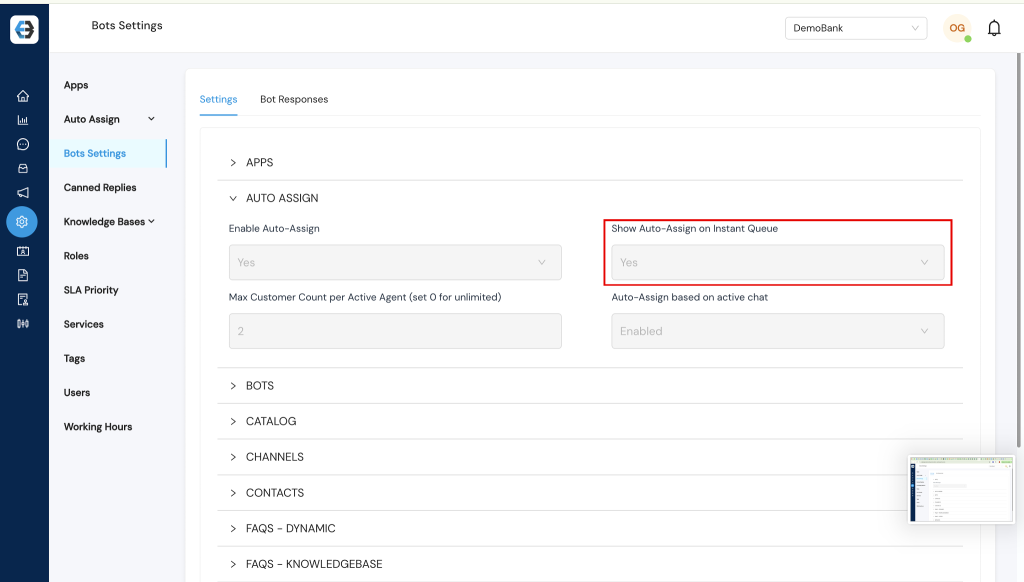
Show Auto-Assign on Instant Queue
– When enabled, this feature allows customers to select a department or issue type as they are transferred to your support queue.
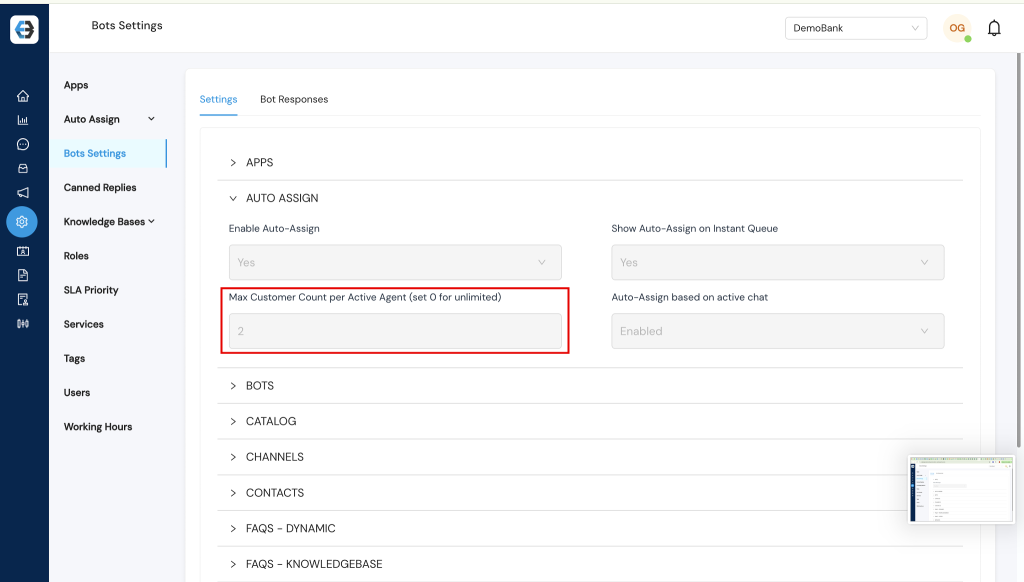
Max Customer Count per Active Agent
– Set a cap on the total number of assigned and active chats that each agent can manage simultaneously.
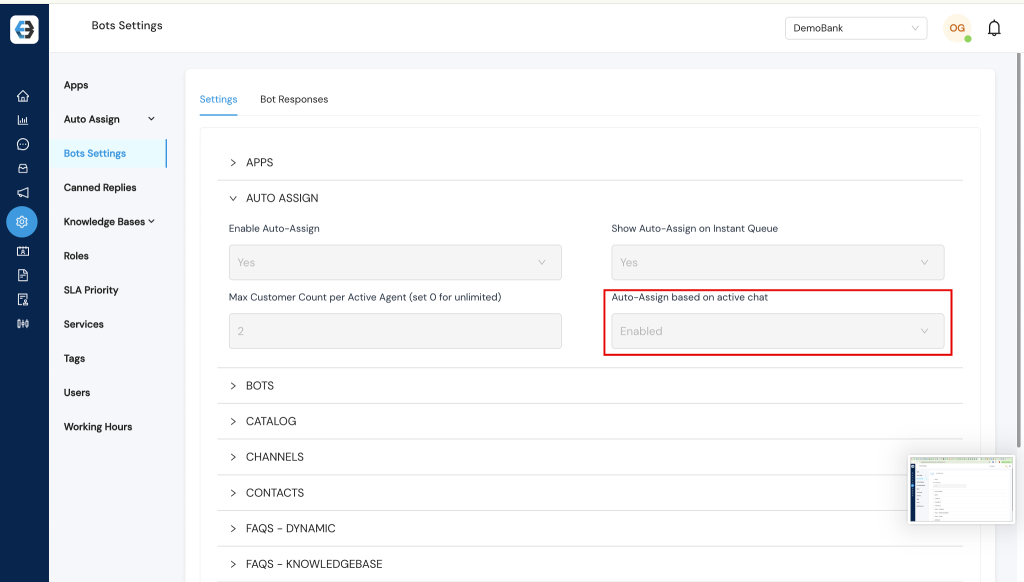
Auto Assign Based on Active Chat
– When enabled, this setting ensures that chats are only assigned to agents who are currently active.
3. SERVICES
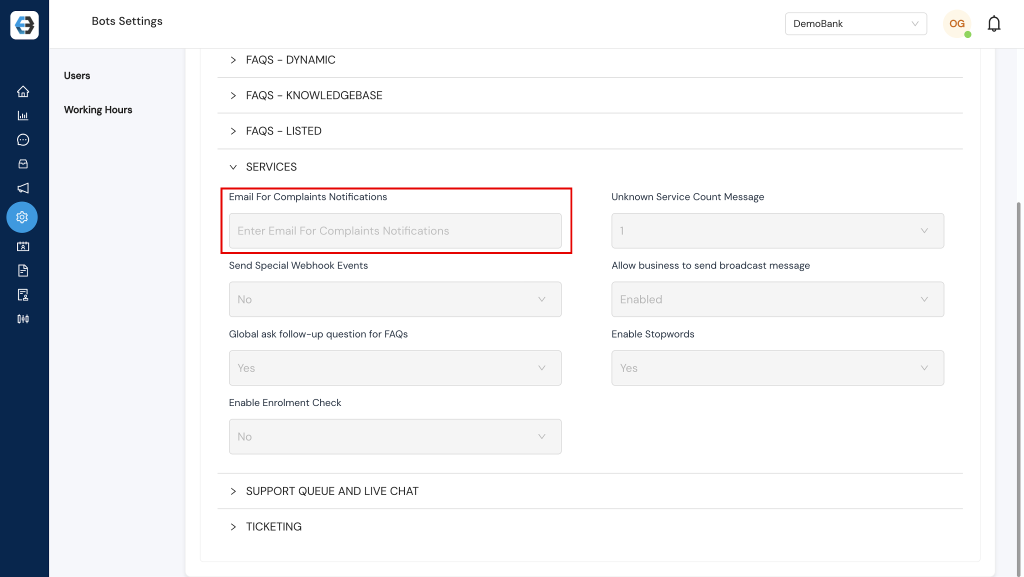
Email for Complaints Notifications
– Enter an email address where customer complaint details will be sent.
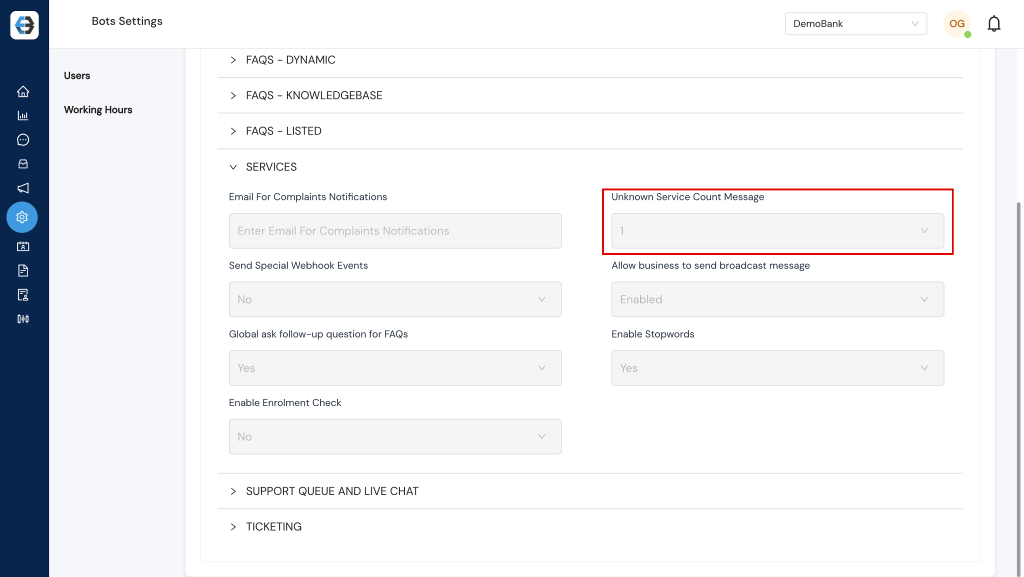
Unknown Service Count Message
– Configure the number of attempts the bot will make to understand a customer request before transferring the conversation to the support queue.
4. SUPPORT QUEUE AND LIVE CHAT
These settings allow you to manage how customer inquiries are handled when they enter your support queue and interact via live chat.
Working Hours
Toggle between:
– Enabled: Specify your support team’s working hours. Outside these hours, messages will not be routed to agents, and customers will be notified that it is outside of working hours, with an option to leave a message (sent to the email for complaints notifications).
– Disabled: Indicates that your support team operates 24/7.
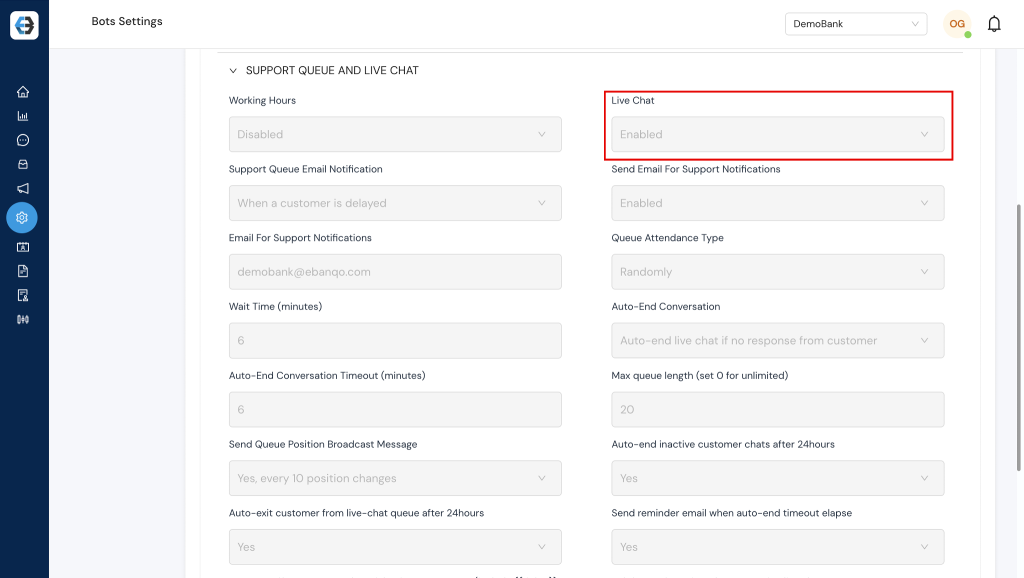
Live Chat
– When enabled, this feature allows customers to join the support queue for real-time assistance.
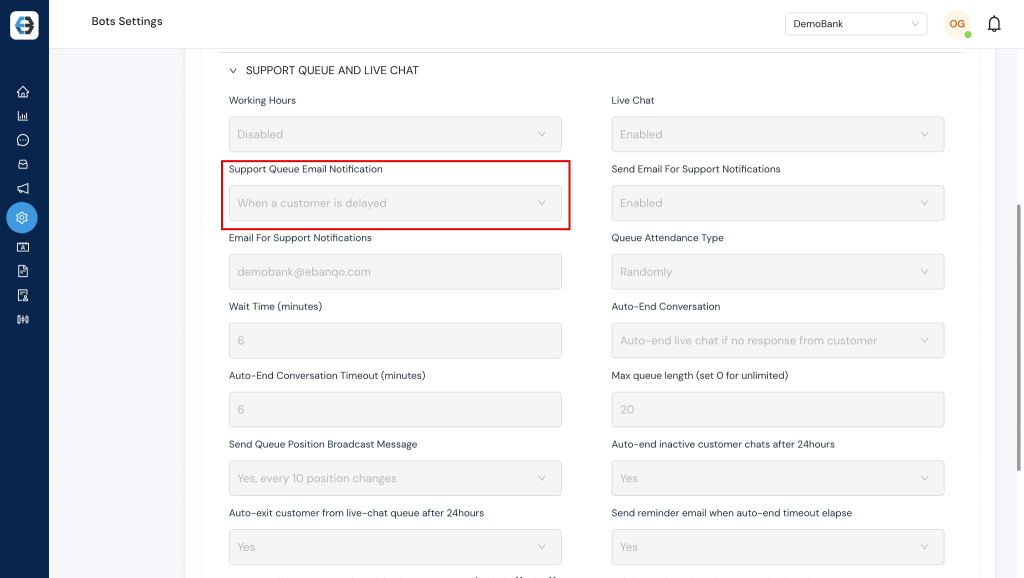
Support Queue Email Notification
– Enter an email address to receive notifications whenever a customer is delayed, joins the queue, or leaves a message outside working hours.
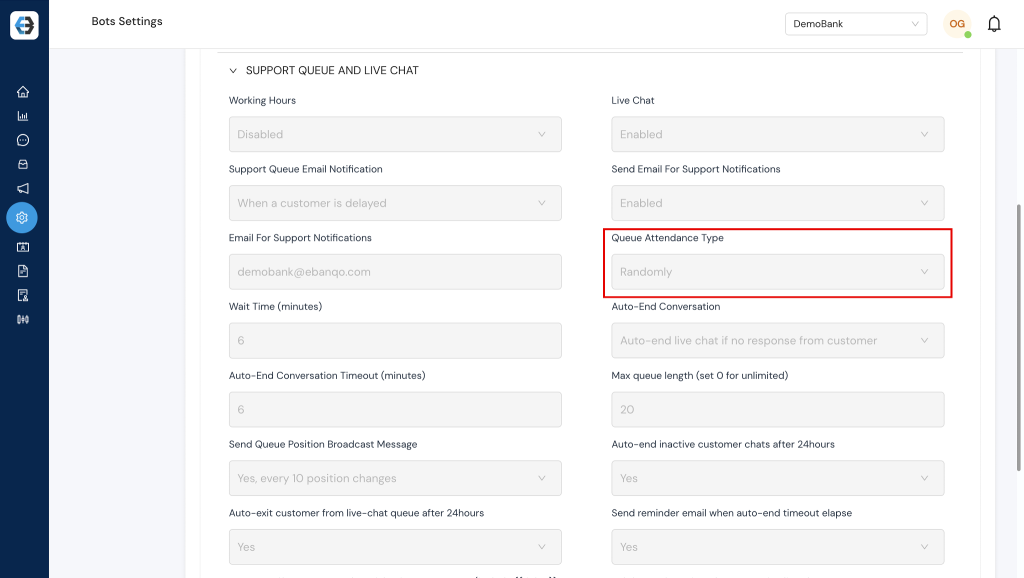
Queue Attendance Type
– Choose whether your support team selects customers from the queue “randomly” or “sequentially”.
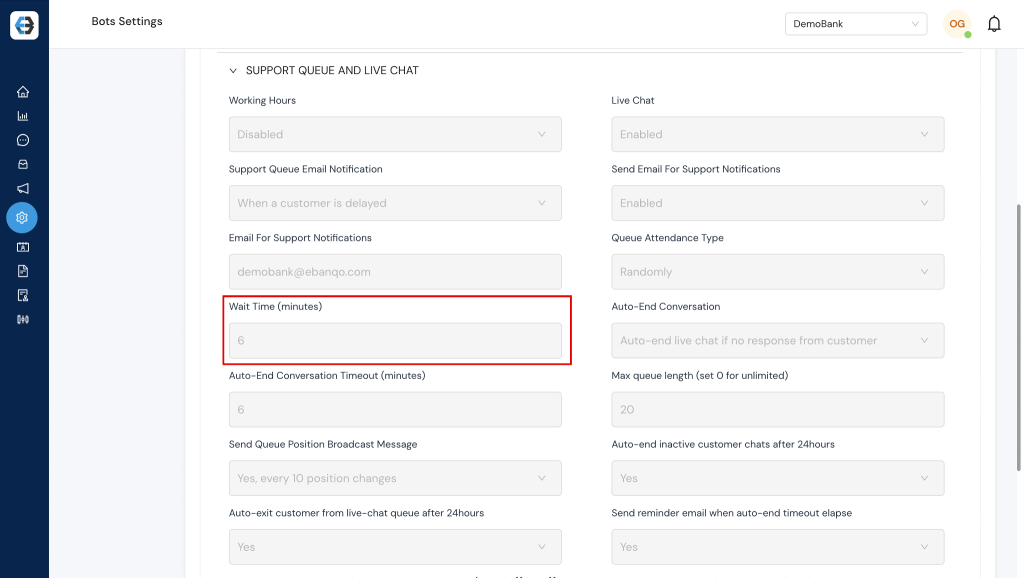
Wait Time (minutes)
– Specify the maximum duration a customer can wait in the support queue before receiving a notification prompting them to either leave a message or continue waiting.
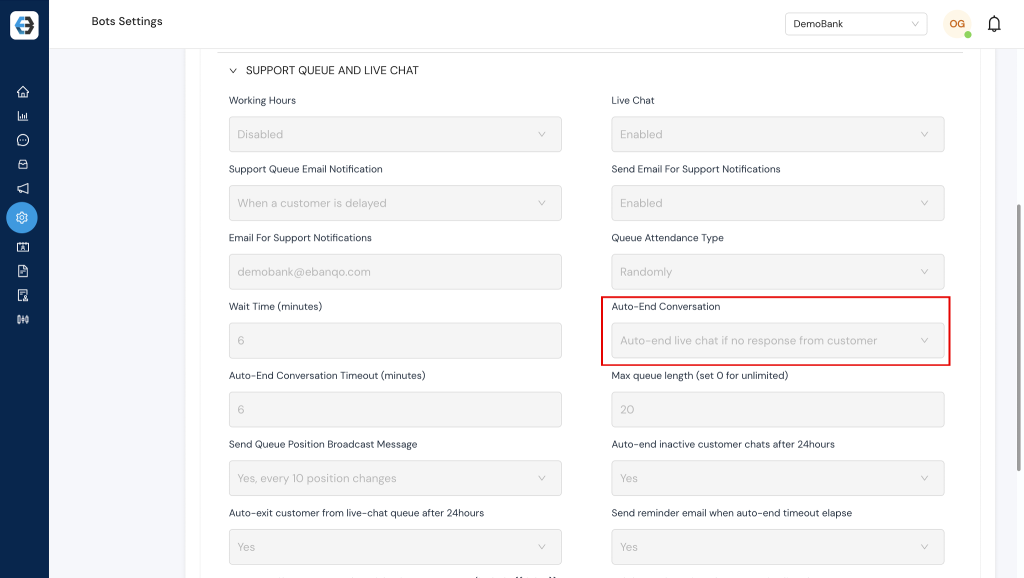
Auto-End Conversation
– When enabled, this feature automatically ends a conversation after a specified period of inactivity from either the customer or the support agent.
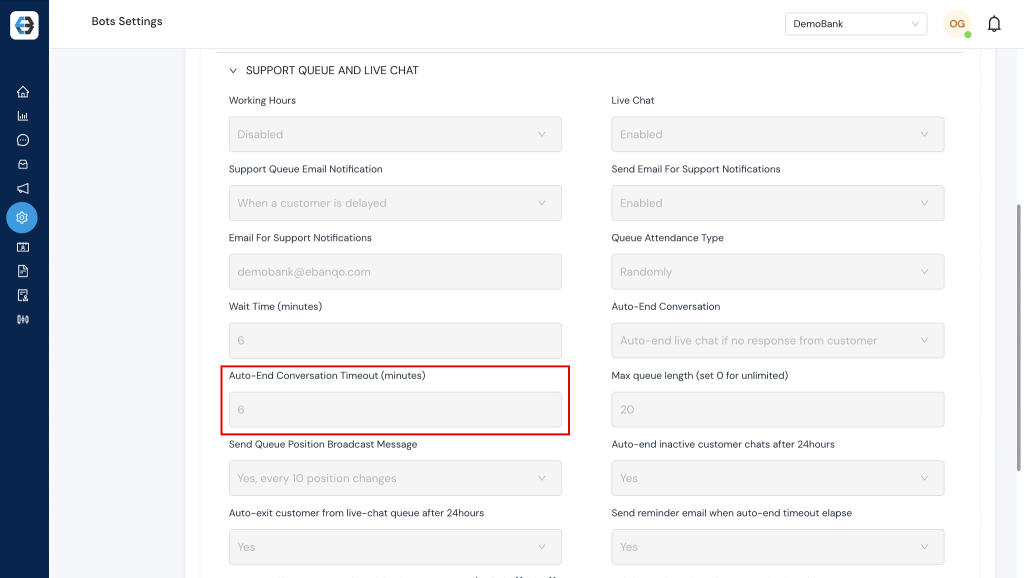
Auto-End Conversation Timeout
– Set the duration (in minutes) of inactivity required to trigger the automatic ending of a conversation.
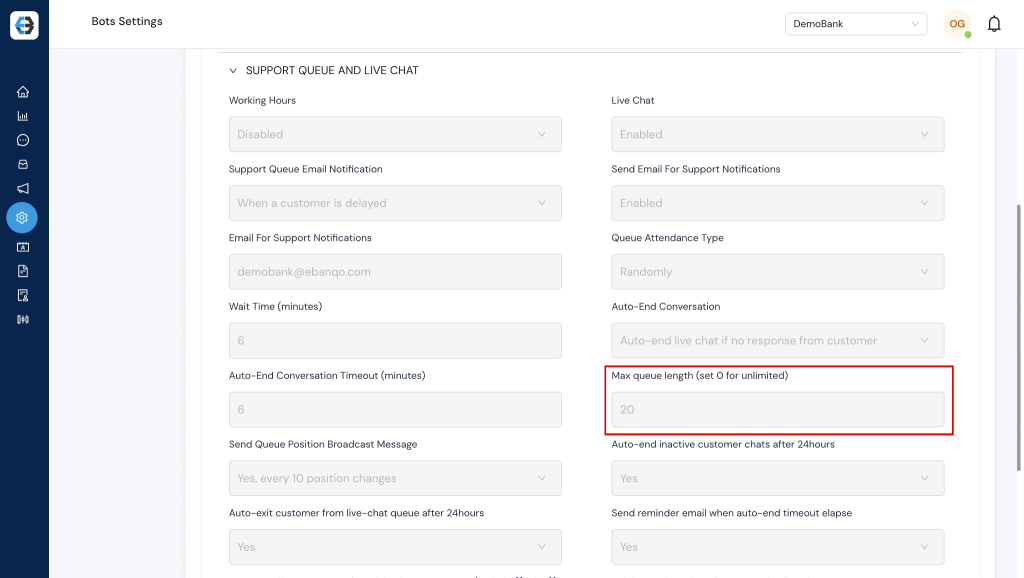
Max Queue Length
– Description: Define the maximum number of customers that can be in the support queue at time.
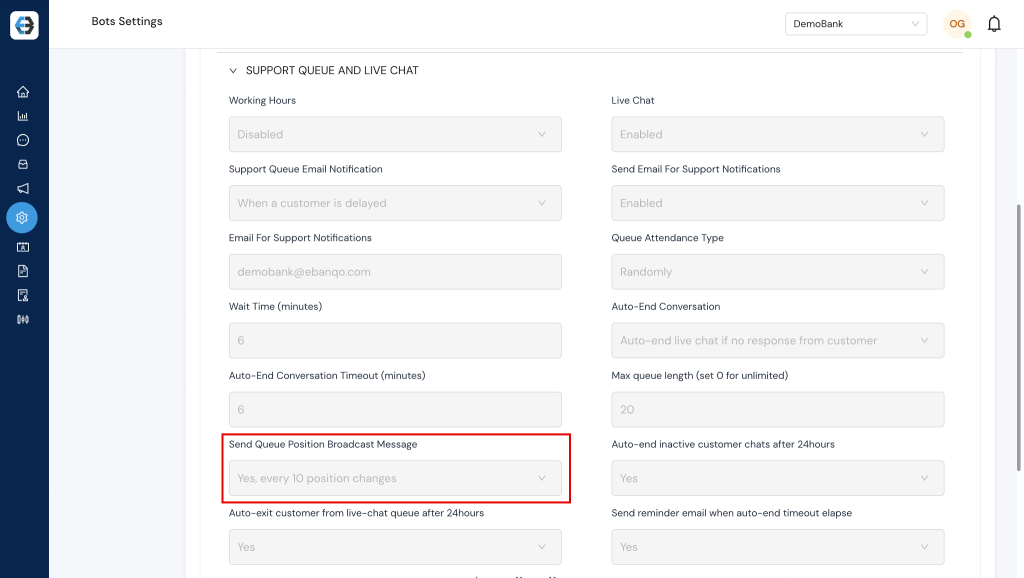
Send Queue Position Broadcast Message
– When enabled, this setting notifies customers of their current position in the support queue, with customizable options for how these notifications are delivered.
Need Further Assistance?
If you have any questions or need additional support with your bot settings, please reach out to our support team at customersuccess@ebanqo.com
Happy customizing!