

Users with permissions are allowed access to the Broadcast messages to initiate 2 Way Engagement with customers with use cases such as; promos, collection of feedback, distribution of Information, OTP Authentication, etc.
Types of Broadcast messages;
- Template broadcast messages
- Free Text broadcast messages
Creating Broadcast Message Templates
Before users can send a template broadcast message, you first create a template to send as a broadcast message to initiate 2 Way Engagement you will take the following steps;
- Go to Broadcast messages on the side menu.
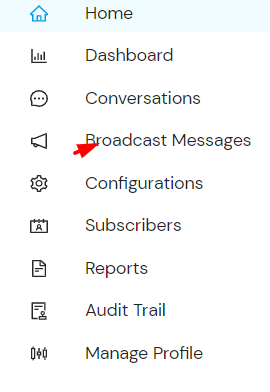 Select the Manage Templates and click on “add template”
- Fill in the provided fields accordingly.
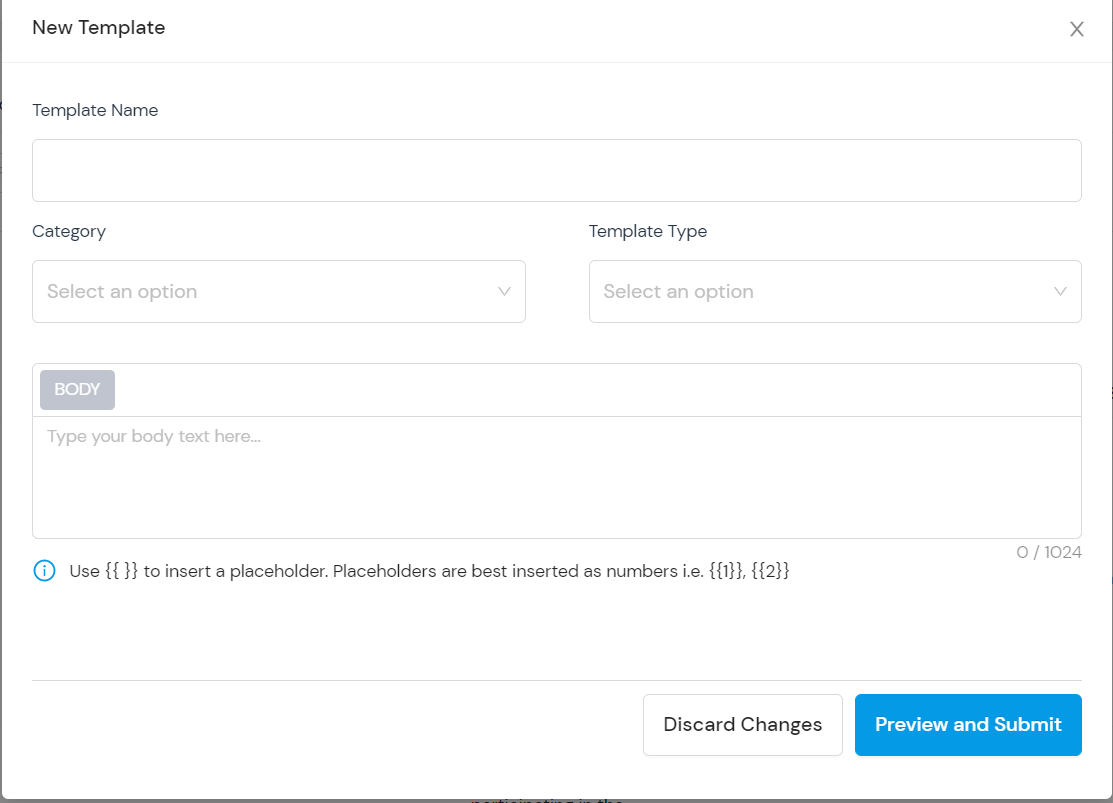
- Select the template category from the drop-down options available.
- Select the Template type from the drop-down e.g Standard(text only) and insert text then click on preview and submit.
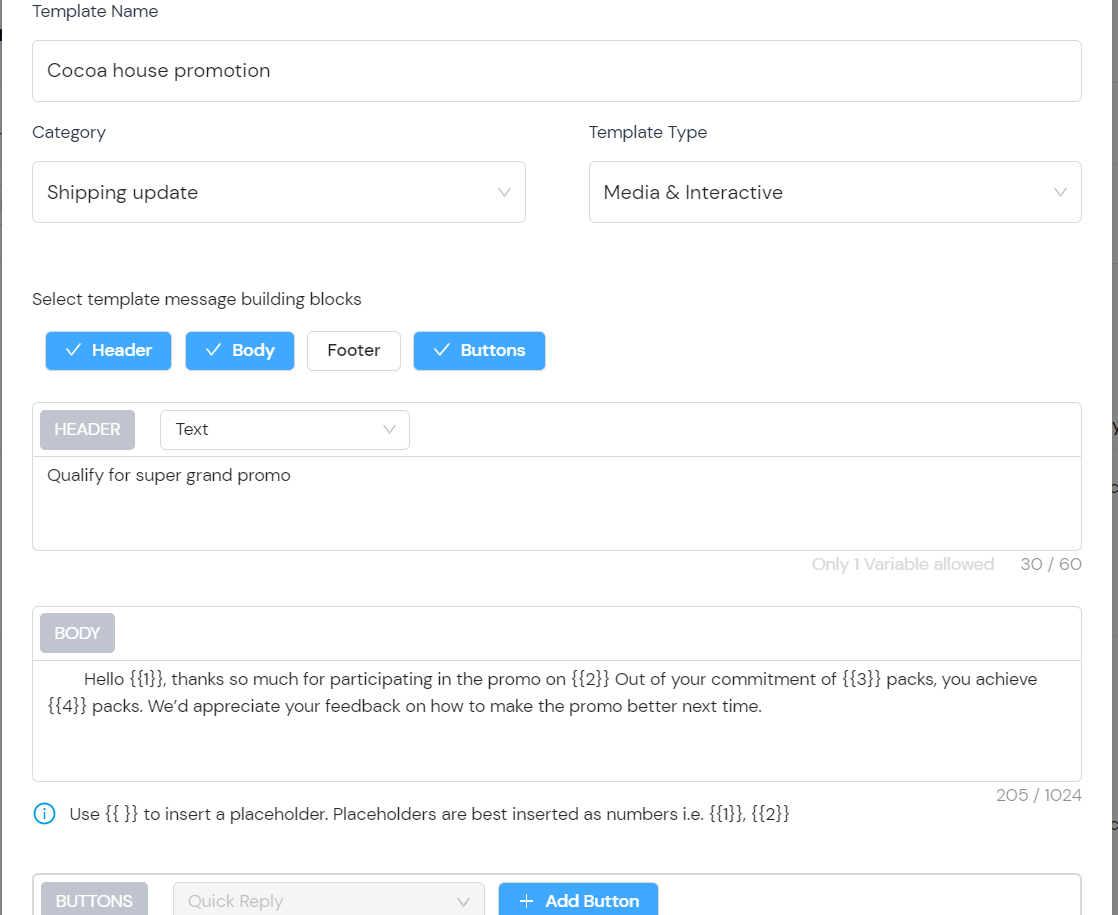
- Select the Template type from the drop-down e.g Media and Interactive and insert desired media with placeholders and interactions on the templates, then click on preview and Submit.
Send Broadcast Message (Free text)
To initiate 2-way engagement :
- Go to Broadcast messages on the side menu.
- Click on “Create Broadcast Message”
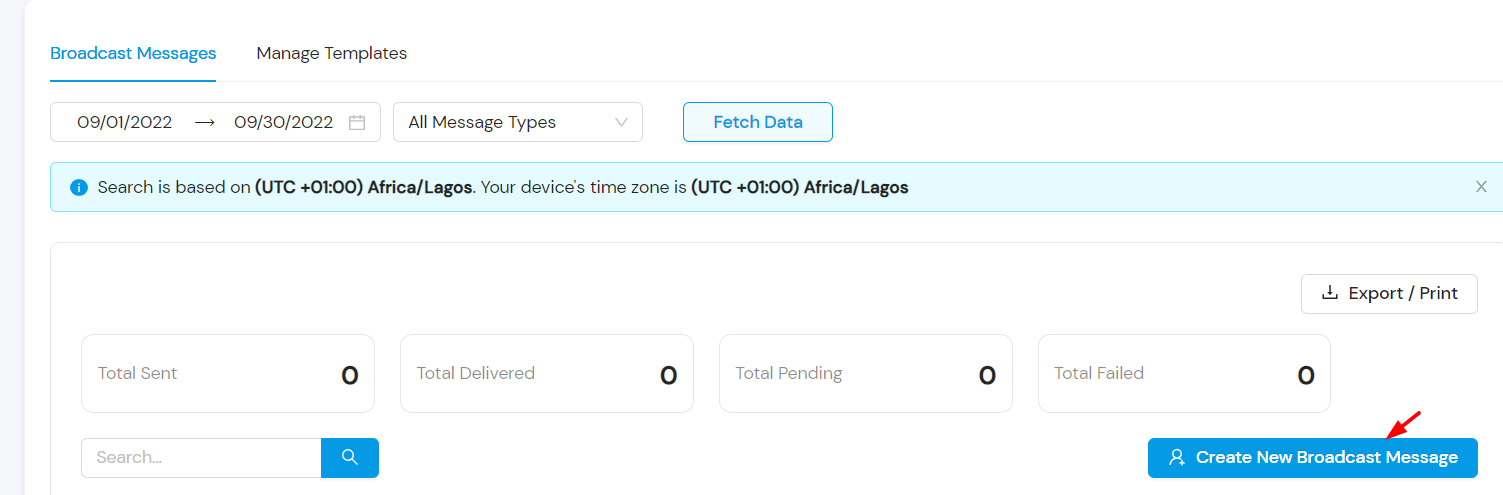
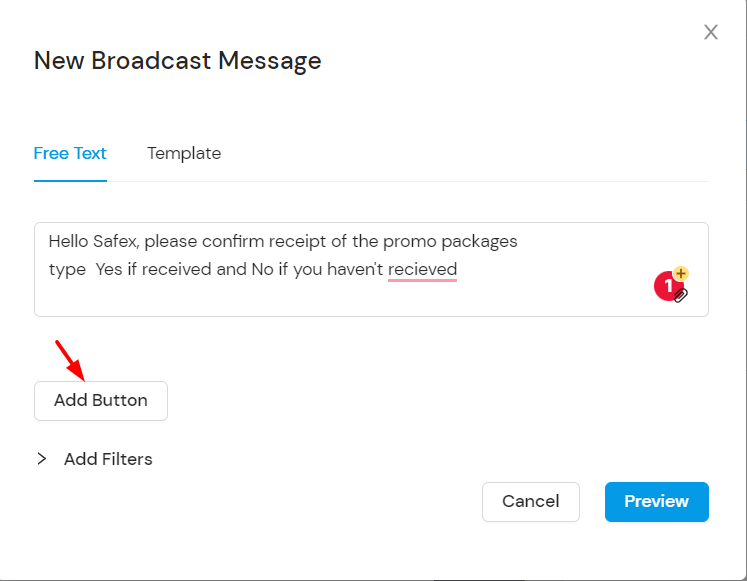
- Select free text and insert the body of your message
- You can add a button to the body of the broadcast message by clicking on “Add Button” and inserting the “button Payload”
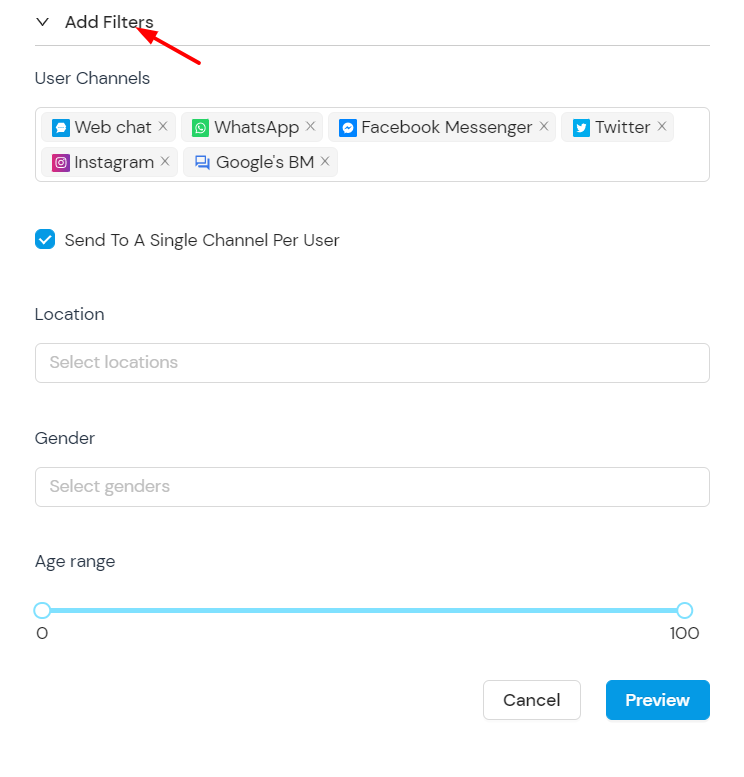
- You can also “add Filters” to filter by channels, location, gender, and age.
- Then click on preview and submit
Send Broadcast Message (Template)
To initiate 2-way engagement :
- Go to Broadcast messages on the side menu.
- Click on “Create Broadcast Message”
- Select “template” and select template messages from the approved options
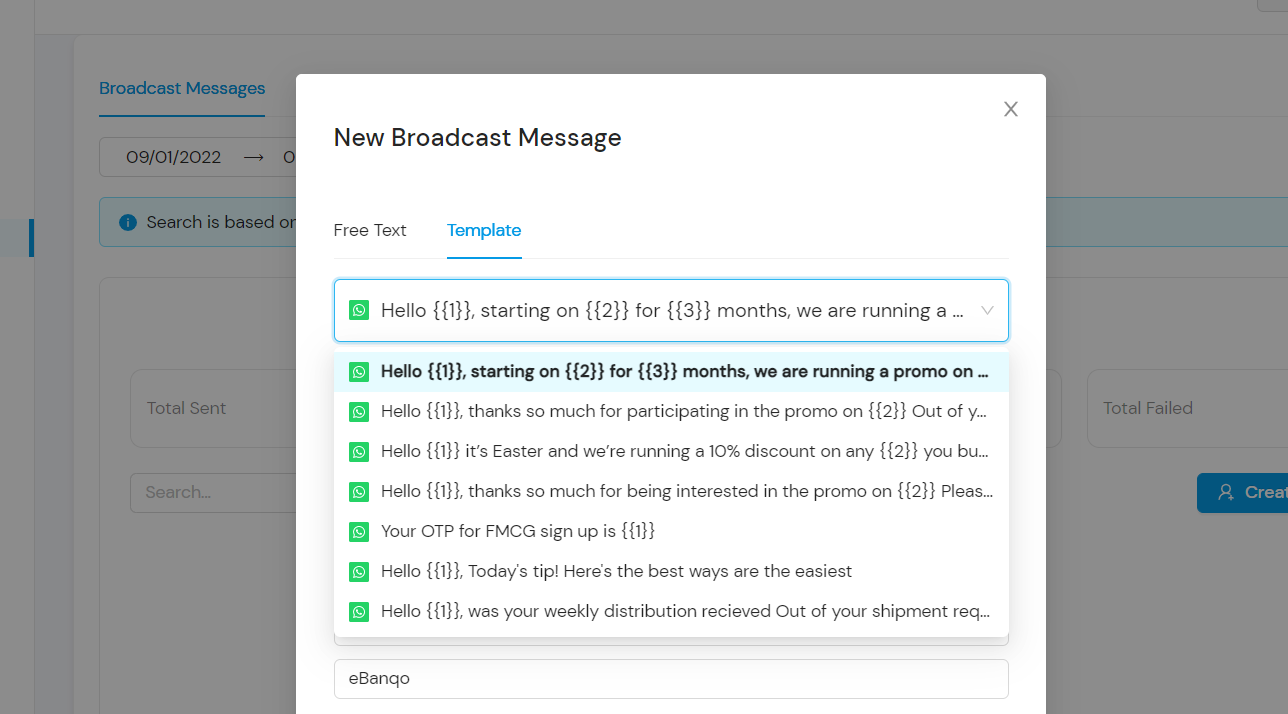
- Insert custom placeholders for identifiers, names, etc.
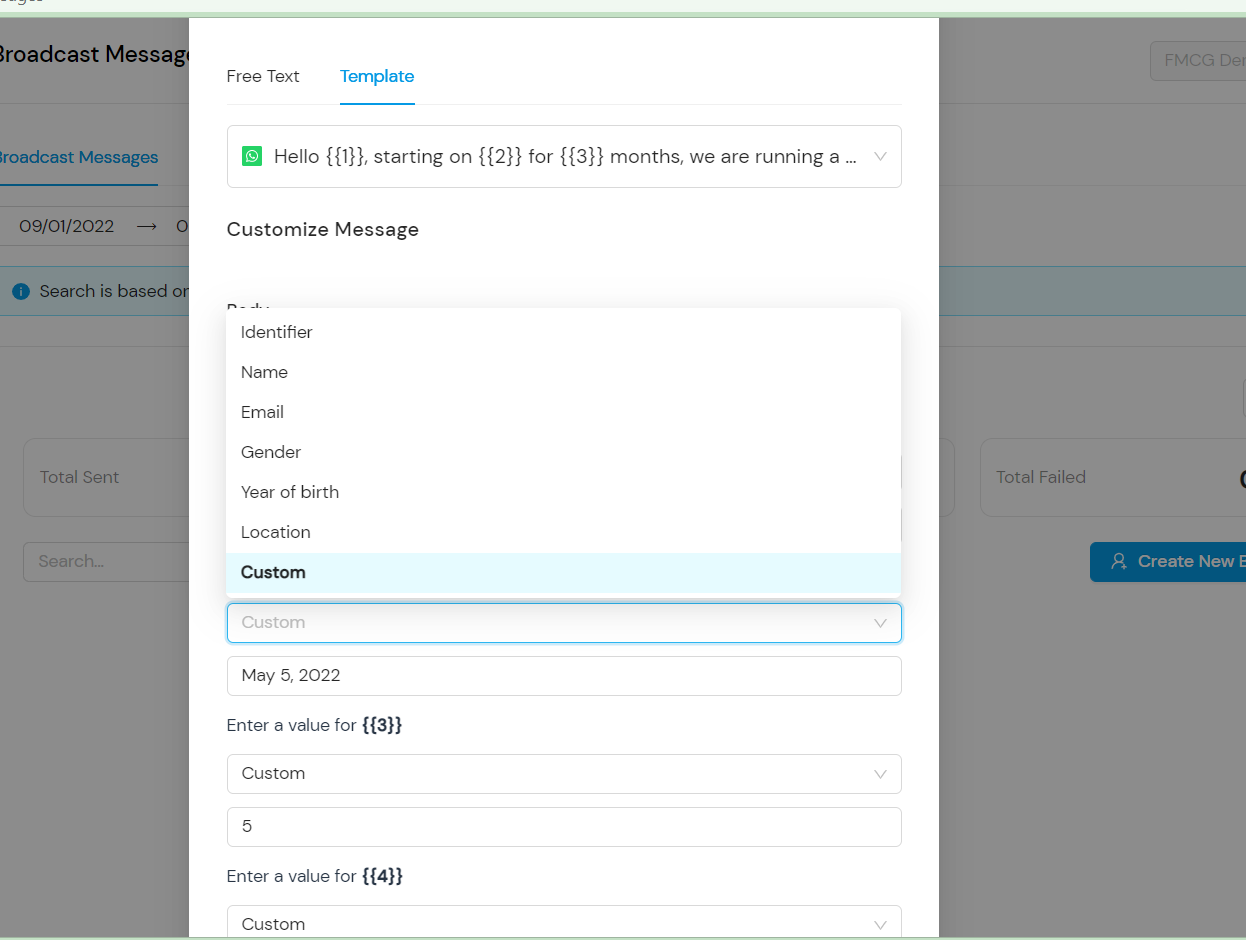
- You can also “add Filters” to filter by channels, location, gender, and age.
- Then click on preview and submit.
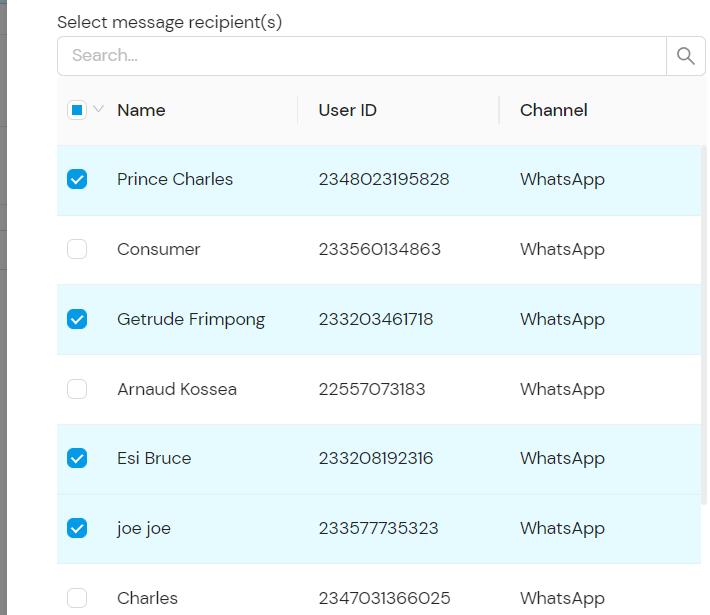
- Select from the list of contacts who you want to be recipients of the Broadcast message.