

How to Configure Listed FAQs on eBanqo
Listed FAQs – A menu-list based chatbot feature that guides users through predefined questions. Users select from menu options, and depending on what they click, the bot provides the defined response to that question.
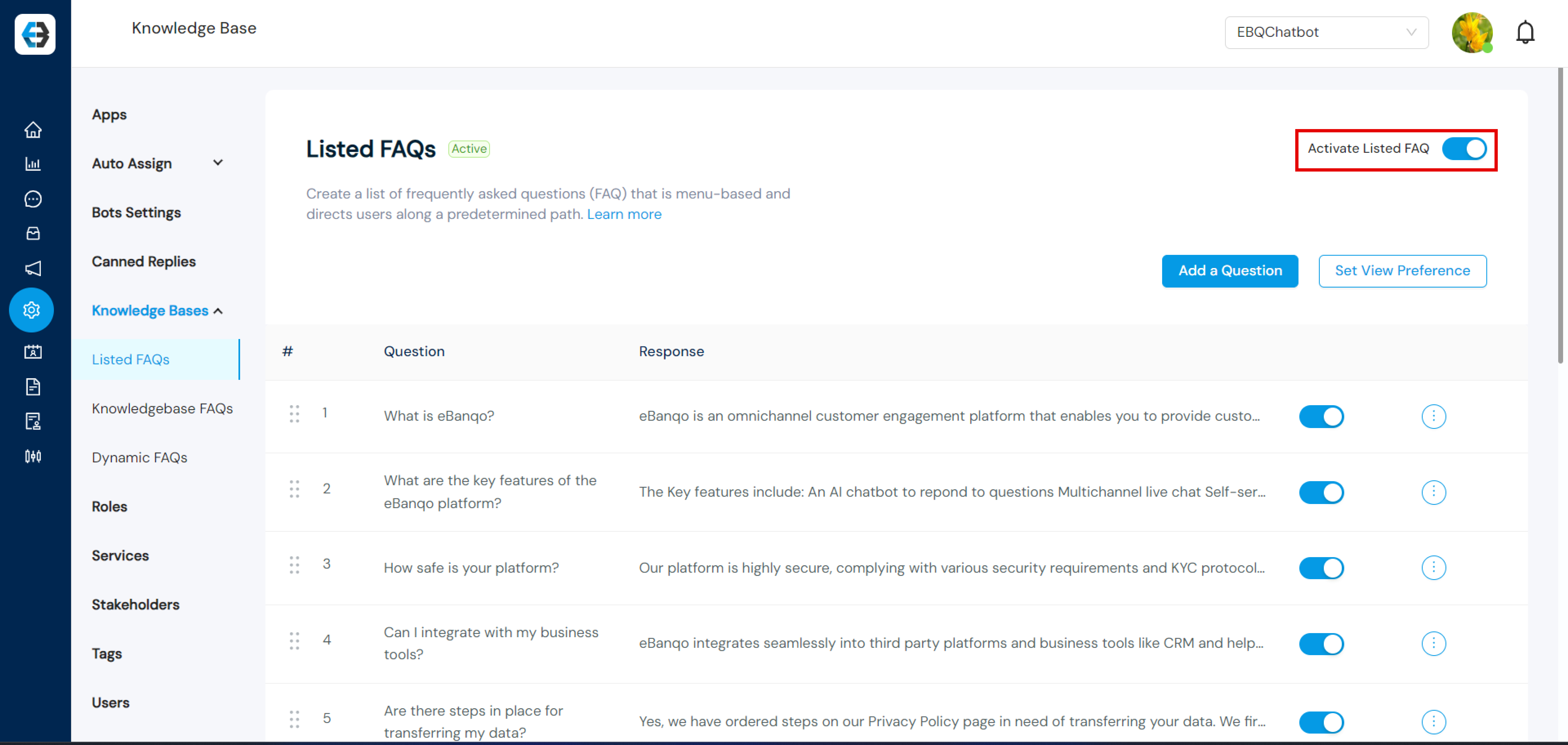
Step 1: Click on Configurations → Knowledge Bases and select Listed FAQs.
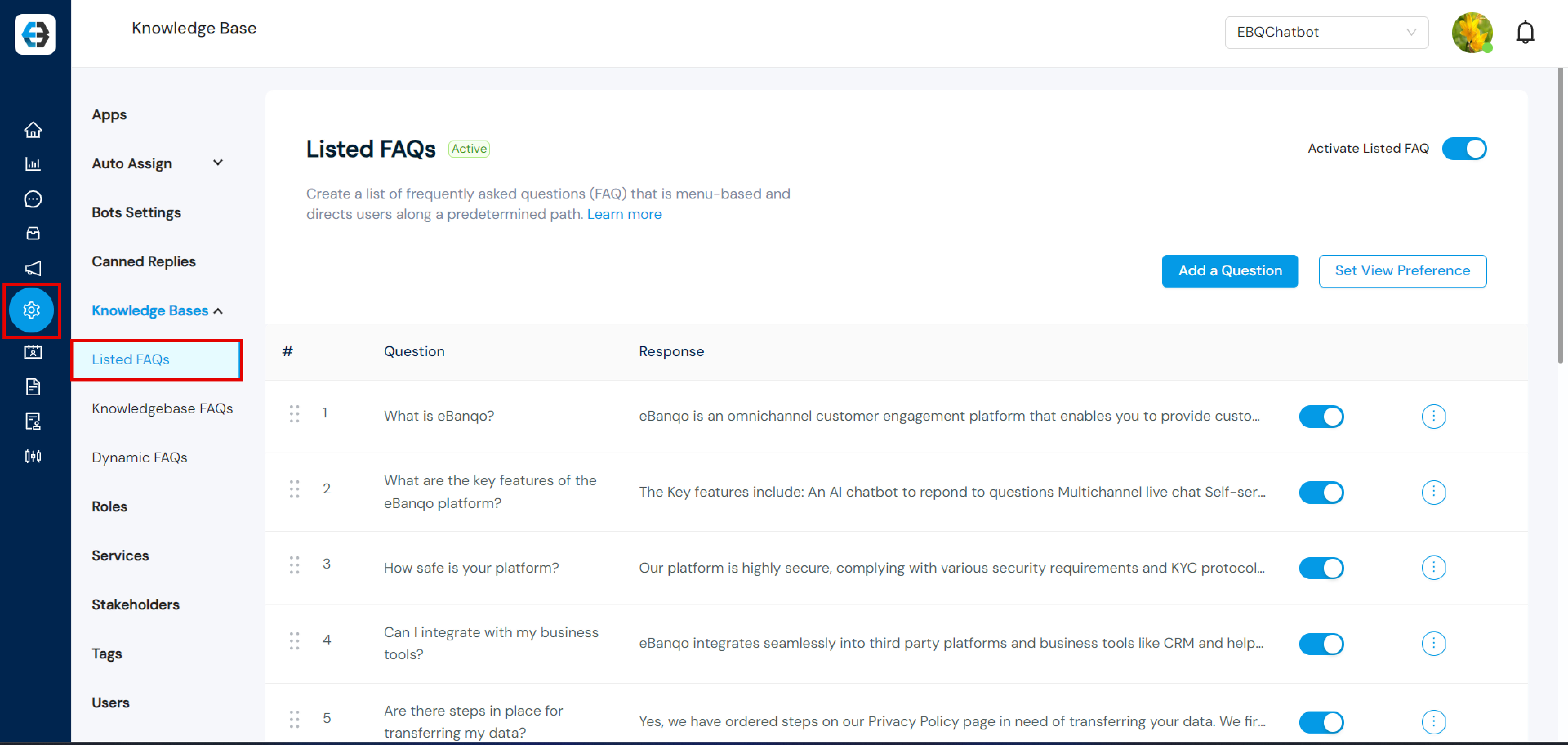
Step 2: Activate Listed FAQs
- Select Listed FAQs and toggle the option to activate it.
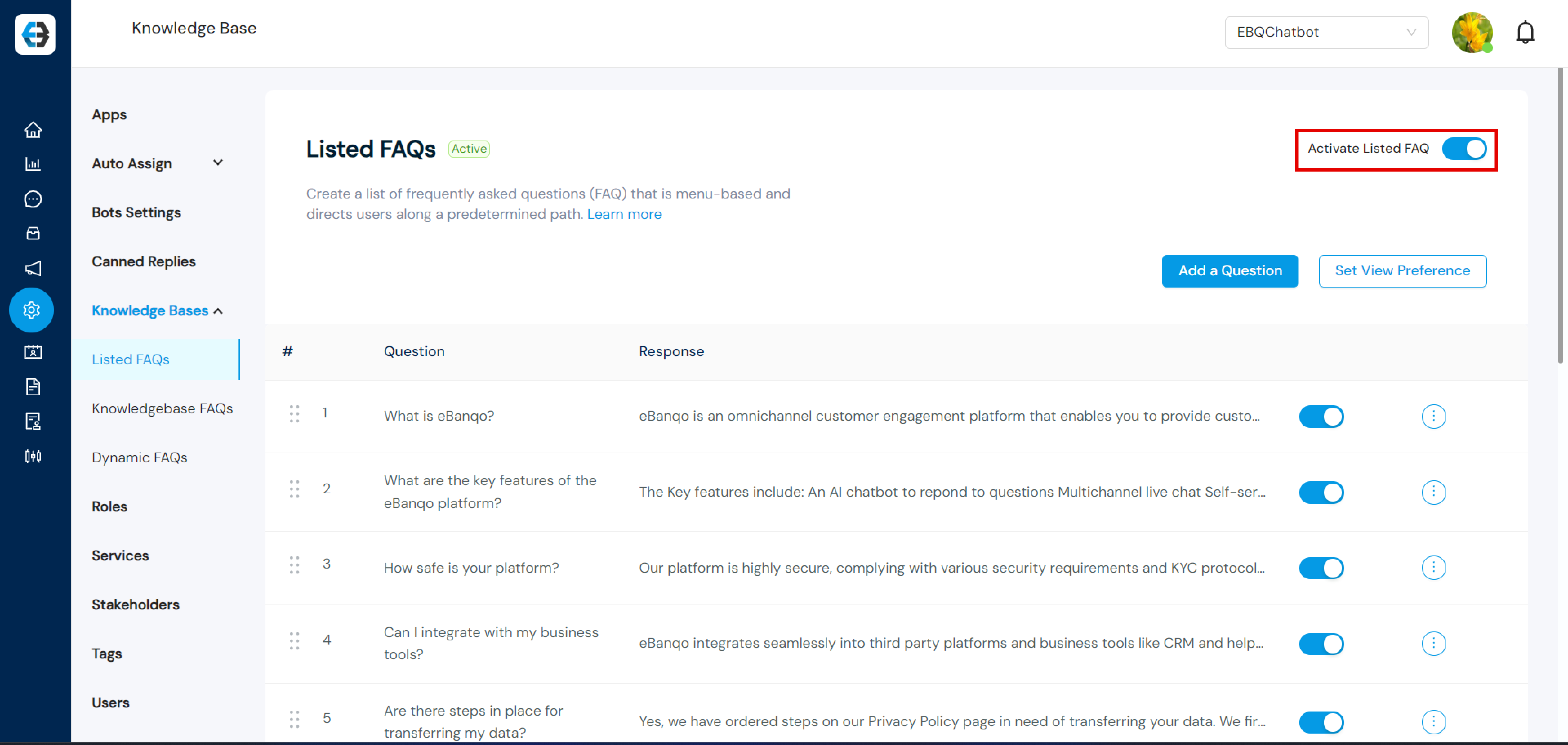
Step 3: Fill in the Question and Response
- Enter your question in the Question field and the corresponding answer in the Response field. Once done, click Create to add the FAQ. Repeat the process to add more FAQs.
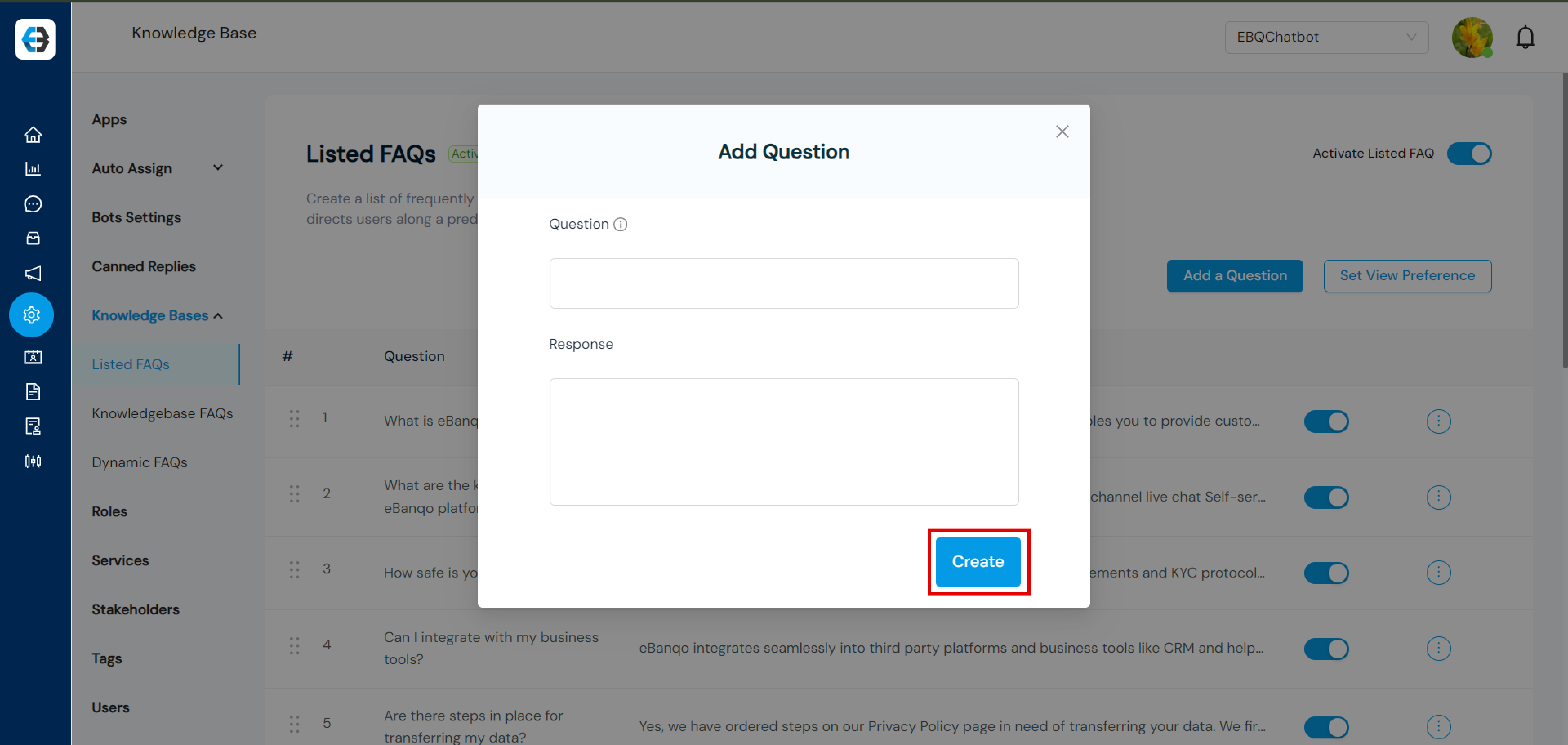
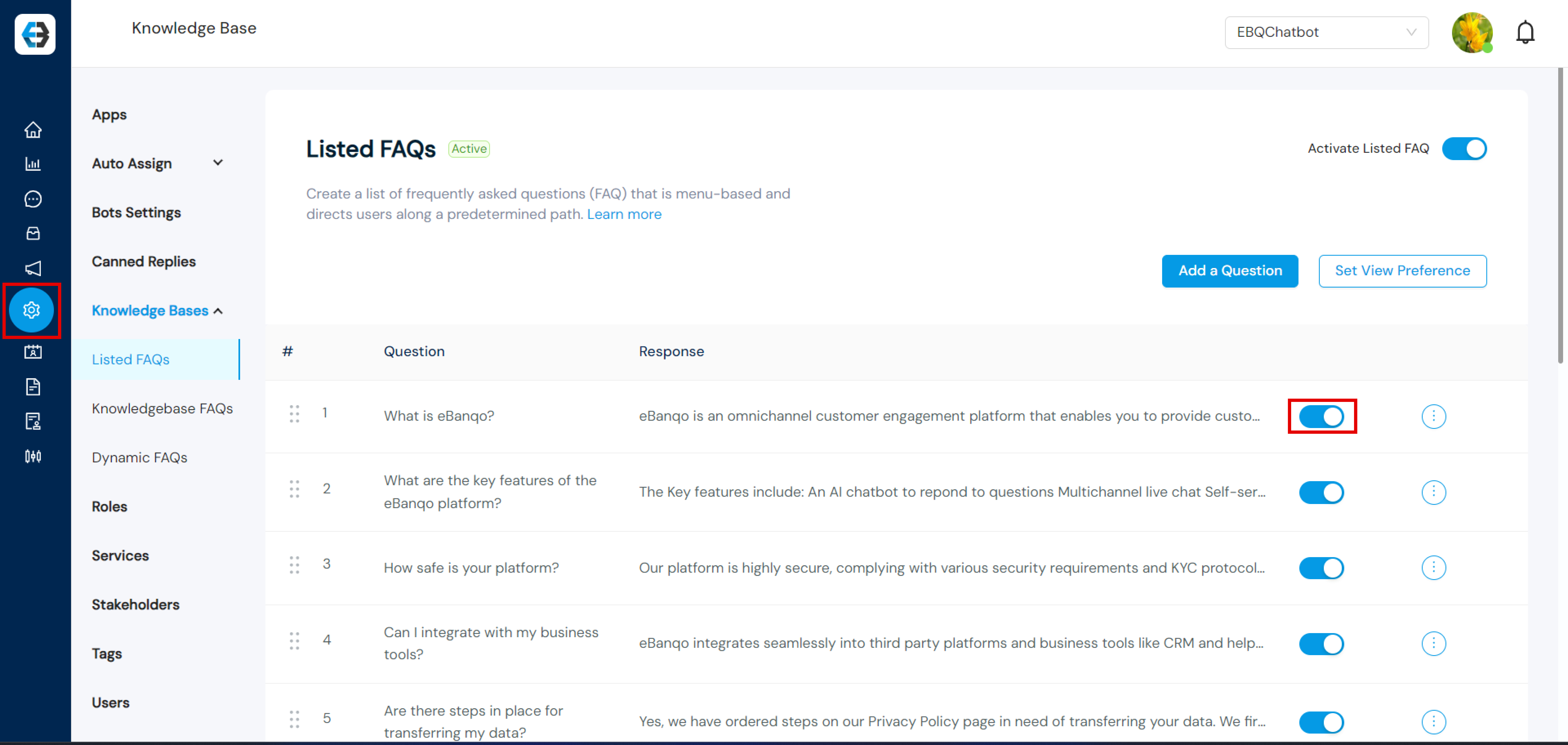
Step 4: Select FAQs for Display
- Use the toggle button next to each FAQ to select which ones you want to display to your customers. Note: You can select up to 12 FAQs.
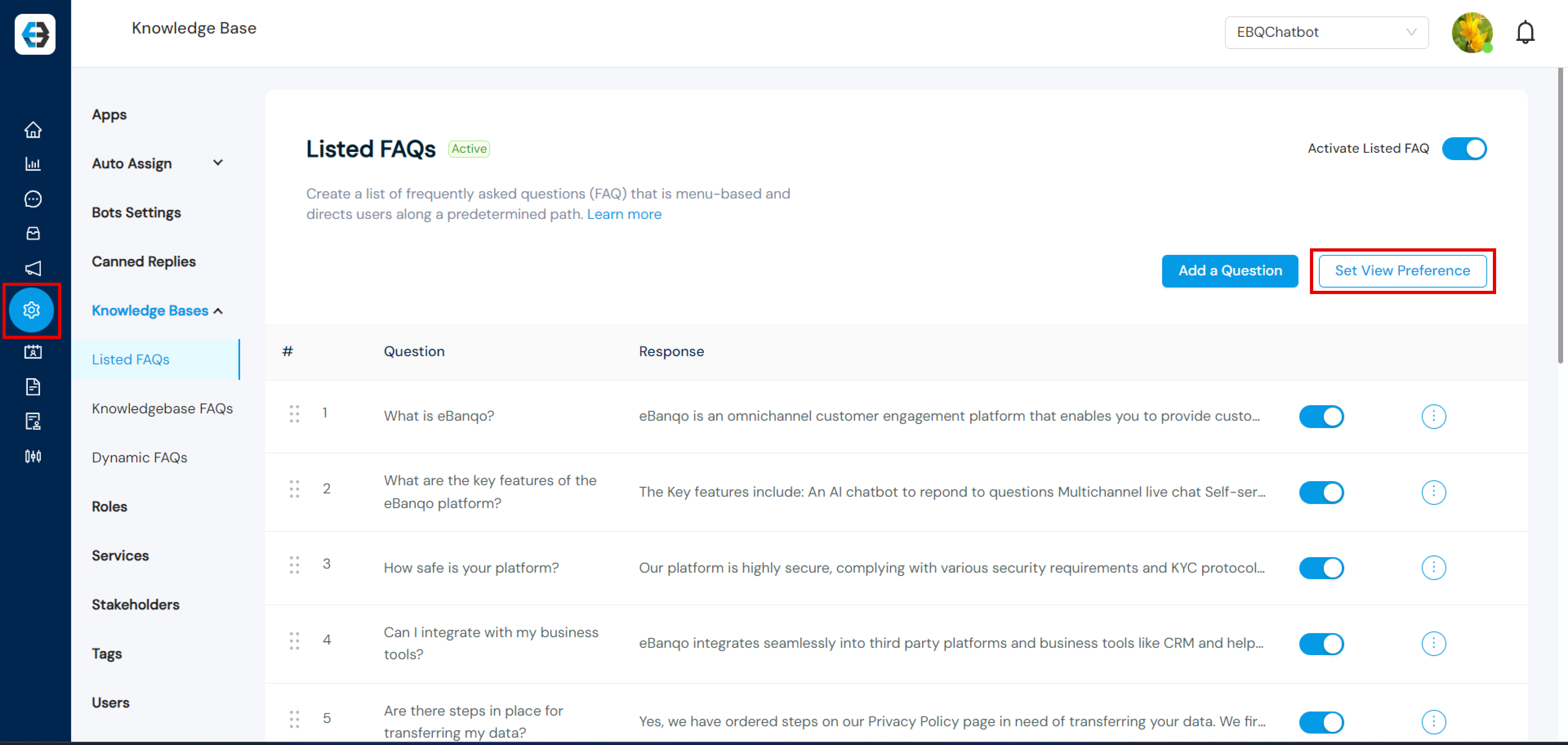
Step 5: Set View Preference
- Click on Set View Preference to choose how your FAQs will be displayed.
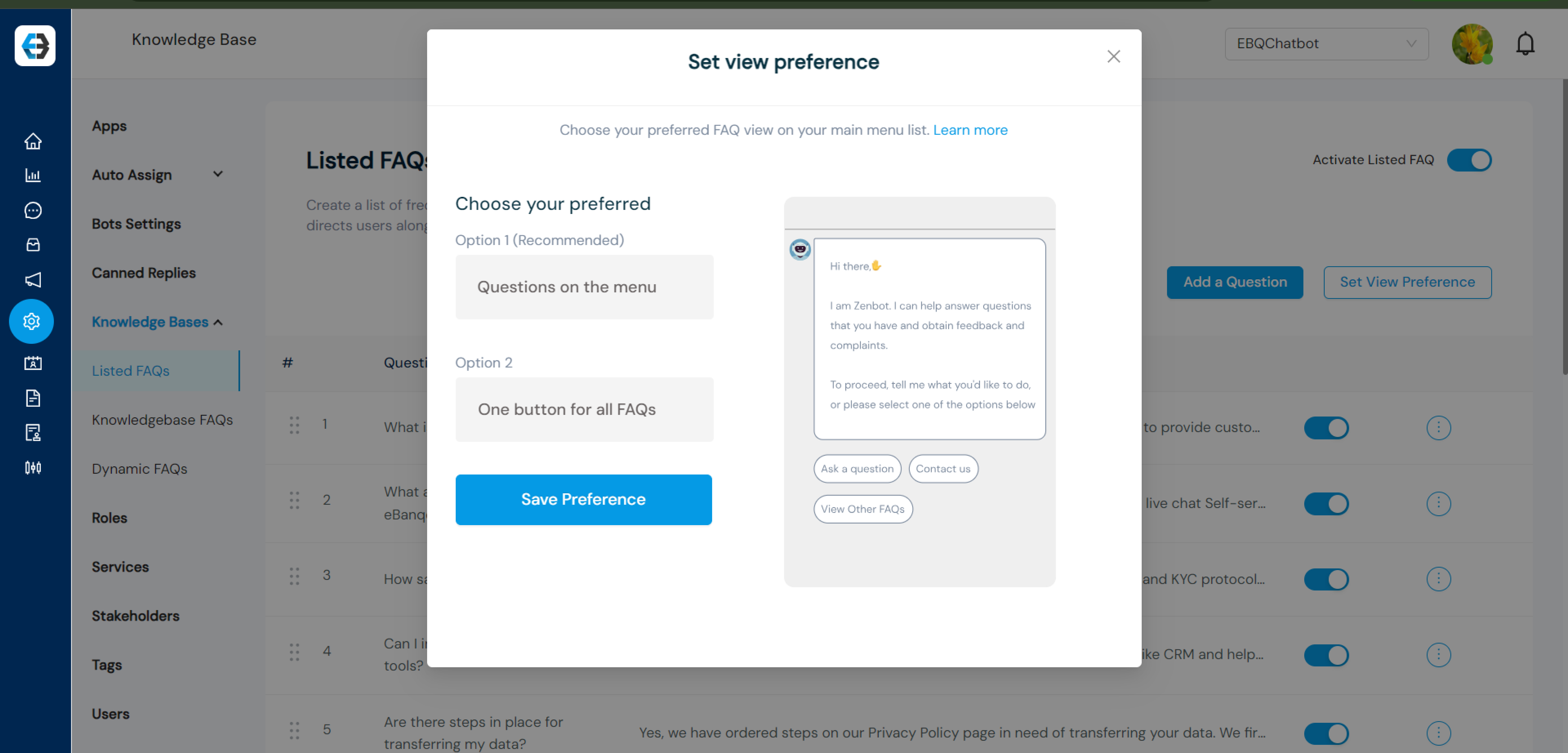
Step 6: Choose a View Option
- You can choose between:
- Questions on Menu
- One Button for All FAQs
Step 7: Activate Listed FAQs
- Toggle the activation switch to enable Listed FAQs.