

Creating new users on the eBanqo platform allows you to manage who has access to your business dashboard and assign roles accordingly.
Step 1: Log in to Your Admin Account
- Visit eBanqo’s portal and log in using your admin credentials.
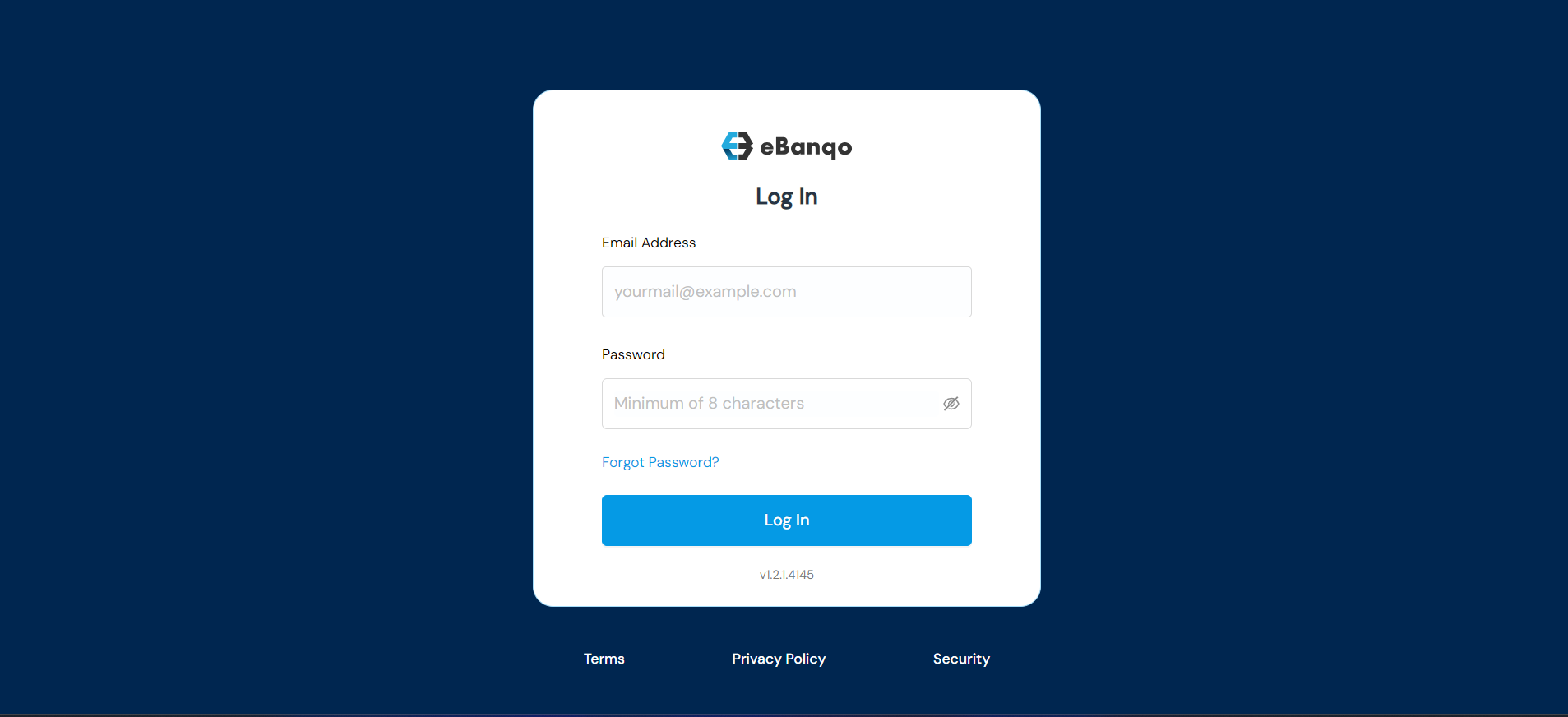
- Once logged in, you will be directed to the dashboard.
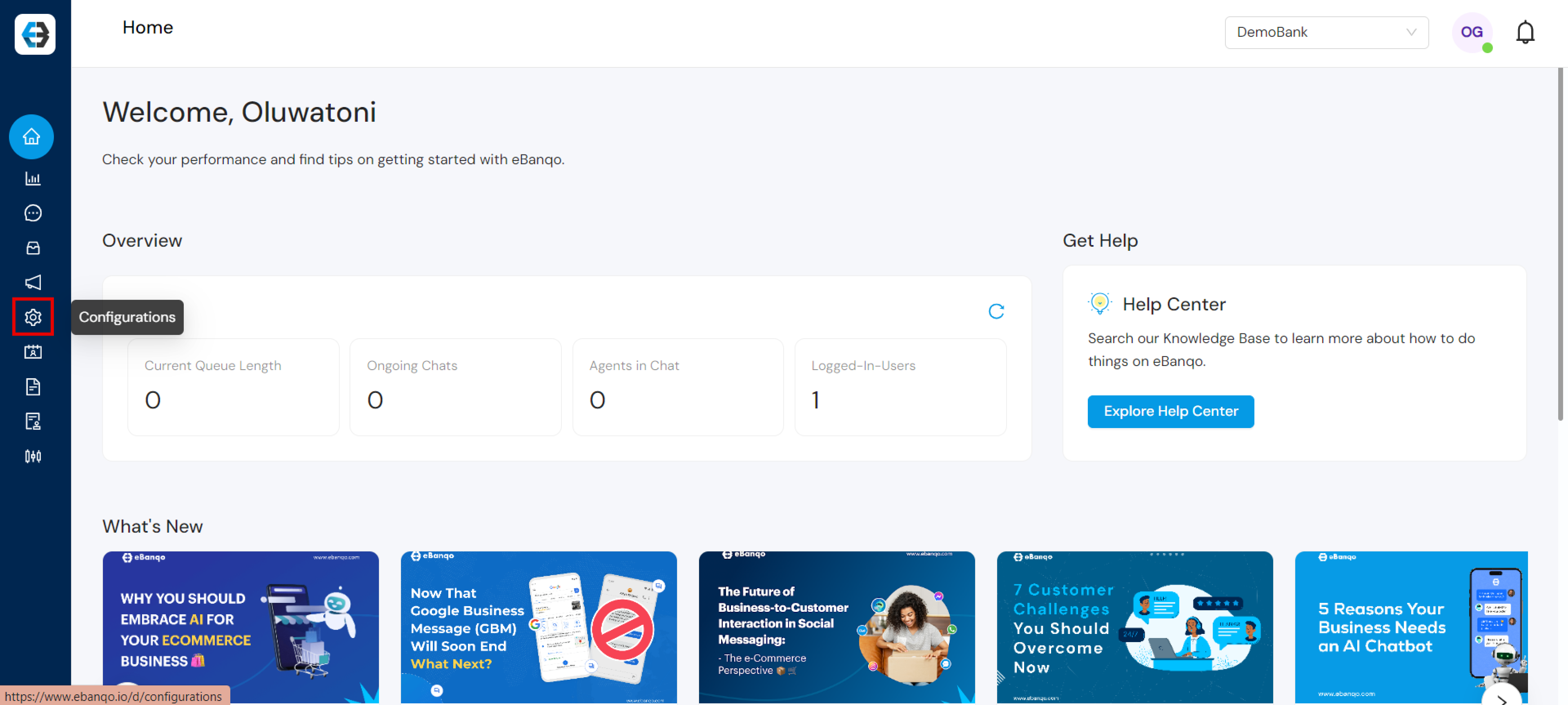
Step 2: Navigate to the Users Section
- Click on Configurations in the left-hand menu.
- Select Users.
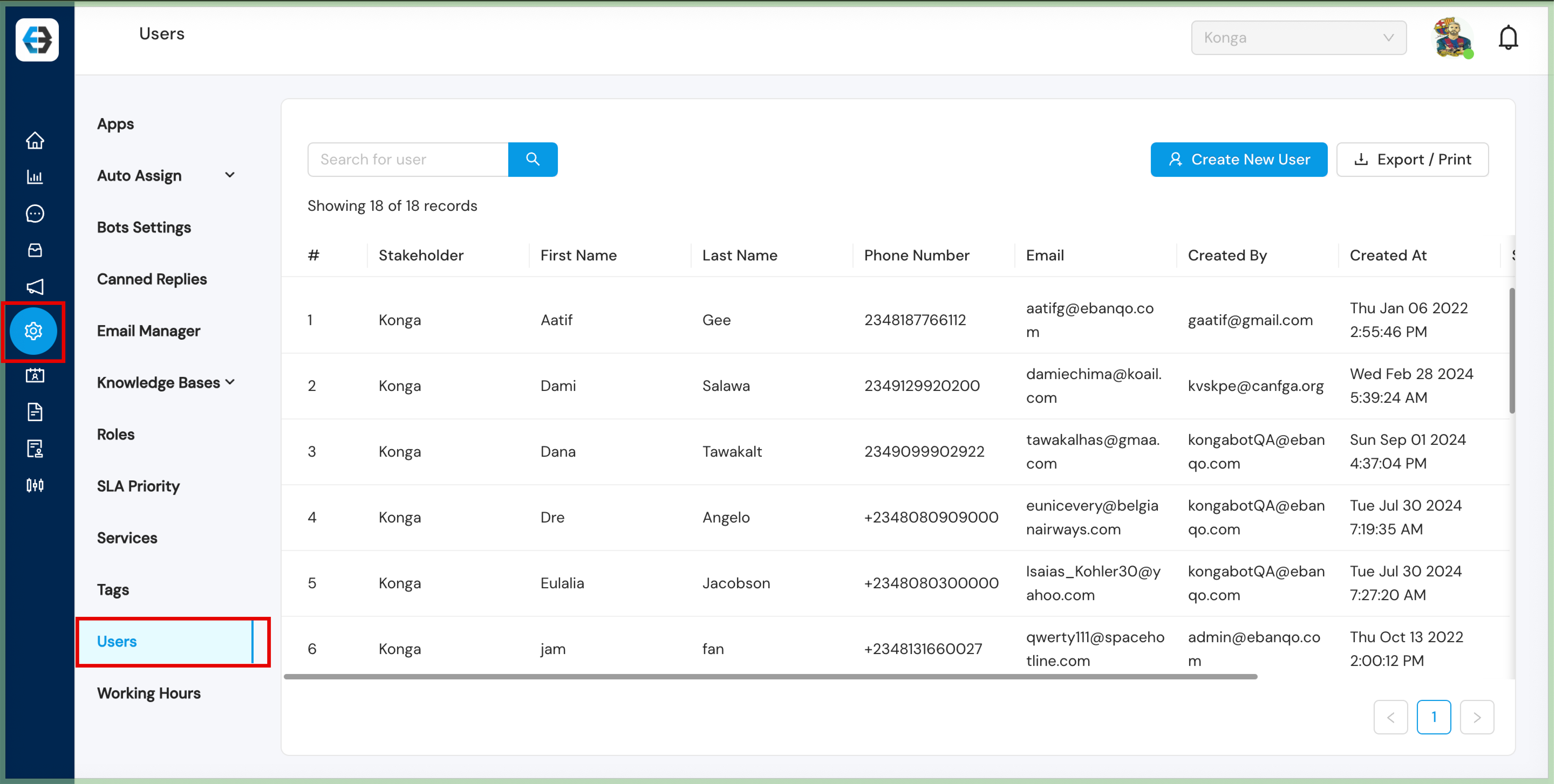
Step 3: Create a New User
- Click on the Create New User button.
- A form will appear where you can enter the details of the new user.
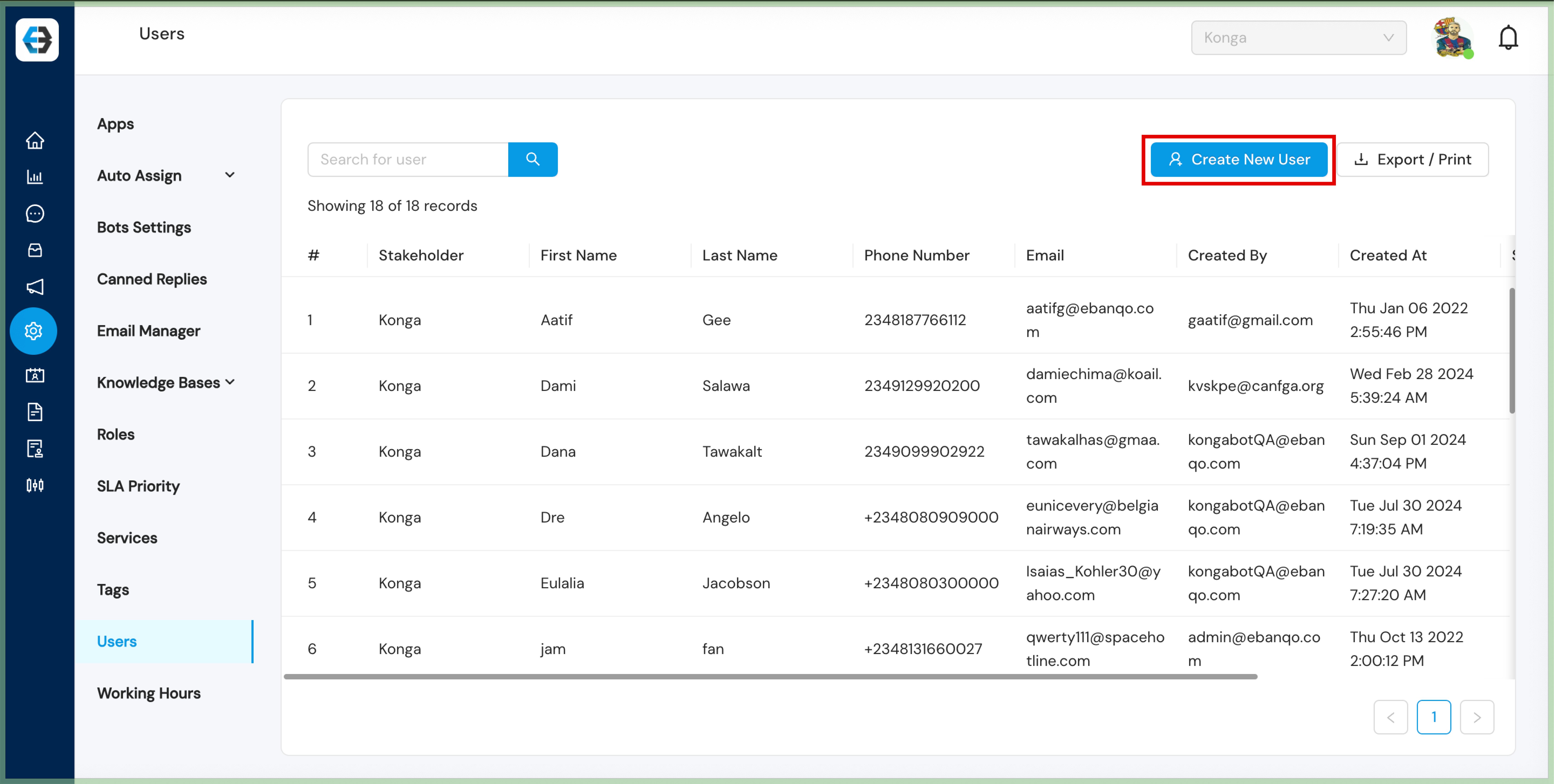
Step 4: Fill in User Details
- Full Name: Enter the user’s first and last name.
- Email Address: Provide the email address the user will use to log in.
- Phone Number: Enter the user’s contact phone number.
- Role: Assign a role to the user.
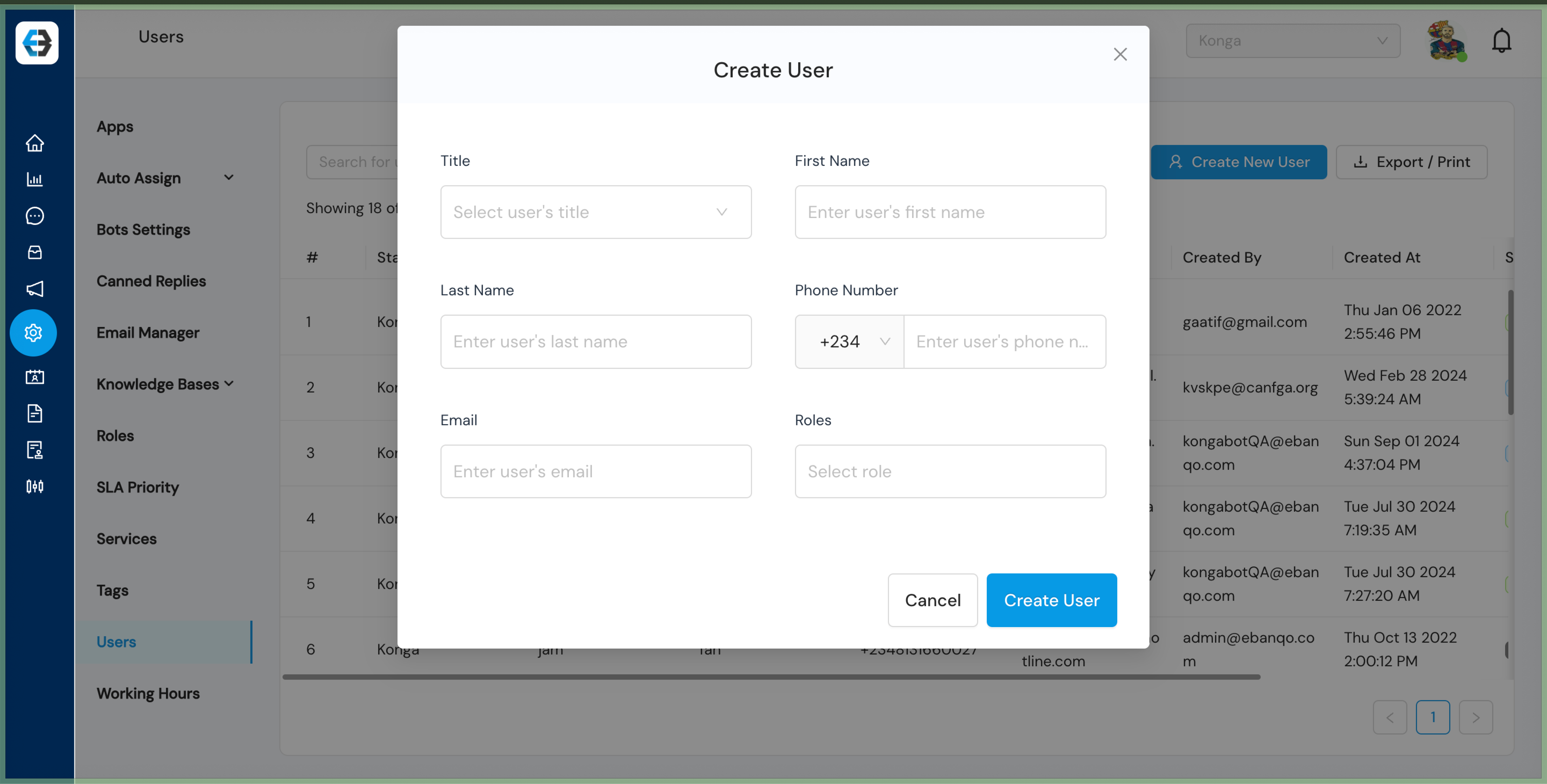
Step 5: Create and Send Credentials
- Click Create User.
- The system will generate login credentials and automatically send them to the user’s registered email.
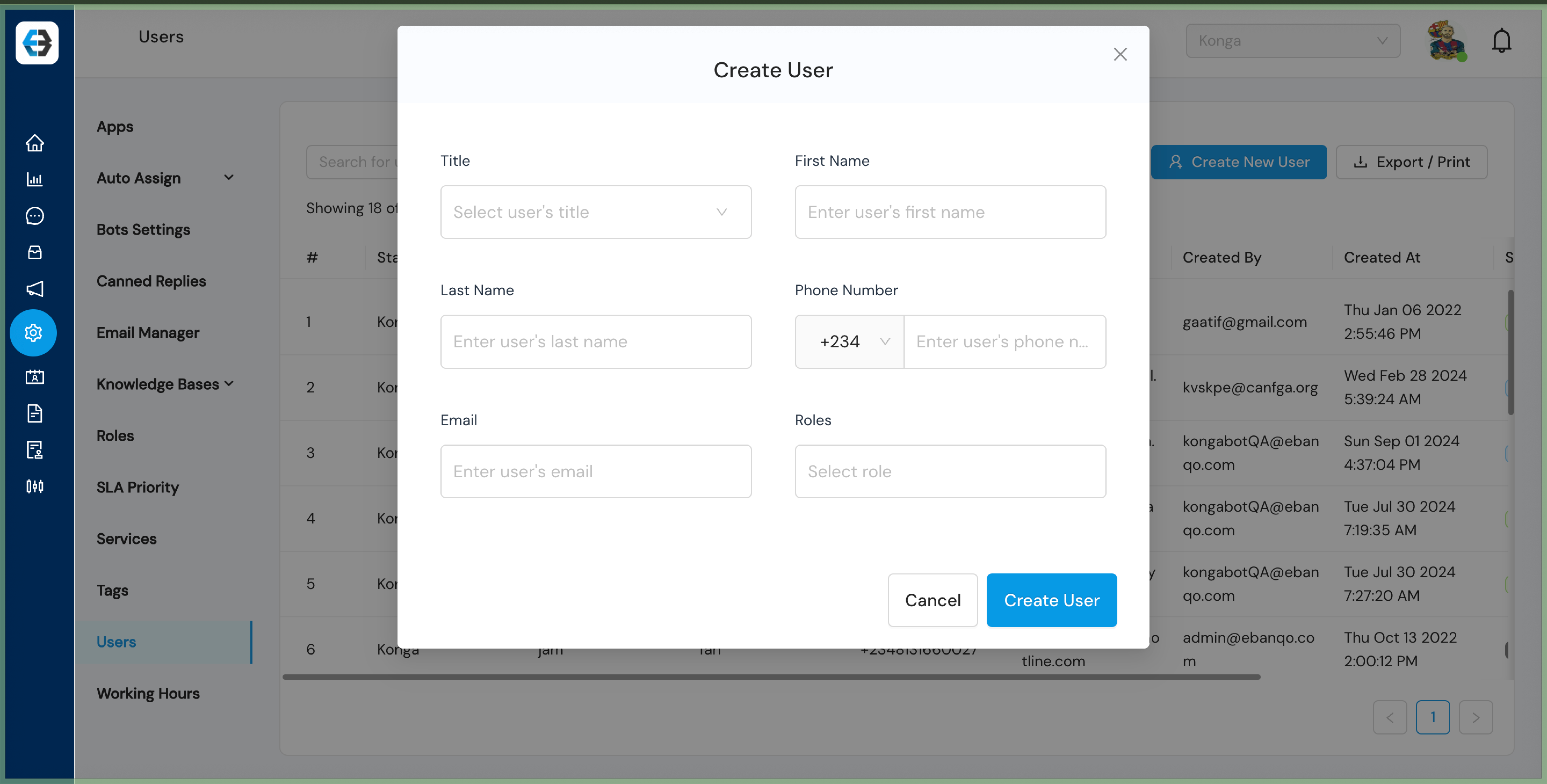
Step 6: Confirm User Creation
After successfully creating the user, they will appear in the user list under the Users section.
How to Deactivate Users on eBanqo
Step 1: Log in to Your eBanqo account
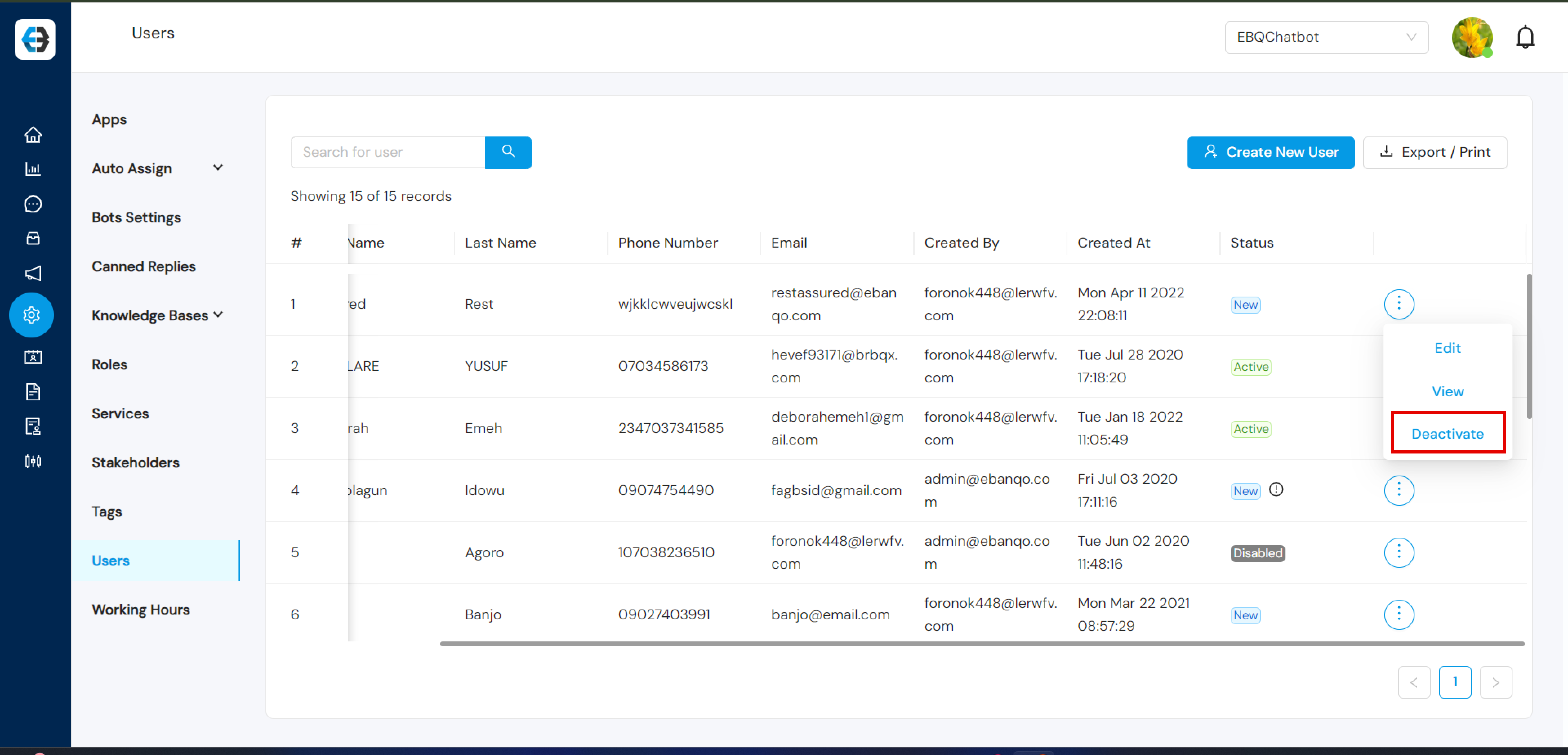
Step 2: Navigate to the Users Section
- Locate the Configurations icon on the left sidebar menu.
- Click Users under the Configurations menu.
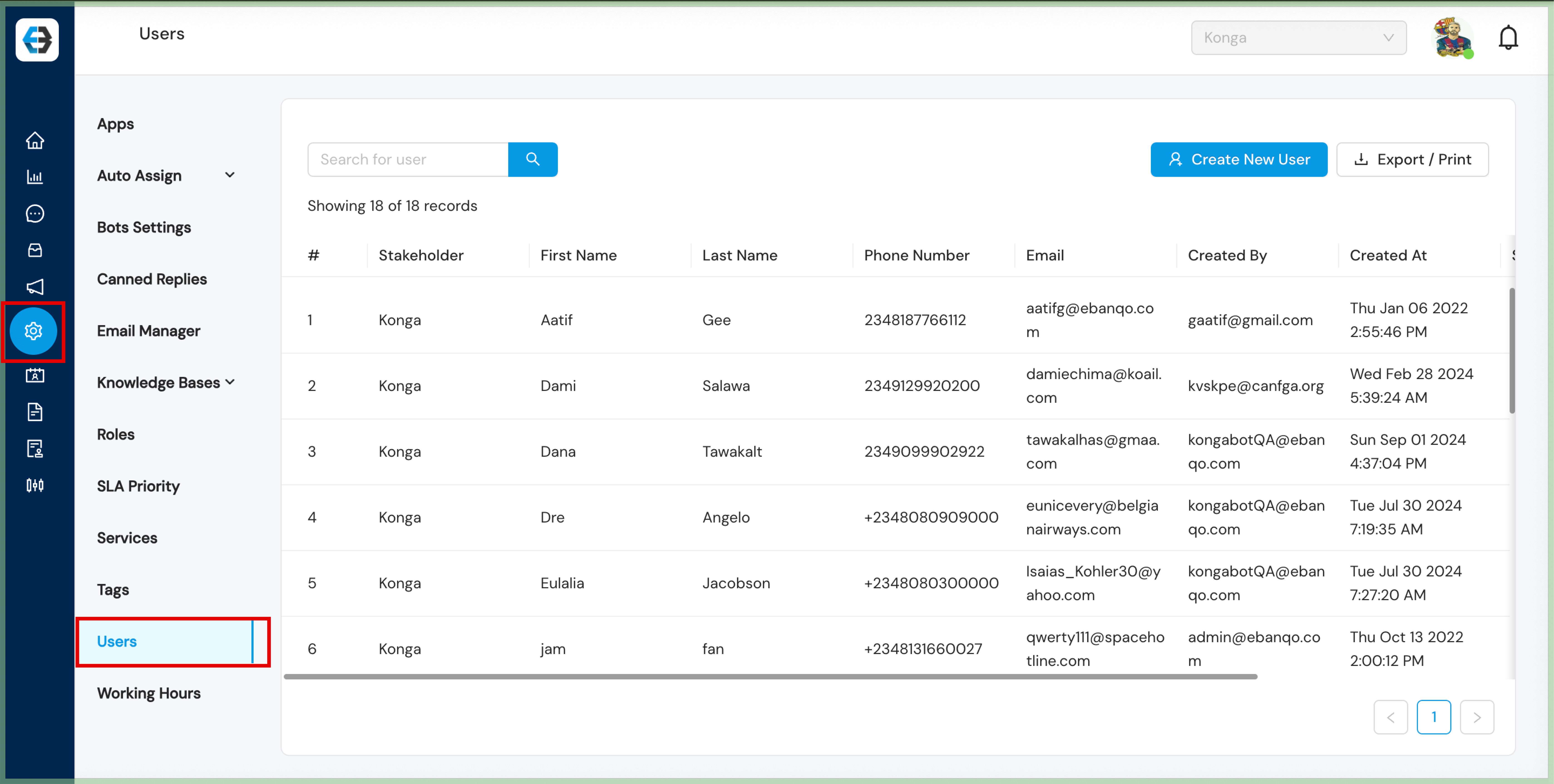
Step 3: Find the User You Want to Deactivate
- Search for the user you want.
- Click the three-dot menu beside their details.
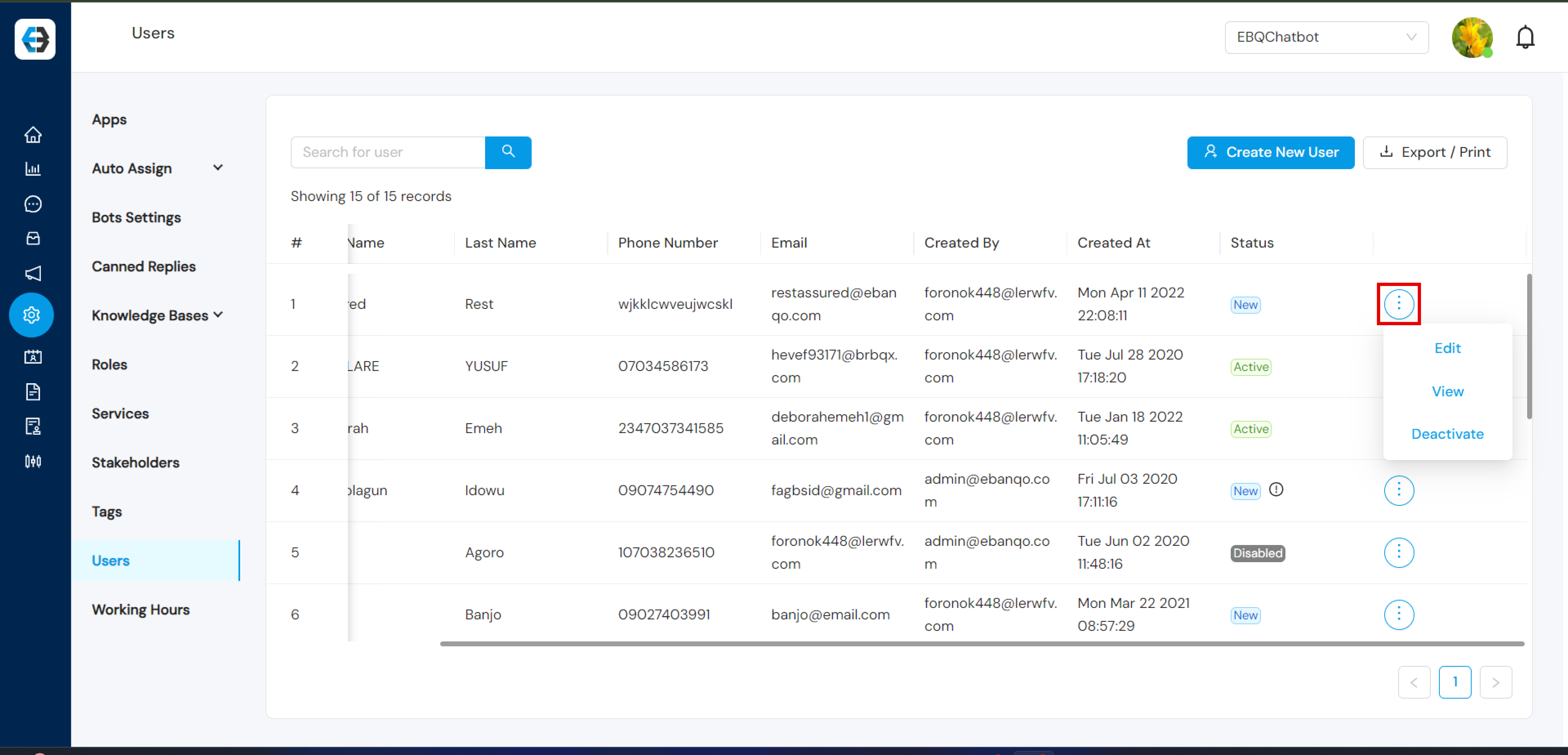
Step 4: Deactivate the User
- Open the user’s profile.
- Click Deactivate.
Step 5: Confirm Deactivation
- Confirm by clicking Yes, Deactivate.
- The user will now appear as Inactive.
