How to delete a user in eBanqo Messenger

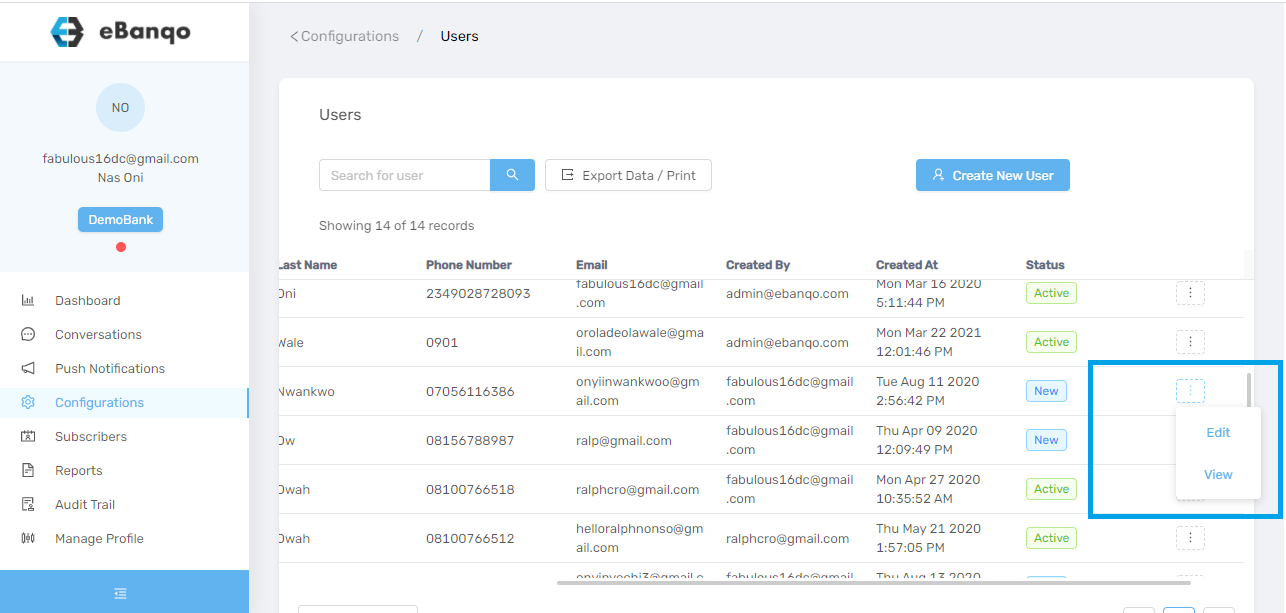
To delete a user, go to Configuration > Users.

Using the slider at the bottom of your screen, scroll to the right. Click on the three dots beside the role you want to disable and choose Edit.

How to delete a user in eBanqo Messenger

A modal will appear.

Removing a user in eBanqo Messenger

Uncheck Activate and click Save. This deactivates the user’s account instantly.

How to set your customer wait time

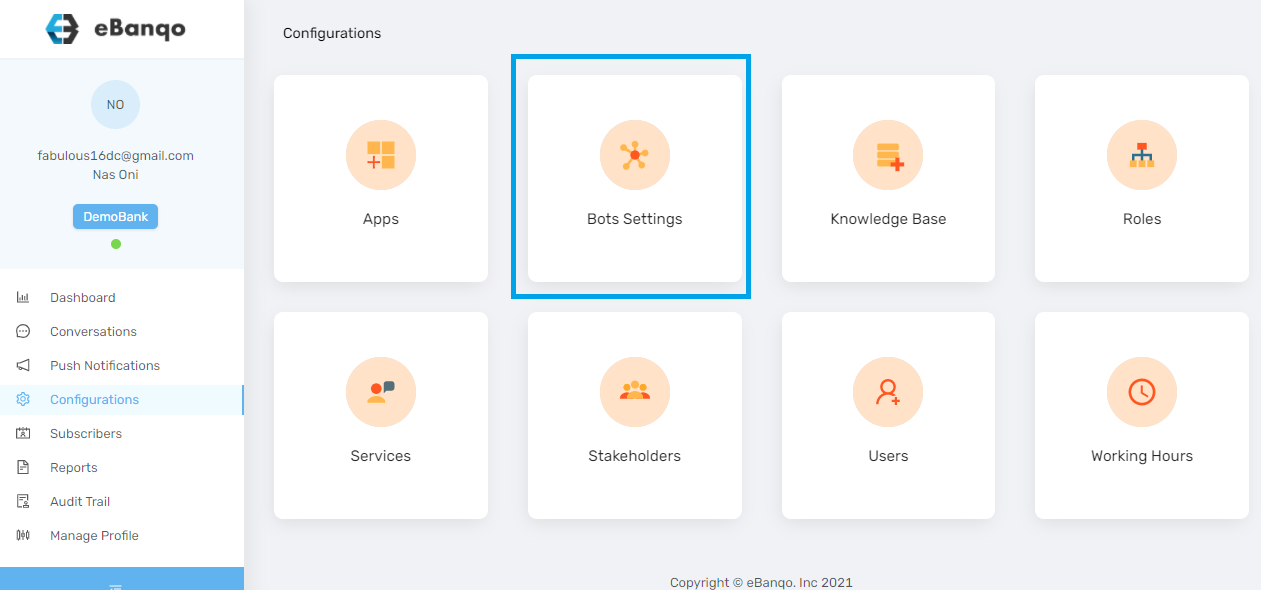
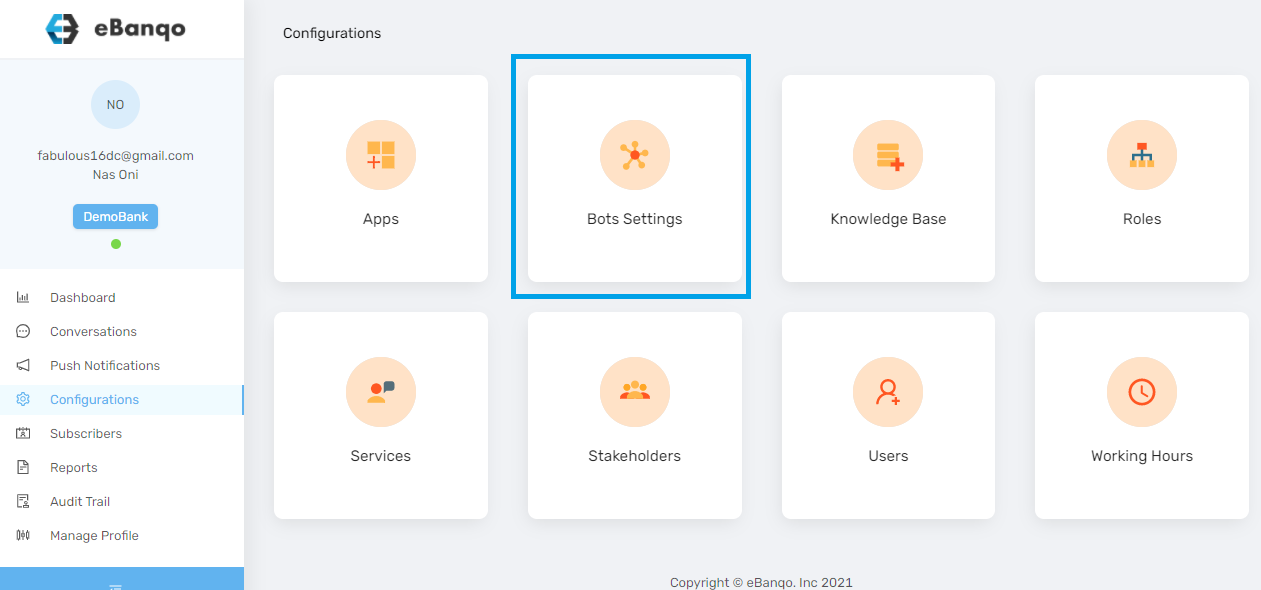
To set customer wait time, log in to your account and click on Configurations > Bot Settings.

How to set customer wait time in eBanqo messenger

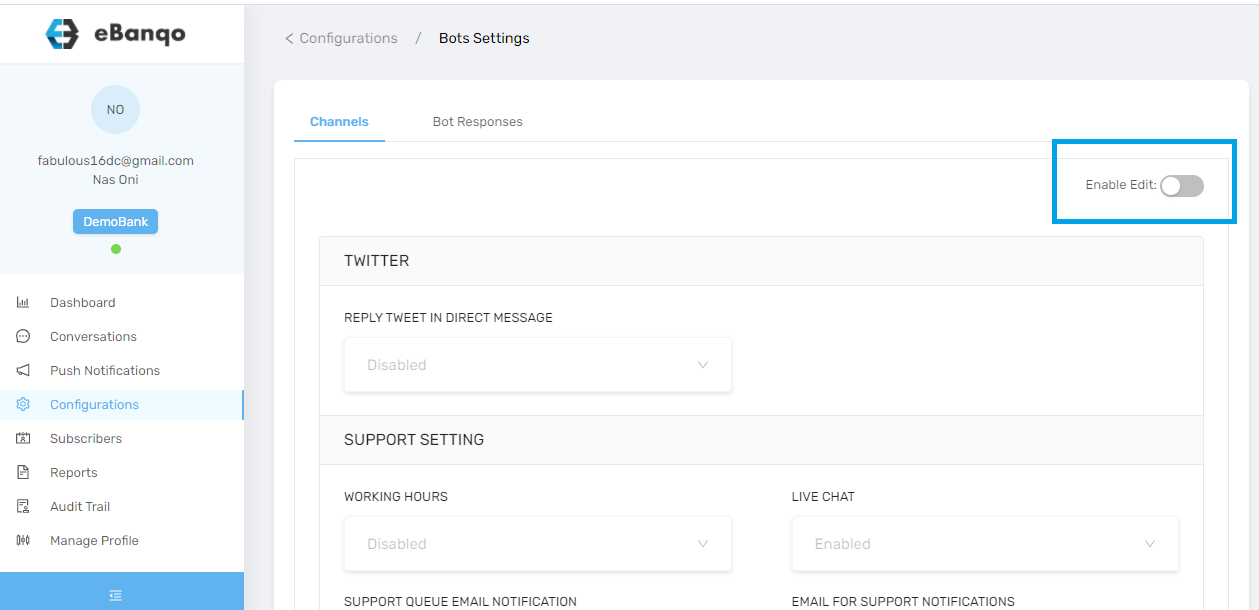
If editing is not enabled, click on the Enable Edits button. This allows you to make changes to the support settings.

Toggle enable edit button

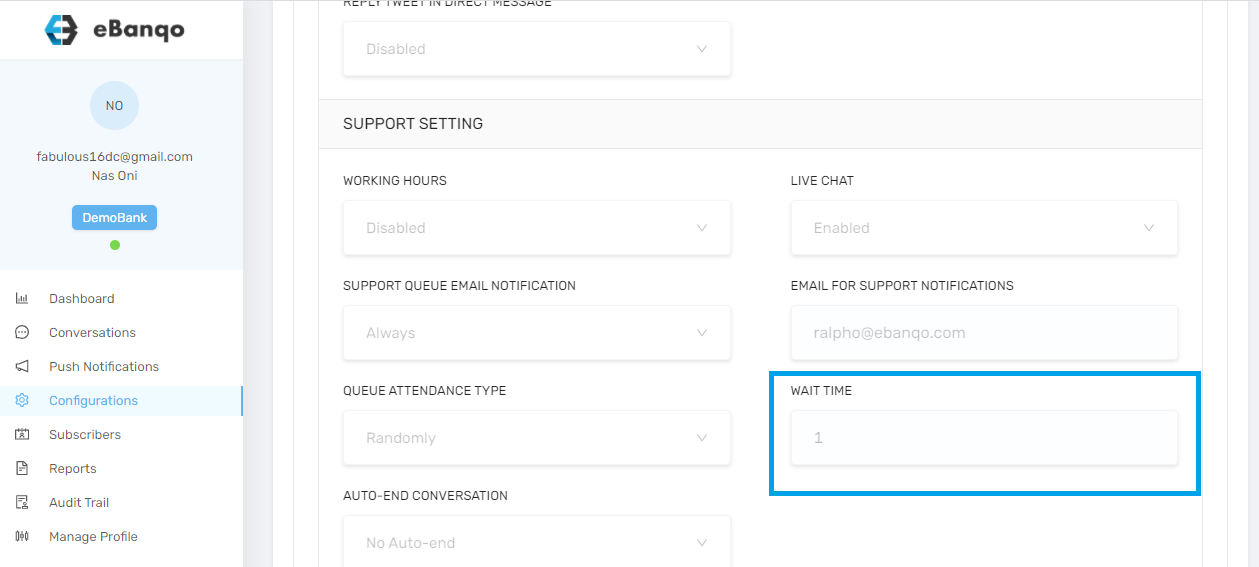
Click on Wait Time.

Click on wait time

Click on the toggle icon to set your preferred wait time (it is measured in minutes).

How to enable or disable support queue email notification in your eBanqo Messenger account

To enable or disable your support queue email notification, log in to your account and click on Configurations > Bot Settings.

If editing is not enabled, click on the Enable Edits button. This allows you to make changes to the support settings.

Toggle enable edit button

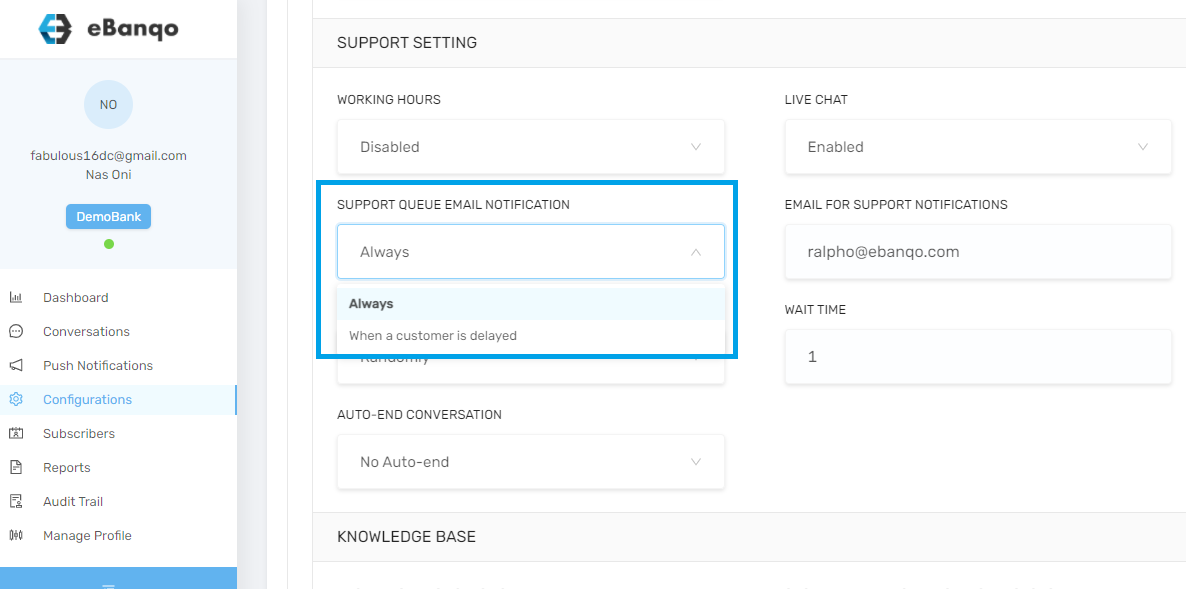
Click on Support Queue Email Notification.

How to enable or disable support settings in eBanqo Messenger

From the drop-down menu, choose your preferred option.

Click Always if you want to receive a notification once someone joins the queue.

Select Only when the customer is delayed if you want to receive an email only when the customer has been on the queue for a while.

Your changes are automatically saved.

How to change email for support queue notification

To enable or disable your support queue email notification, log in to your account and click on Configurations > Bot Settings.

How to set customer wait time in eBanqo messenger

If editing is not enabled, click on the Enable Edits button. This allows you to make changes to the support settings.

Toggle enable edit button

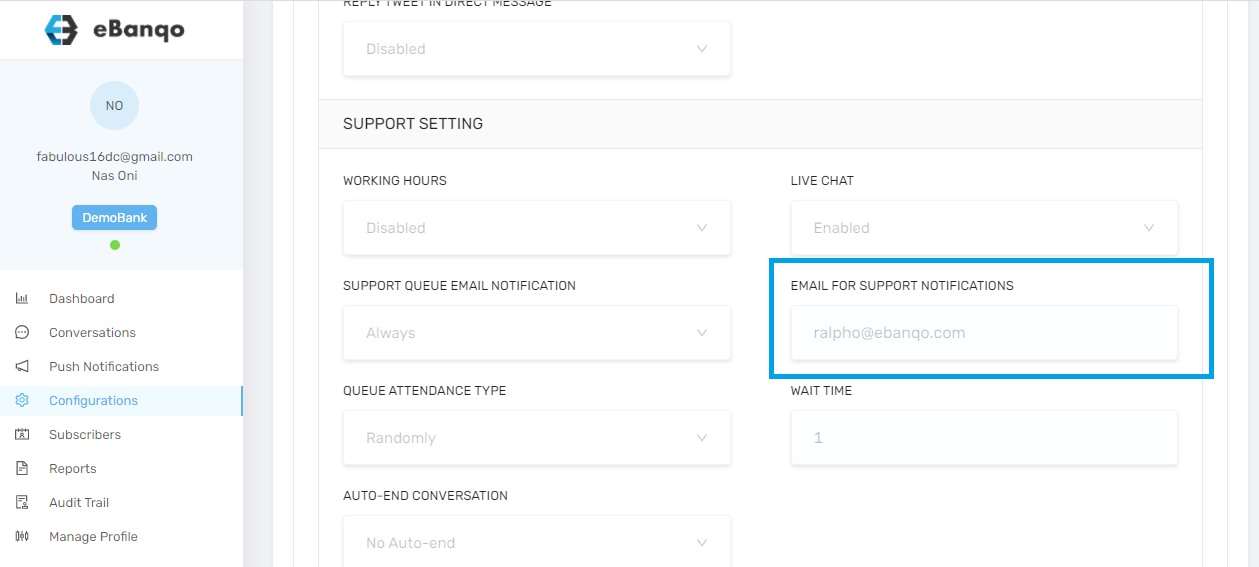
Click on Email for Support Notification.

How to change email for support notification in eBanqo Messenger

In the text field box, erase the existing email and type in your preferred email. Your changes will be saved automatically.

How to set your support queue attendance type

Support queue attendance type describes how you want to attend to customers on your support queue. You can either attend to them sequentially or randomly.

To set your support queue attendance type, log in to your account and click on Configurations > Bot Settings.

How to set customer wait time in eBanqo messenger

If editing is not enabled, click on the Enable Edits button. This allows you to make changes to the support settings.

Toggle enable edit button

Click on Queue Attendance Type.

How to set support queue attendance type in eBanqo Messenger

From the drop-down box, choose your preferred option. Your changes will be saved automatically.

How to set, change or edit working hours

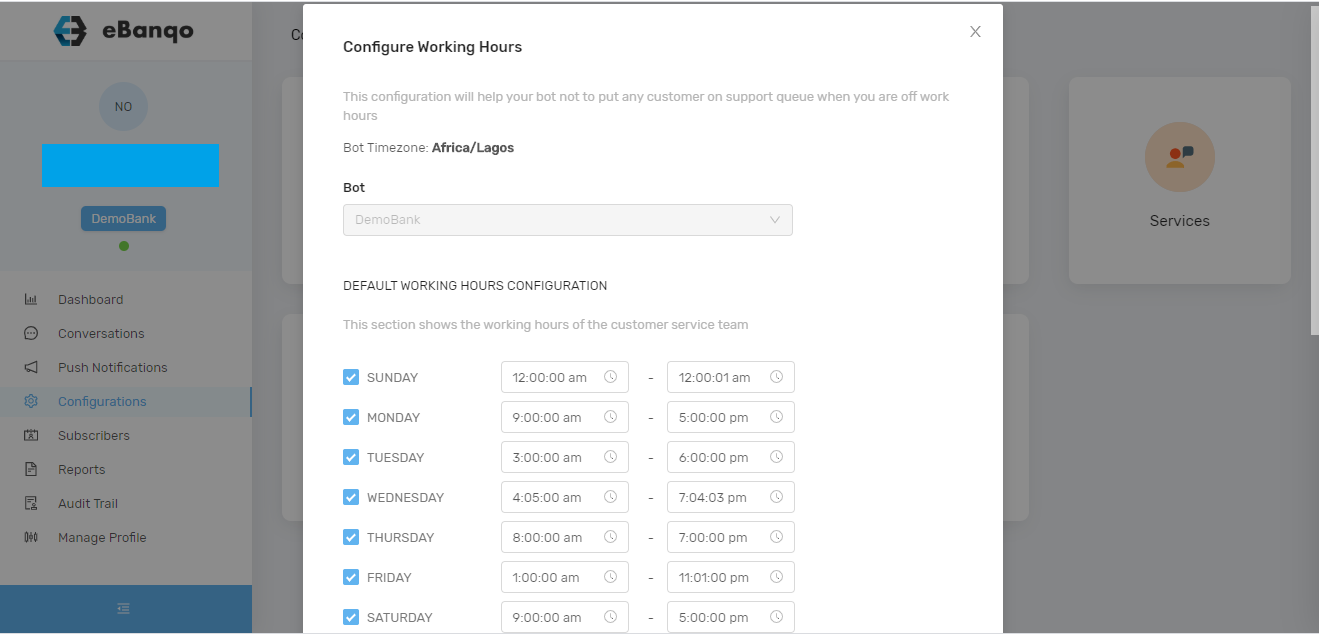
Go to Configurations > Working Hours. A modal will appear.

Working hour setting in eBanqo Messenger

To change working hours

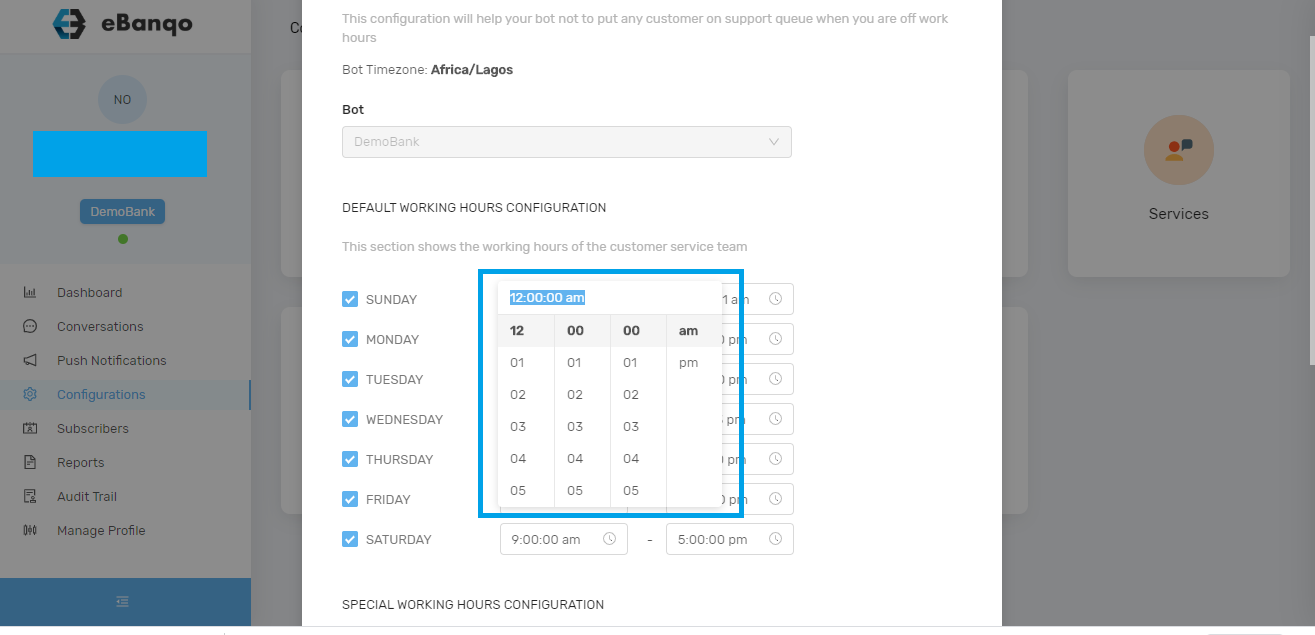
To change working hours, click on the time field as shown below and select the preferred time.

Working hours settings

To disable a working day

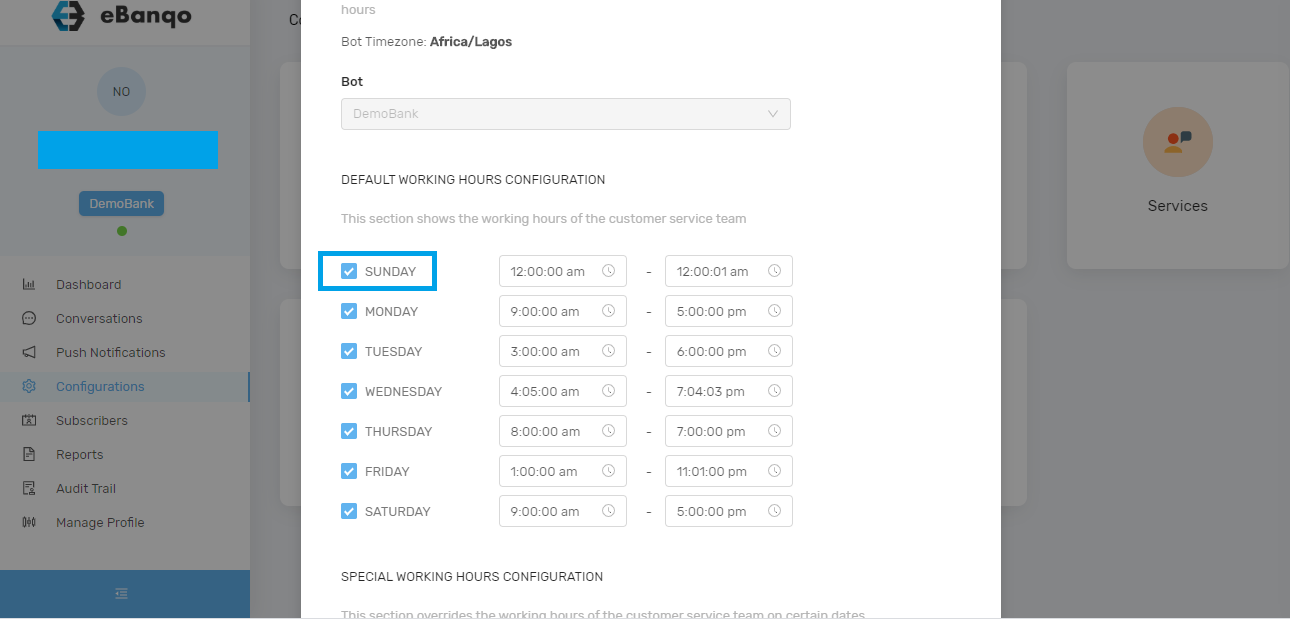
To disable support on a specific day, uncheck the selected day.

Working hour settings

Click on Save.

How to set special hours (Holidays and Special working hours)

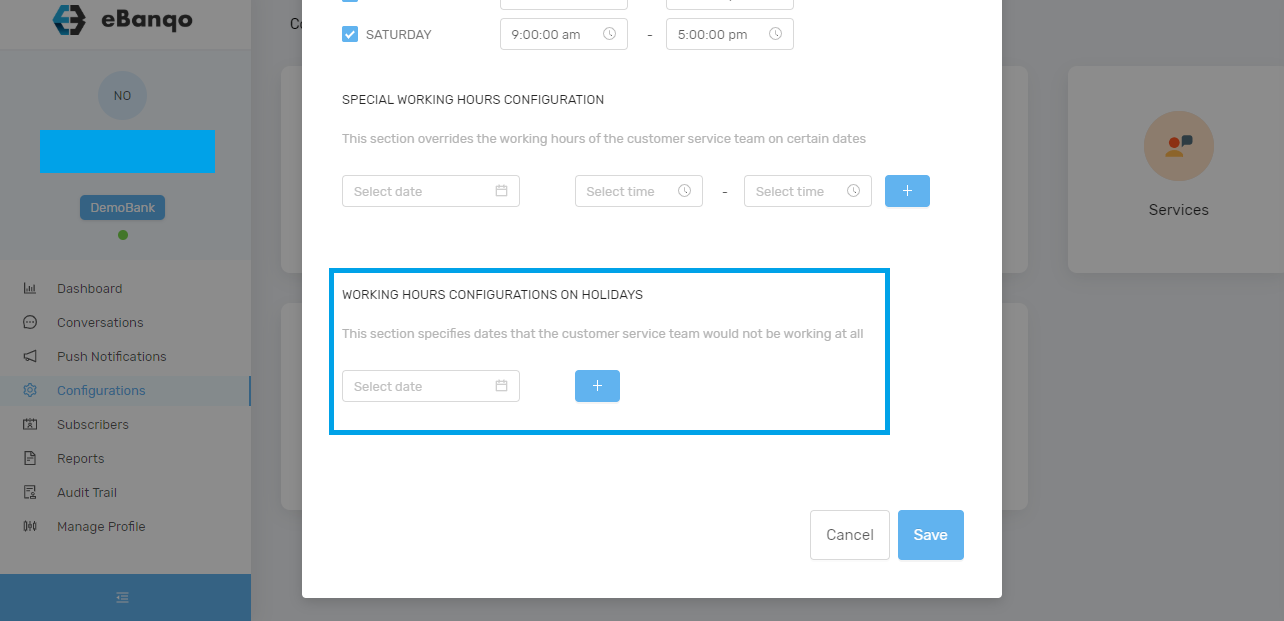
Scroll down to Working Hours on Holidays.

Working hour settings in eBanqo Messenger

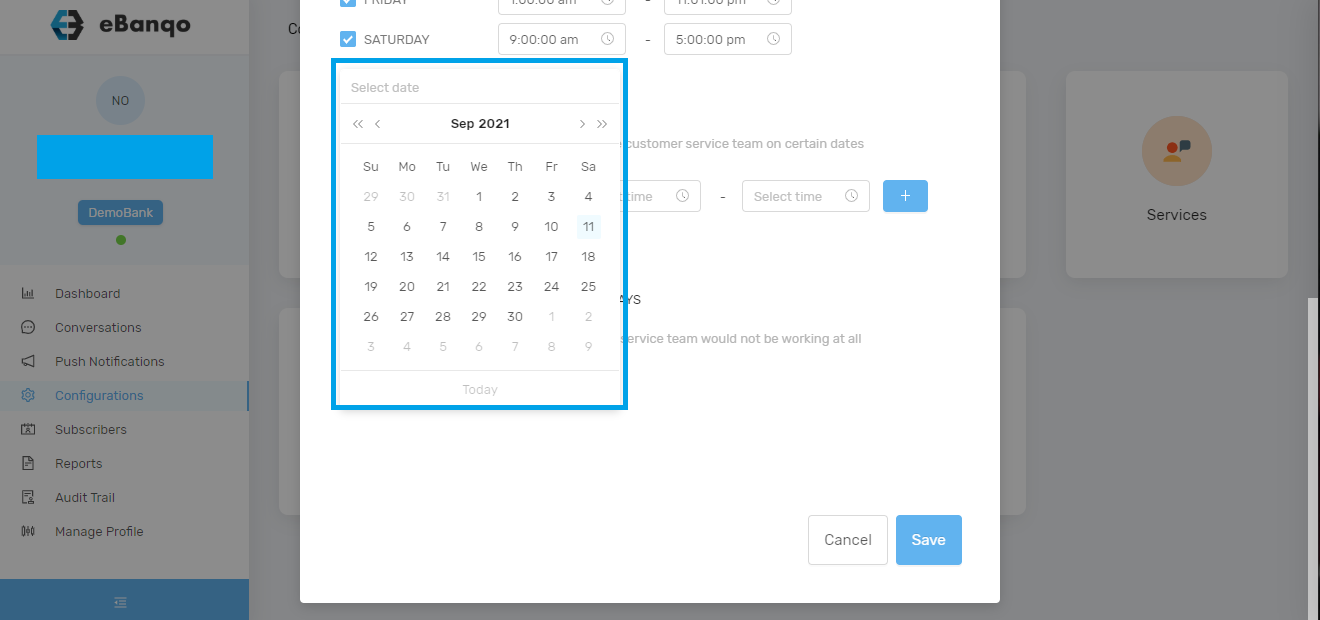
Click on the Select Date field. A calendar will appear.

Working hours settings in eBanqo Messenger

Select your preferred date and click Save.

How to edit the welcome message

To edit the welcome message,

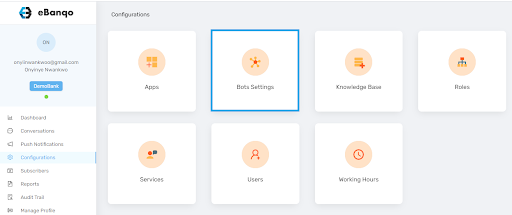
1. Click on Configurations

2. Click on Bot settings

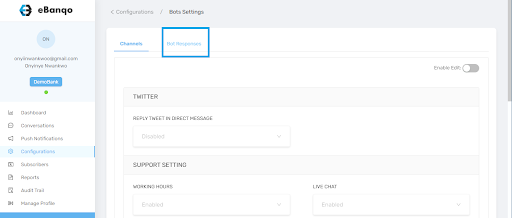
3. Then click on Bot responses.

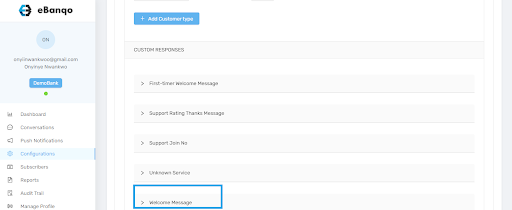
4. Scroll to find the bot response you want to edit. In this case, we’ll click on Welcome message.

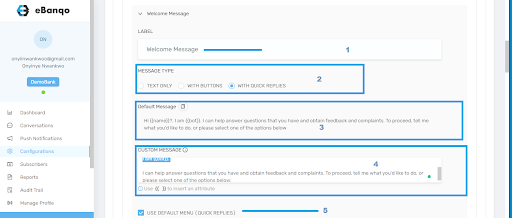
5. The welcome message has different parts. We’ll walk you through each of them.

  1. No. 1 is the label. Here, you can rename “Welcome message” into something you’re more familiar with. Click on the box containing “Welcome message”, erase it, and type your preferred name.
  2. No. 2 is the message type. In this section, you choose if the message will be accompanied by buttons or quick replies, or if you want it to be text only.
  3. No. 3 is the default welcome message that comes with the software. This is what your customers see whenever they chat with your bot.
  4. No. 4 is the custom message. If you want to create your own welcome message that reflects your brand, type it in this section. It overrides the default message.
  5. No. 5 If you check this box, the welcome message will include the default quick replies. These are the services you automated when setting up the bot.

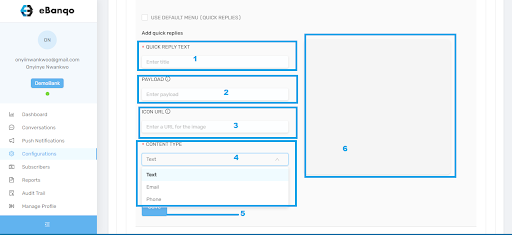
If you uncheck the box, you’ll see this:

  1. In No. 1, type the text that will appear on the quick reply button.
  2. No. 2 is the payload. Enter the same text used in No. 1.
  3. No. 3 is the Icon URL. You can skip this if you don’t want to add an icon.
  4. In No. 4, select whether the quick reply is text, email, or phone number.
  5. No. 5 is the save button. Once satisfied with your settings, click Save.
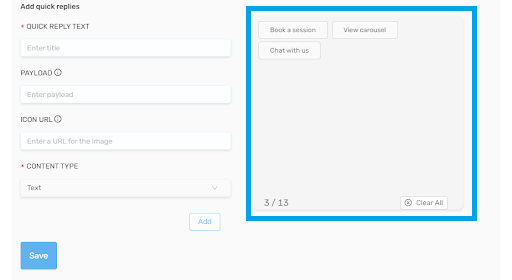
  6. All quick replies you created will appear in No. 6.

  1. Click on Add
  2. Click on Save

Ticketing

Welcome to our Help Center! This manual will guide you through the essentials of using our ticketing system.

Introduction to the Ticketing System

Our ticketing system is designed to streamline handling customer support inquiries.

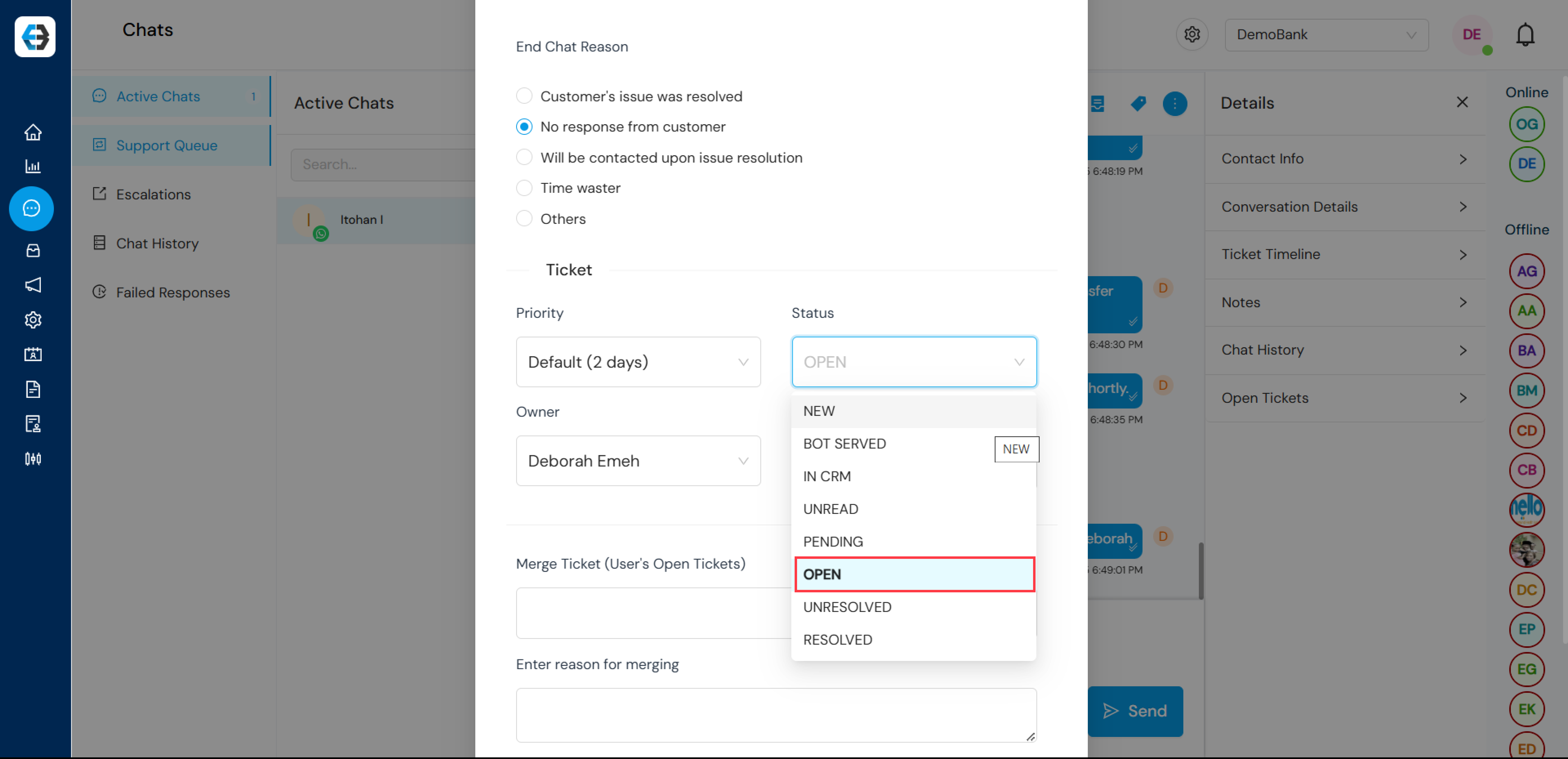
  1. Bot Interaction: When a customer interacts with your chatbot a ticket is created.
  2. Offline Messages: A ticket is generated when a customer leaves a message outside working hours.
  3. Live Agent Chats: A ticket is created when a customer interacts with a live agent.
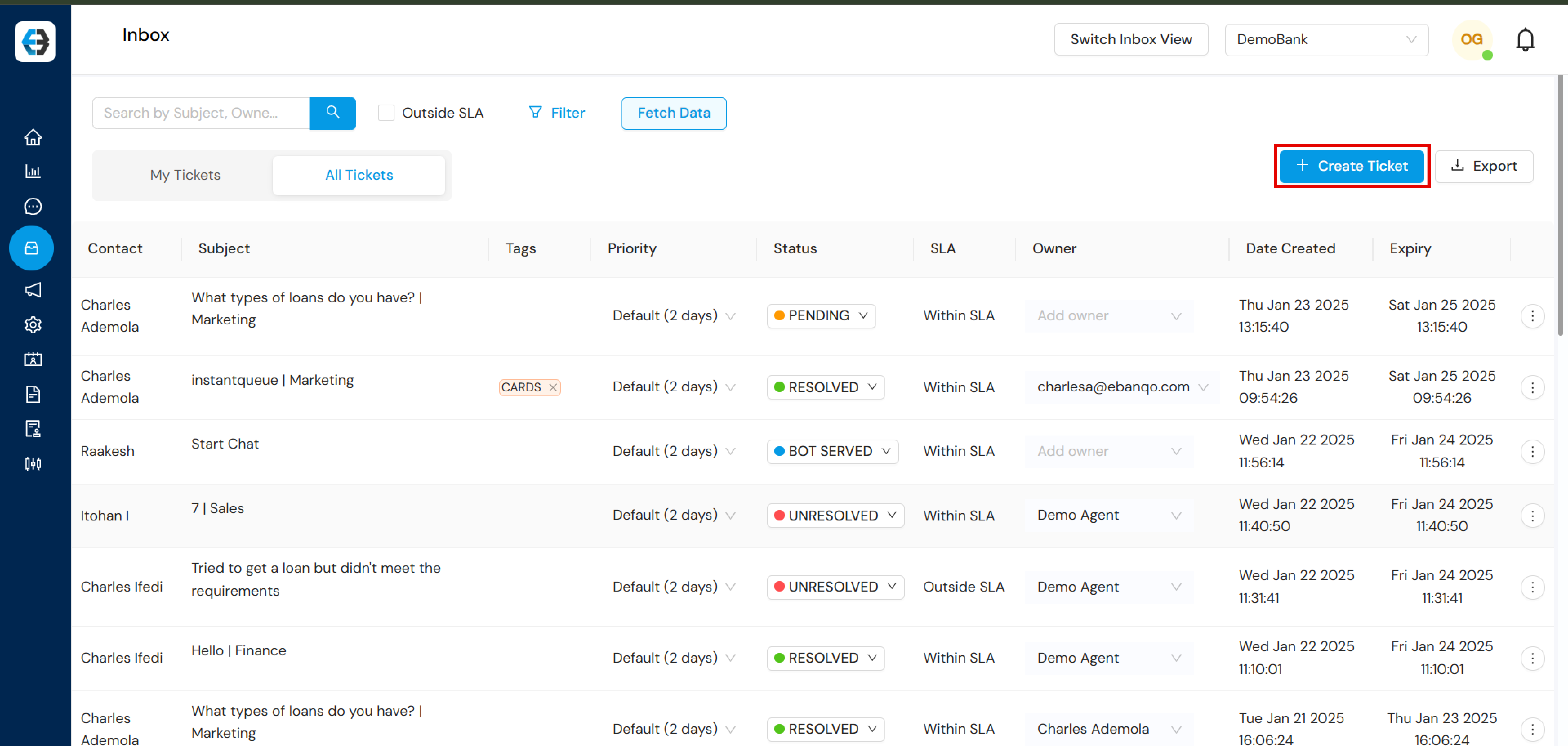
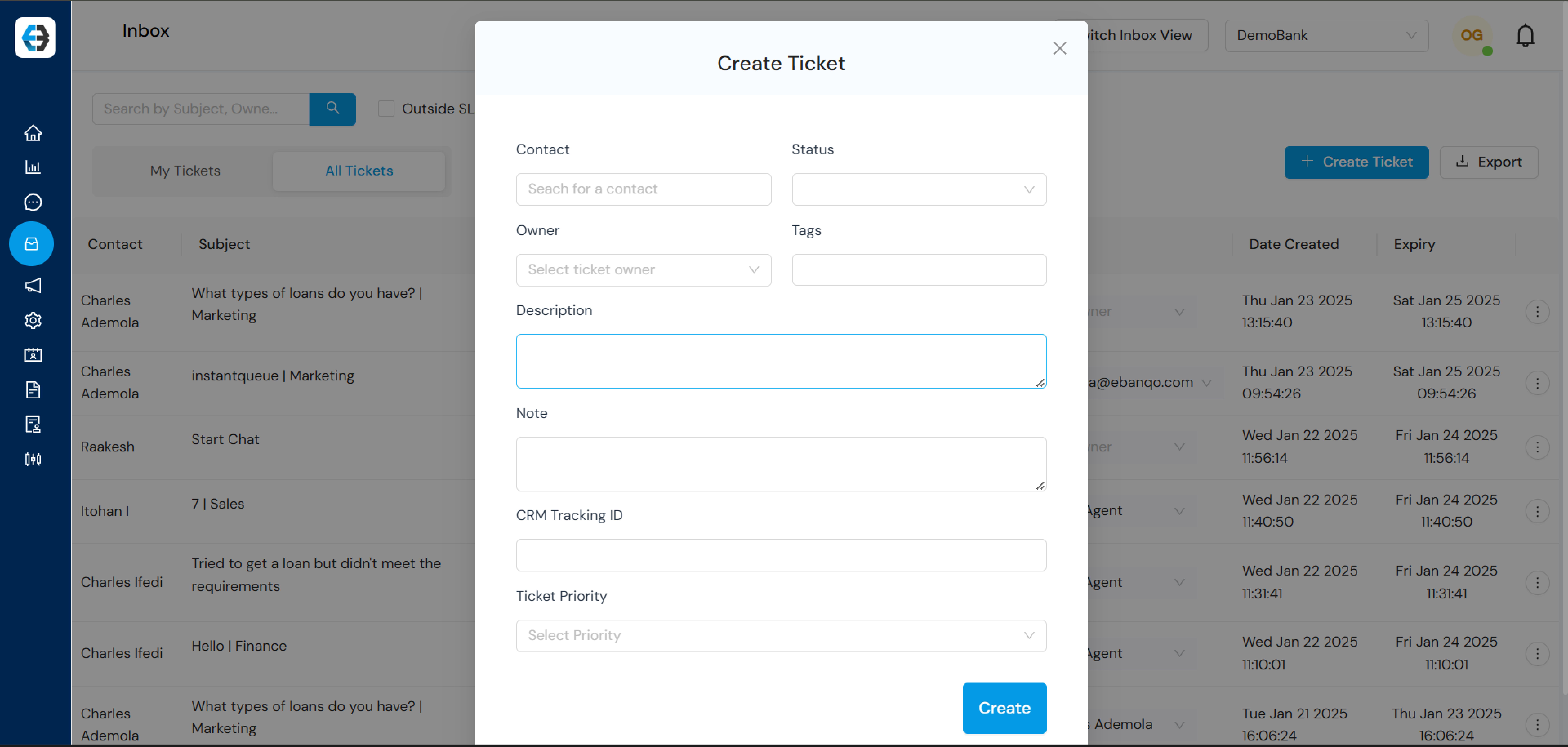
  4. Manual Ticket Creation: Create tickets manually using the “Create Ticket” button.

Managing Tickets

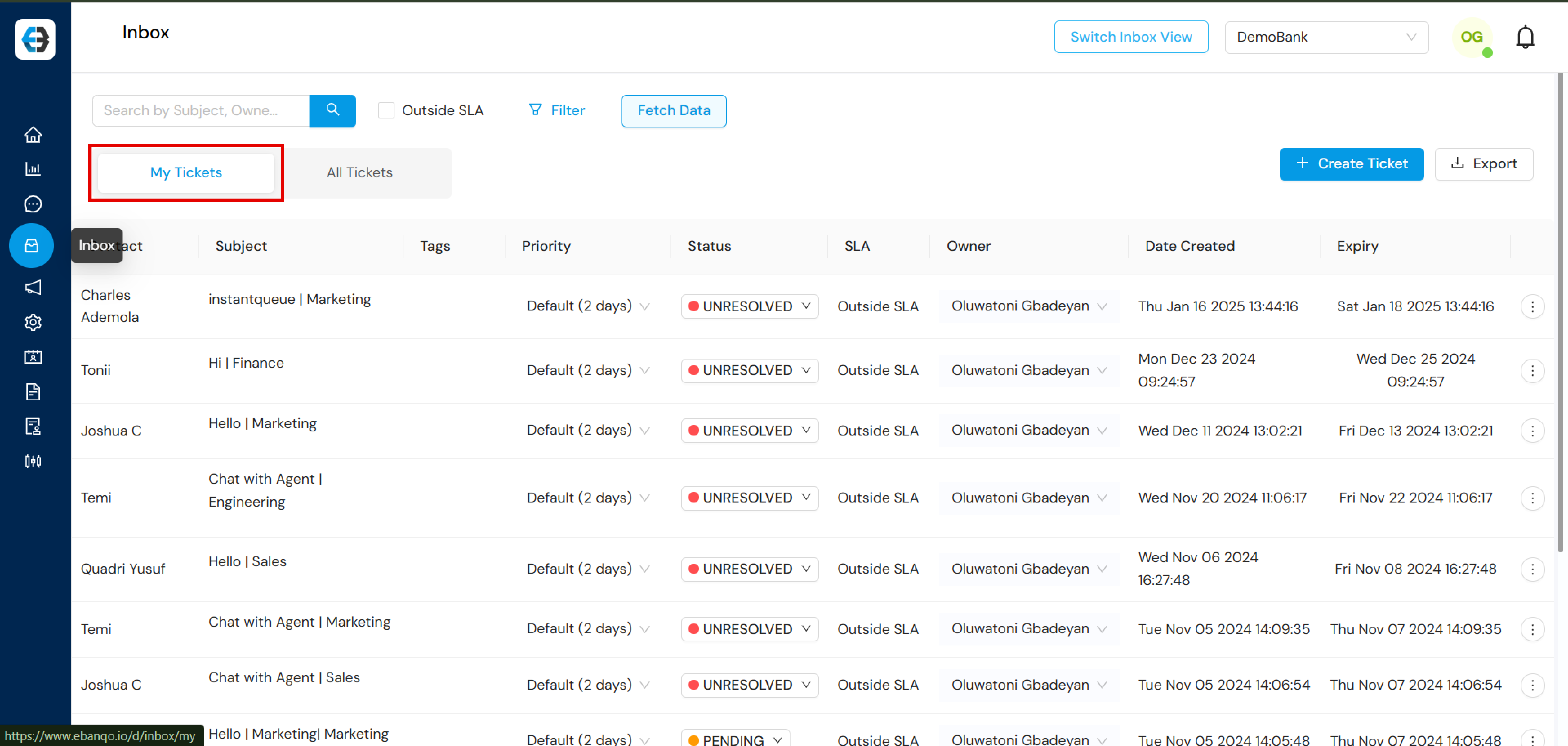
Navigate to “My Tickets” to view all open and resolved tickets.

Listed FAQs

How to Configure Listed FAQs on eBanqo

Listed FAQs guide users using predefined menu options.

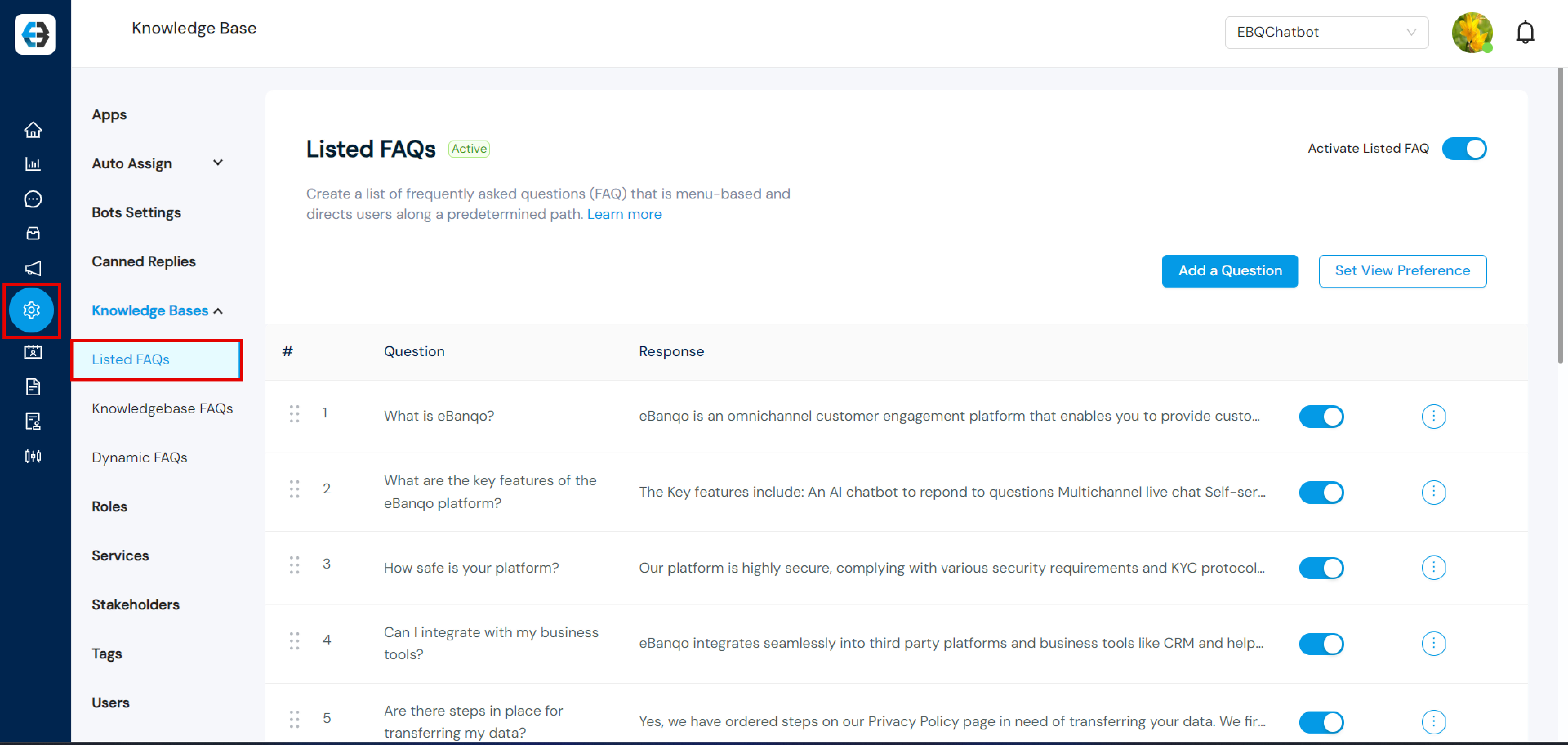
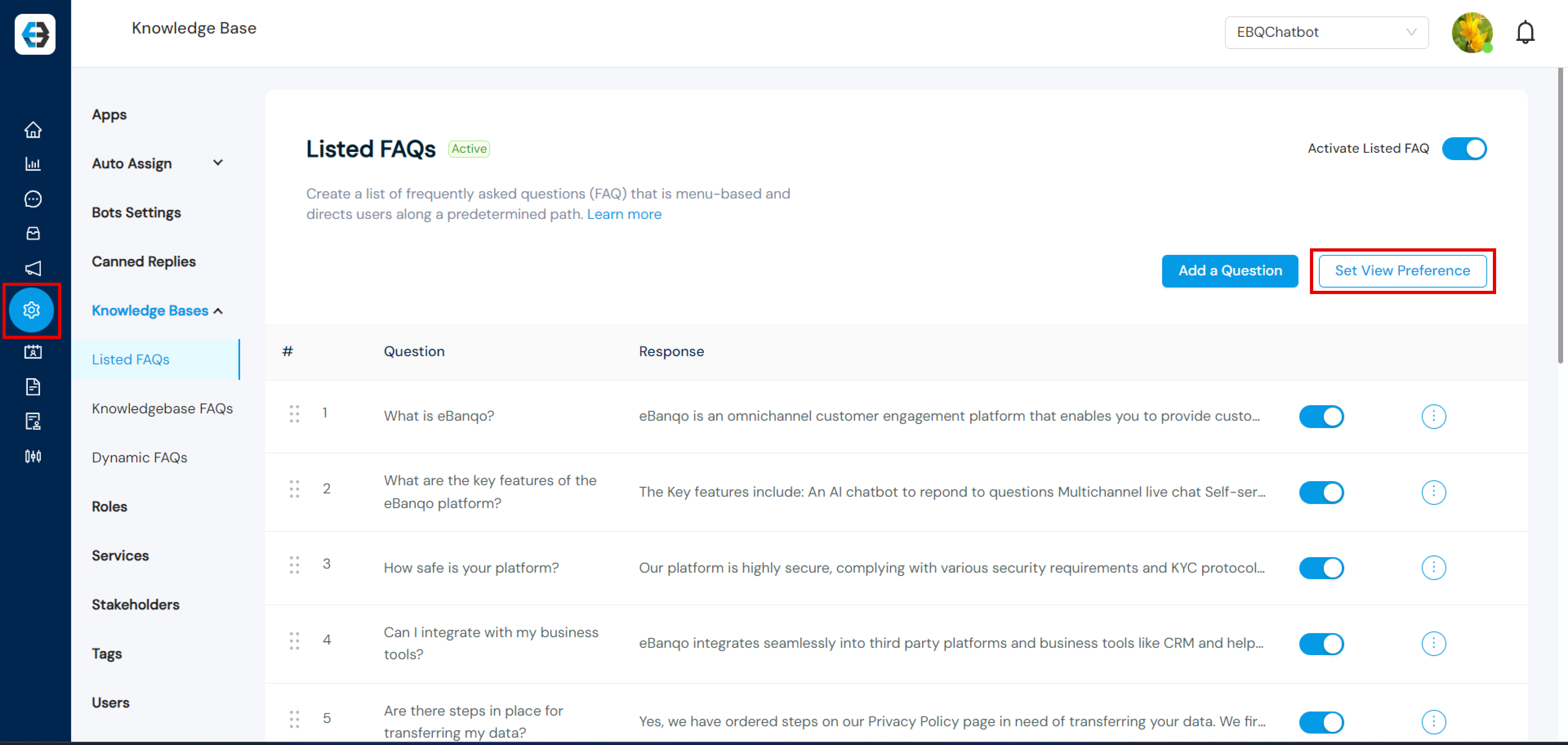
Step 1: Navigate to Configurations → Knowledge Bases.

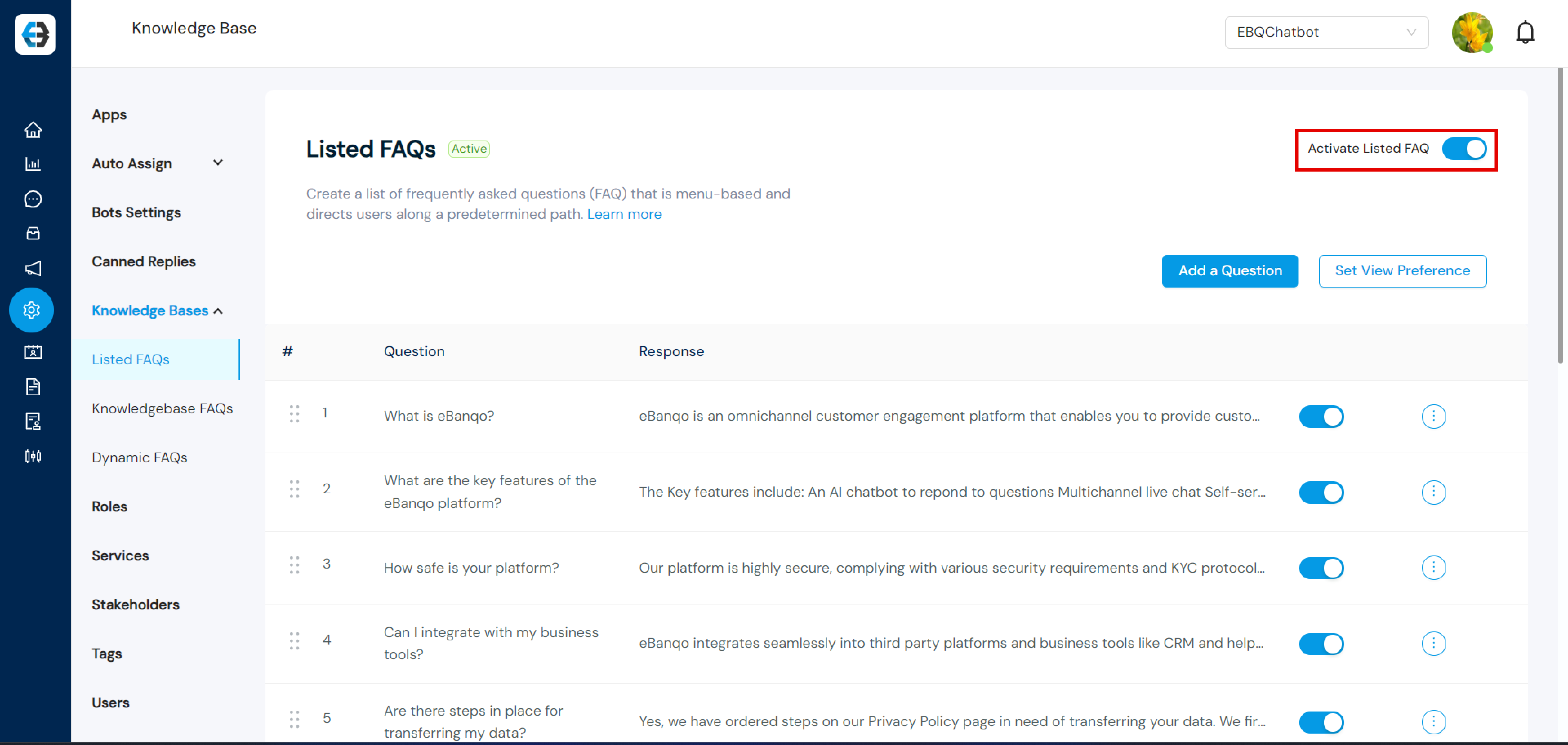
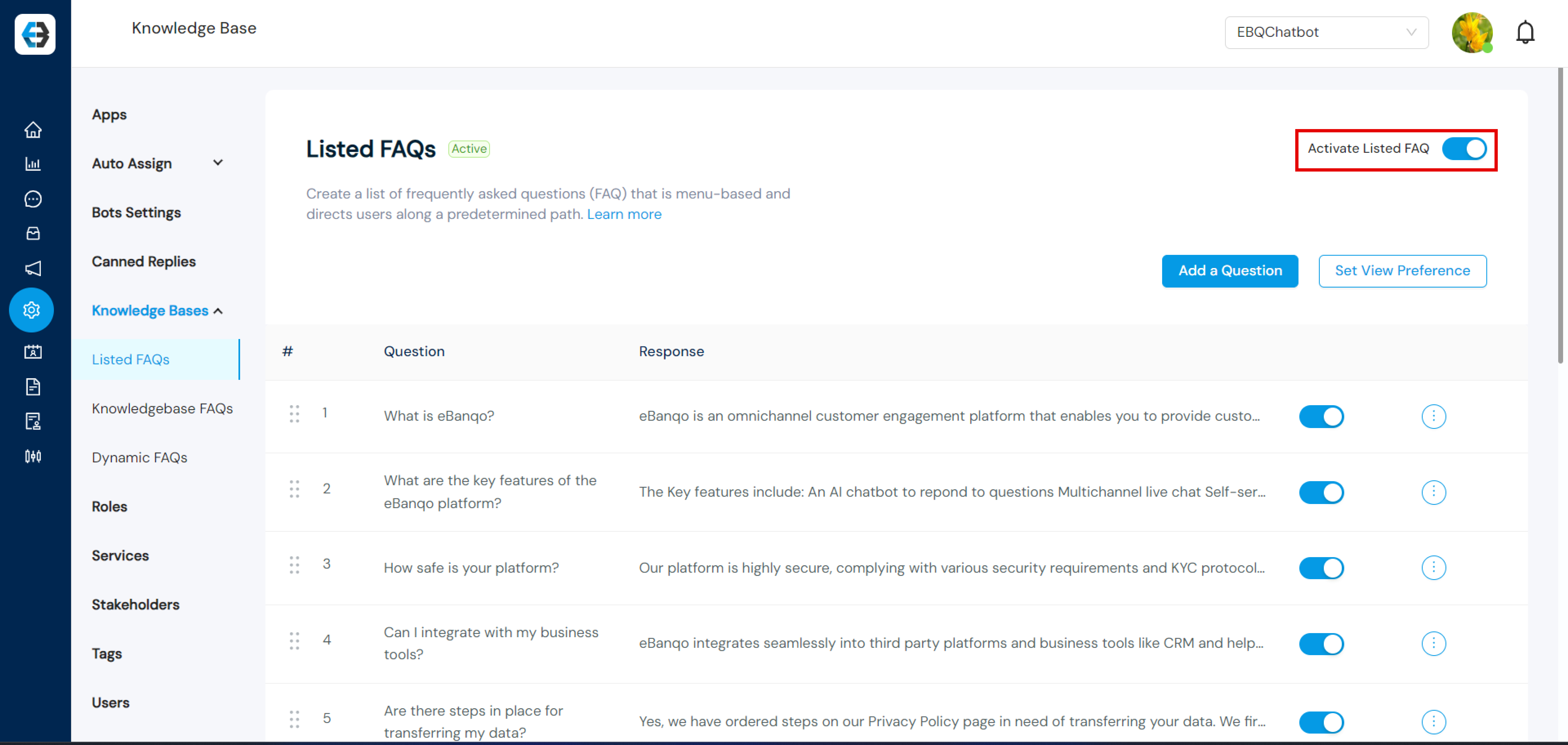
Step 2: Activate Listed FAQs.

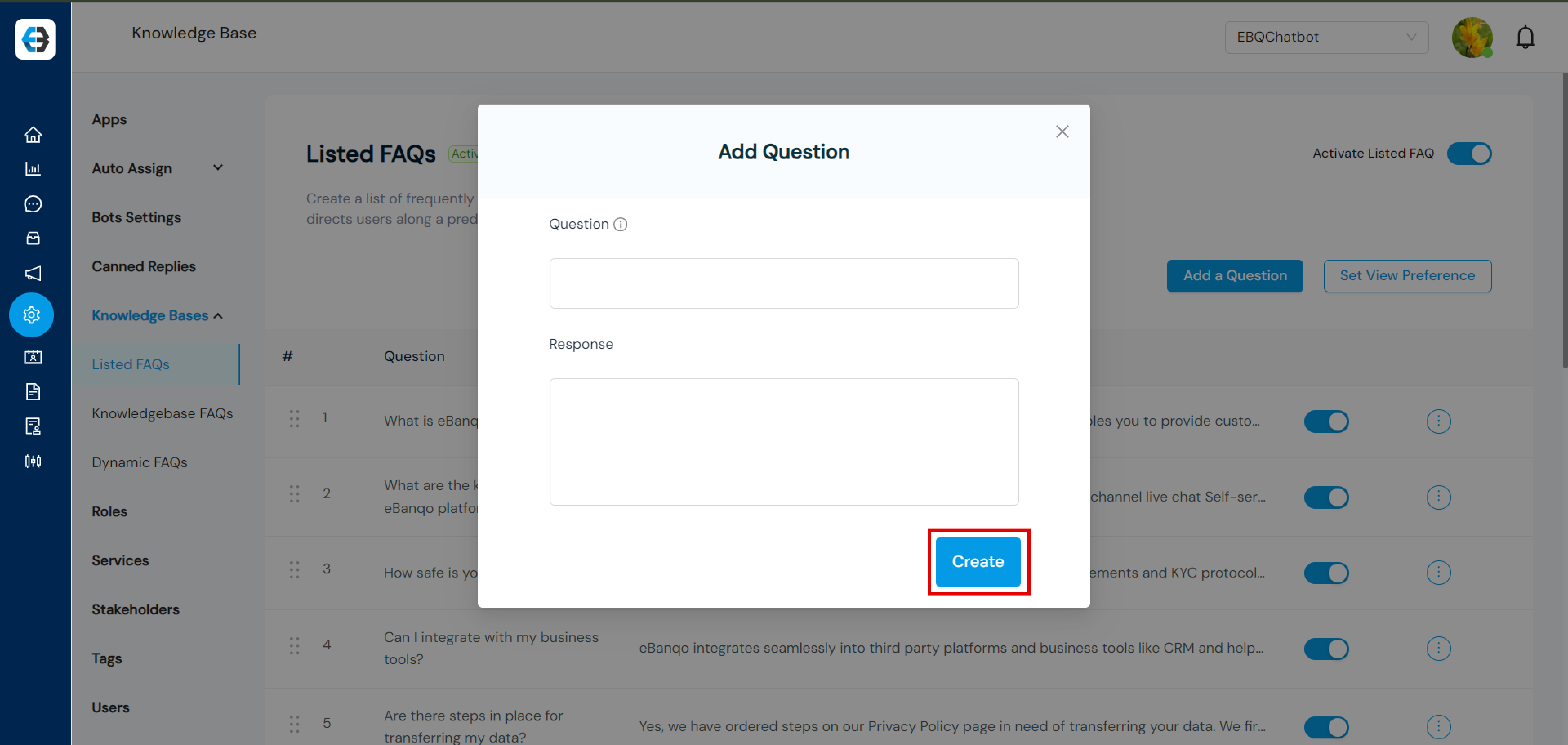
Step 3: Enter Question and Response.

Step 4: Select FAQs to display.

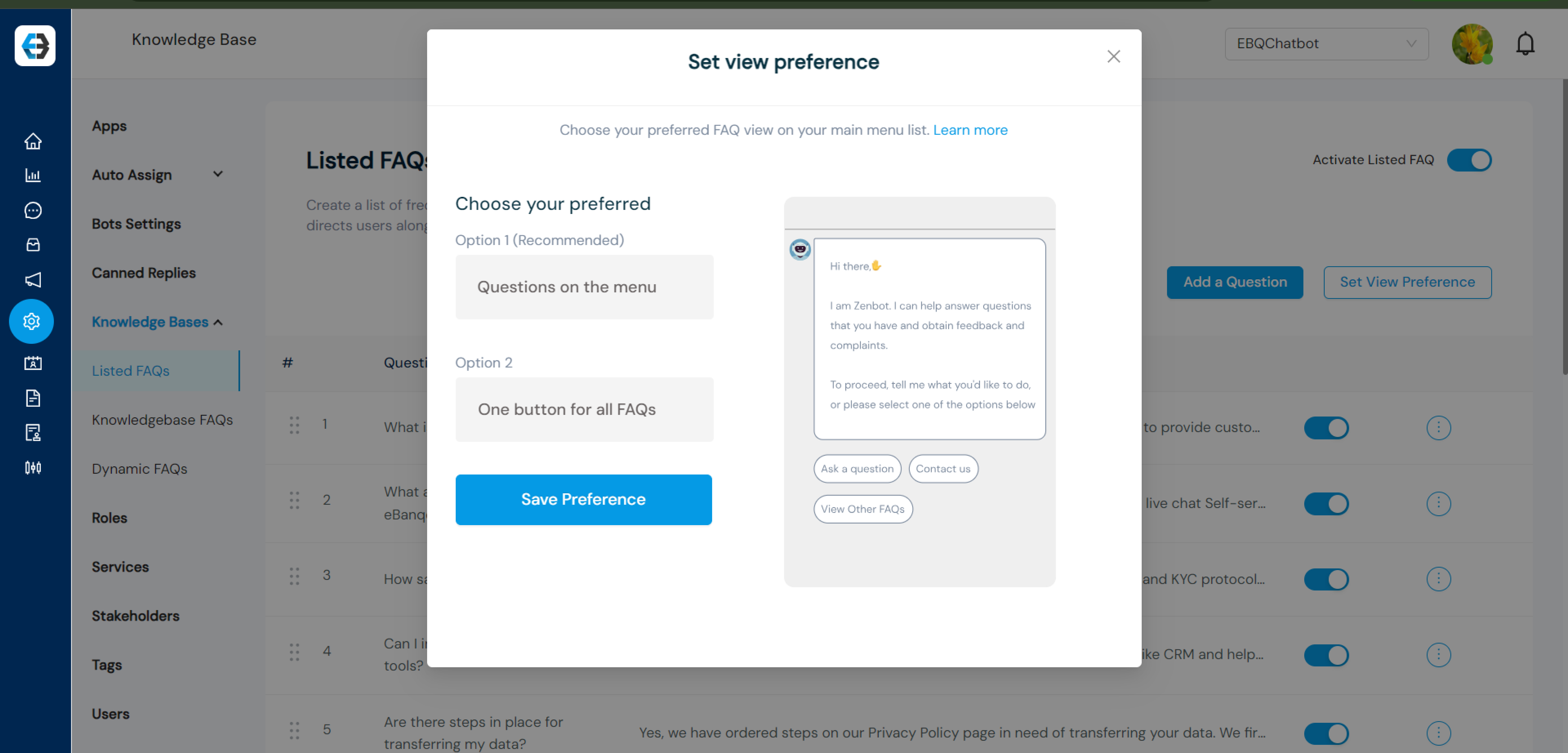
Step 5: Choose view preference.

Step 6: Save preference.

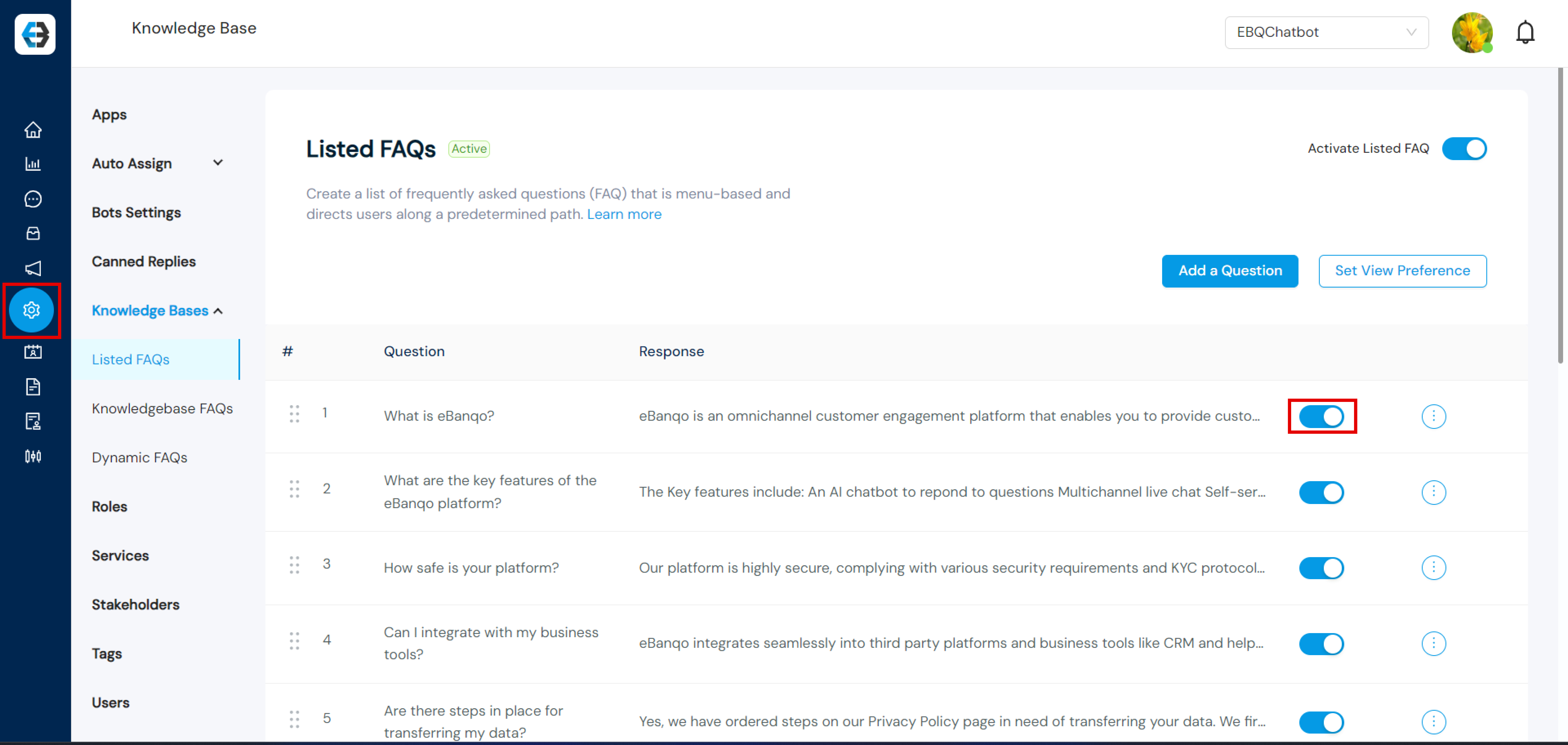
Step 7: Activate the FAQs.

Knowledge Base FAQs

How to Create Knowledge Base FAQs on eBanqo

Creating a well-structured knowledge base improves support efficiency.

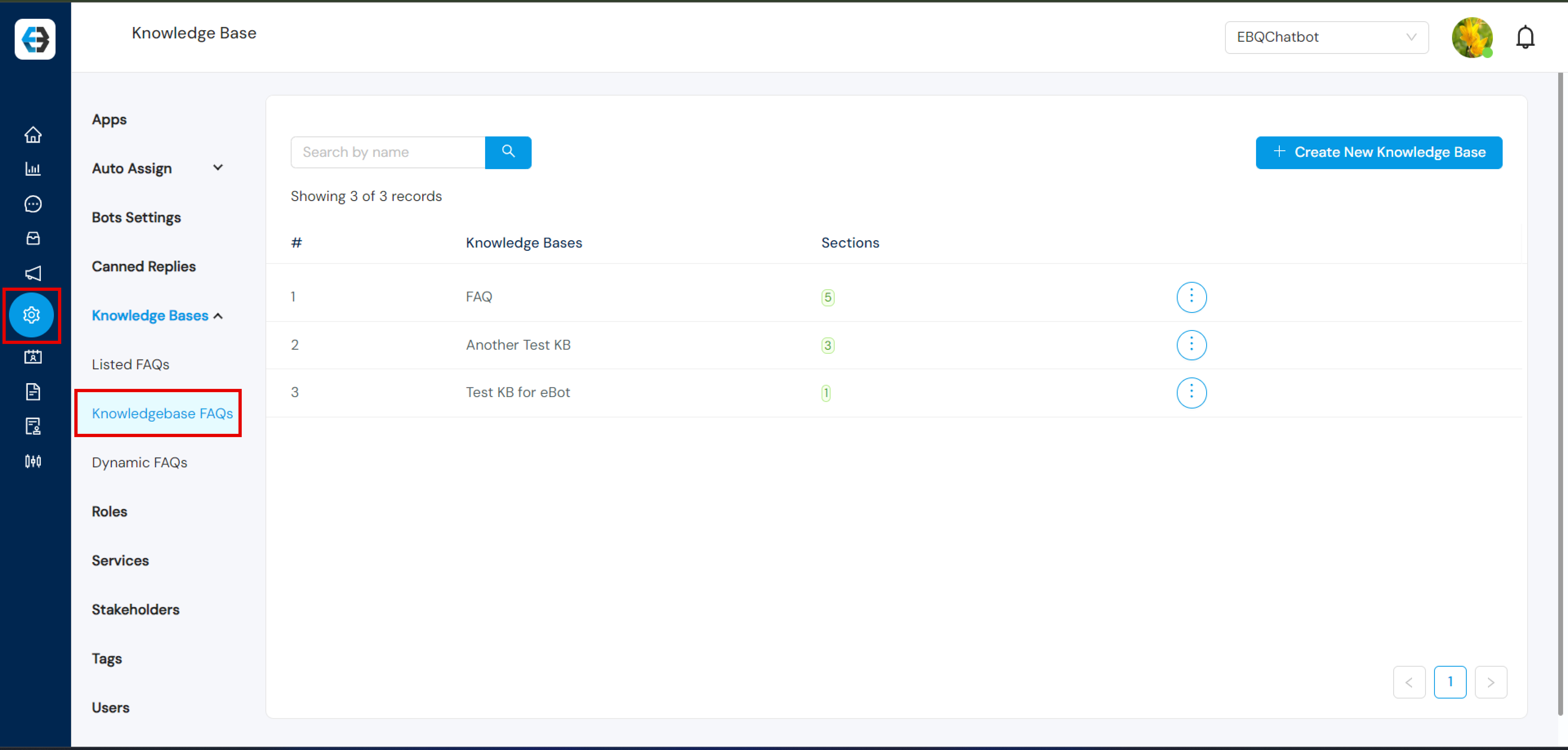
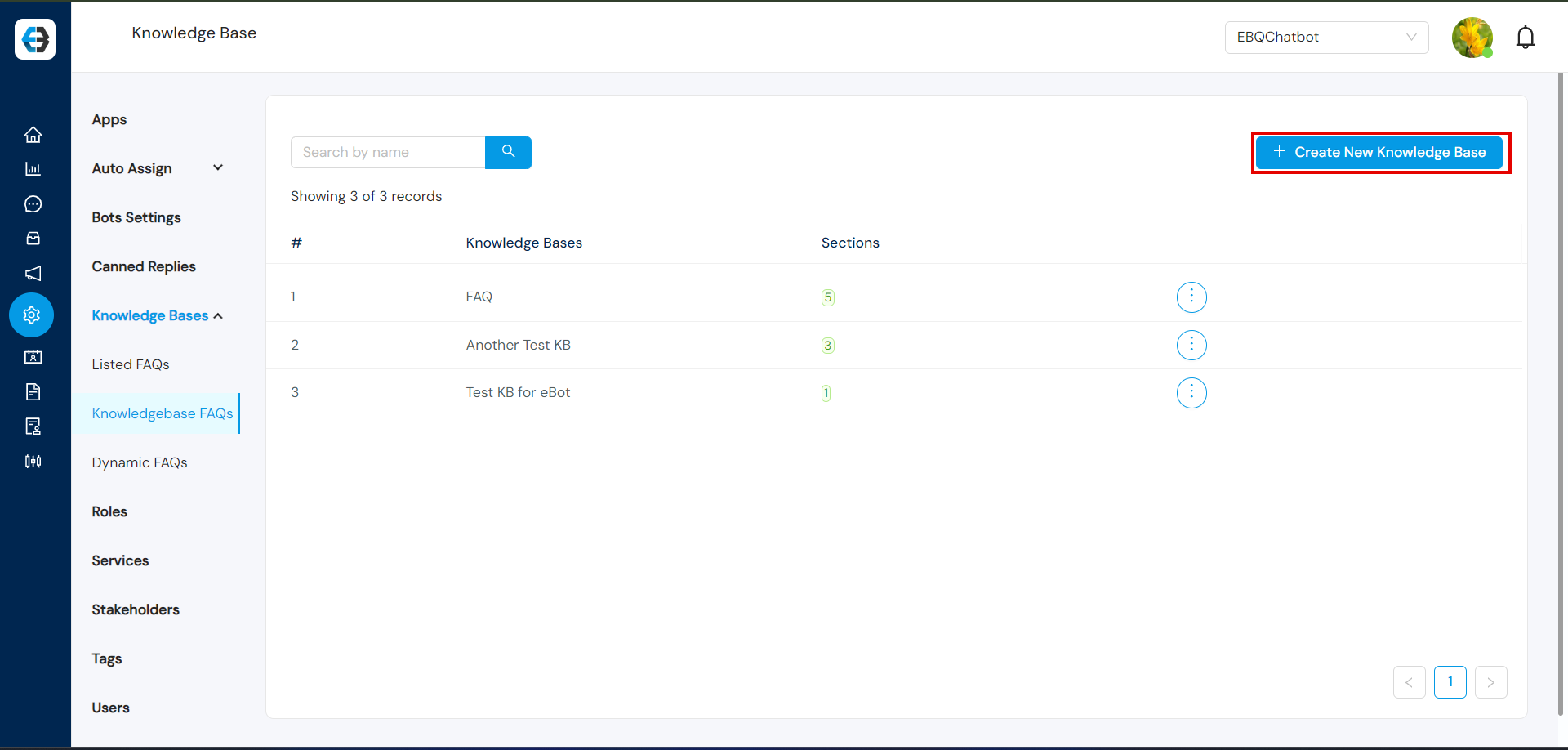
Step 1: Navigate to Configuration → Knowledgebase FAQs.

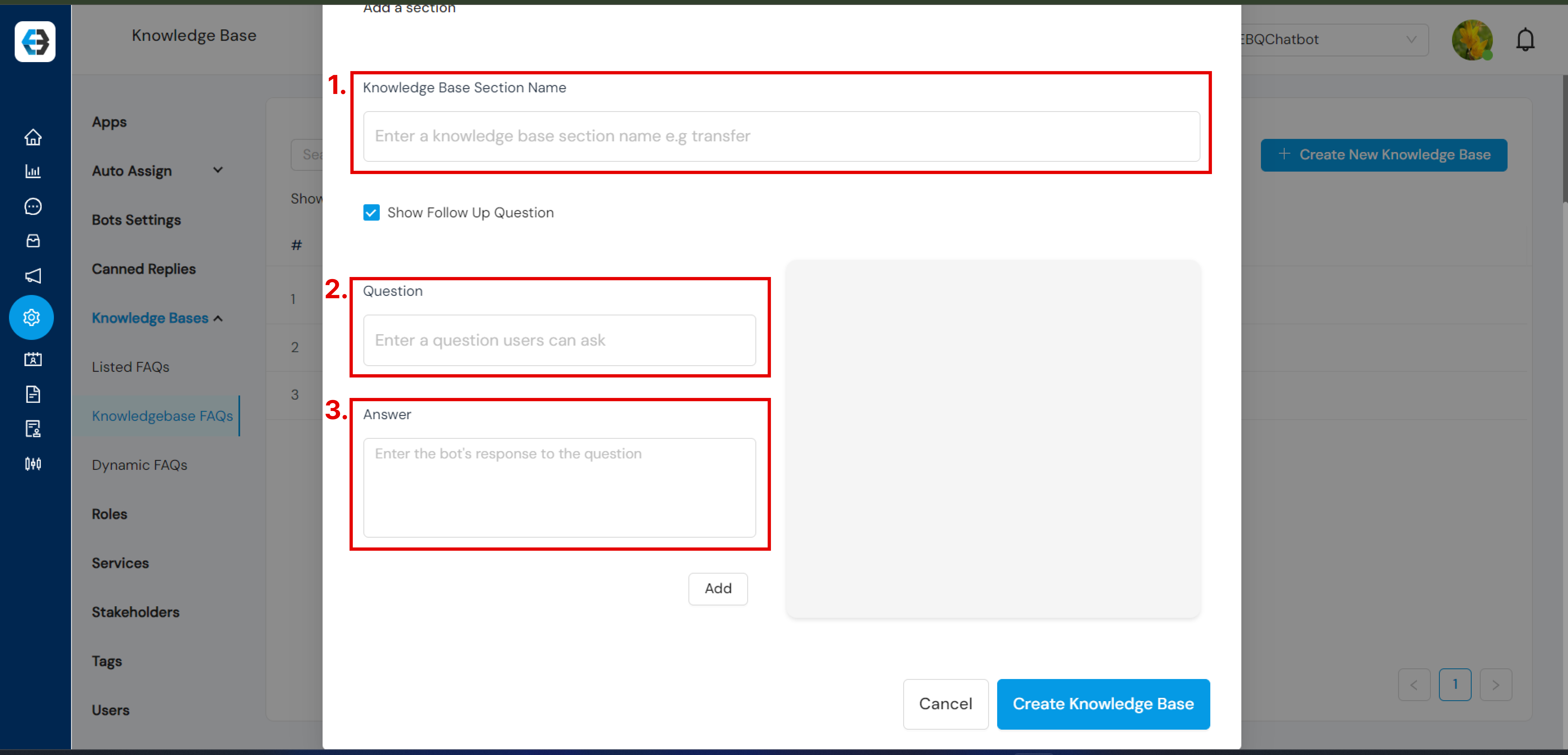
Step 2: Click Create New Knowledge Base.

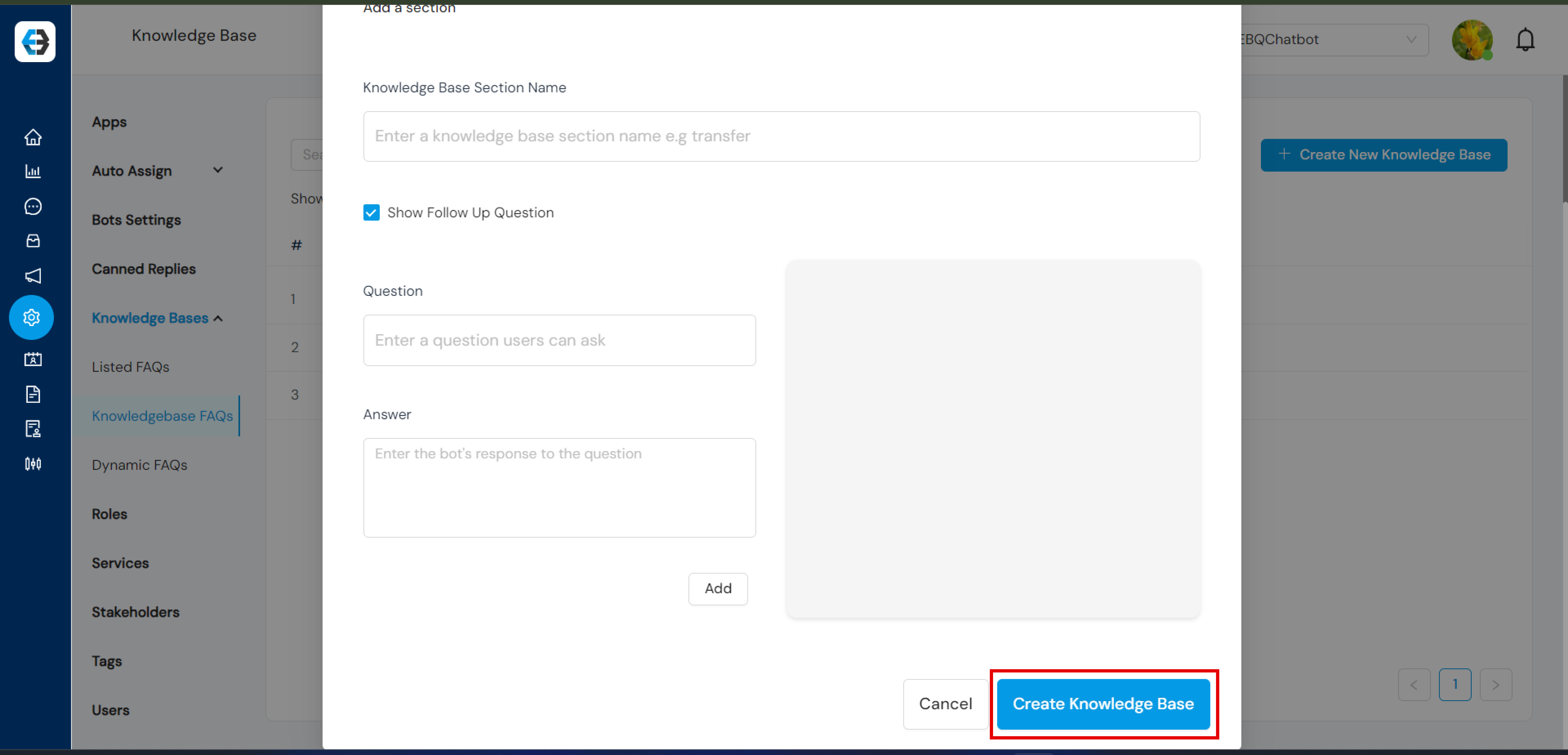
Step 3: Fill in the FAQ details.

Step 4: Save the FAQ.

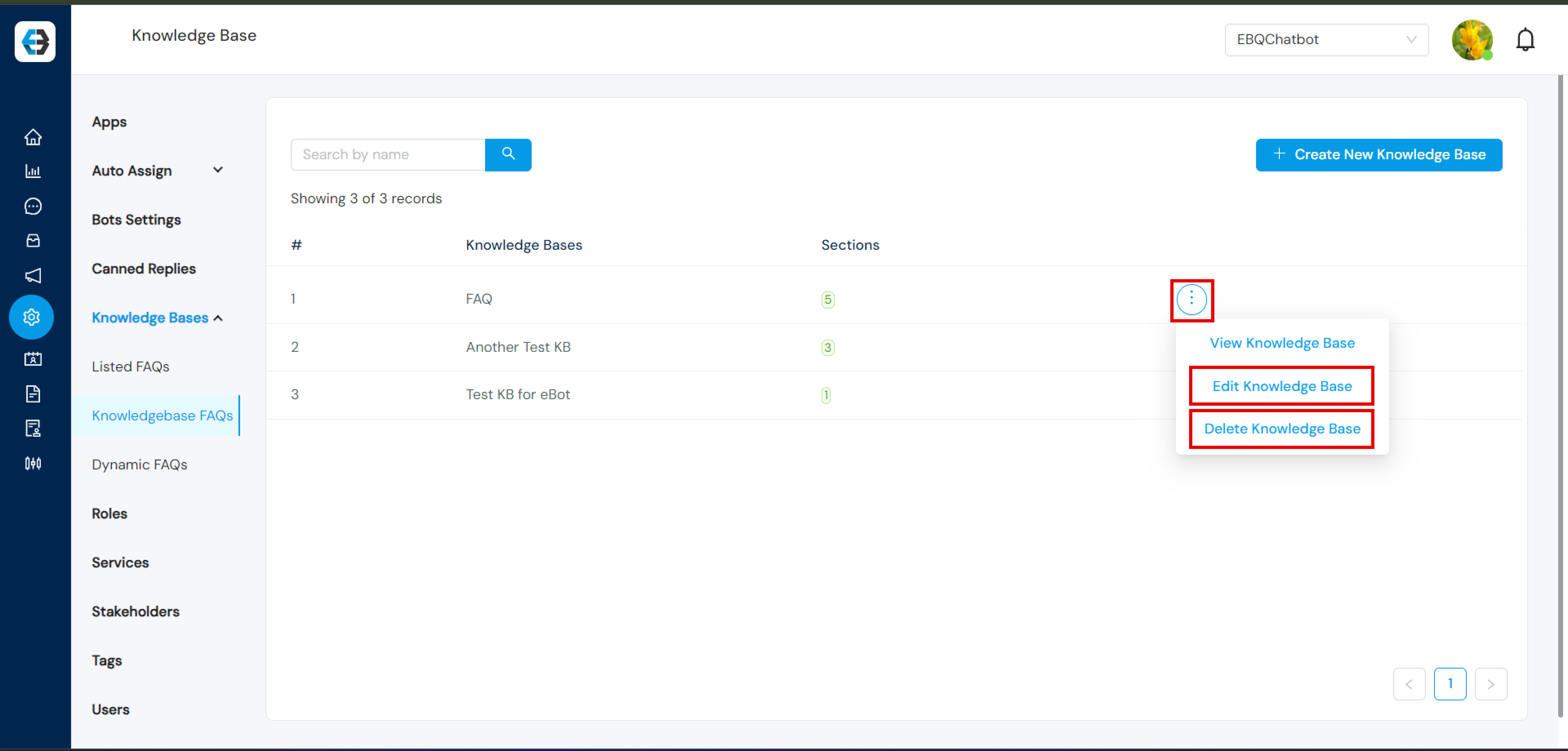
Step 5: Edit or delete FAQs when needed.