
Understanding your eBanqo Messenger dashboard

Your eBanqo Messenger dashboard contains four main sections:

  1. Customer Activity
  2. Customer’s Usage of Services
  3. Messages by Service
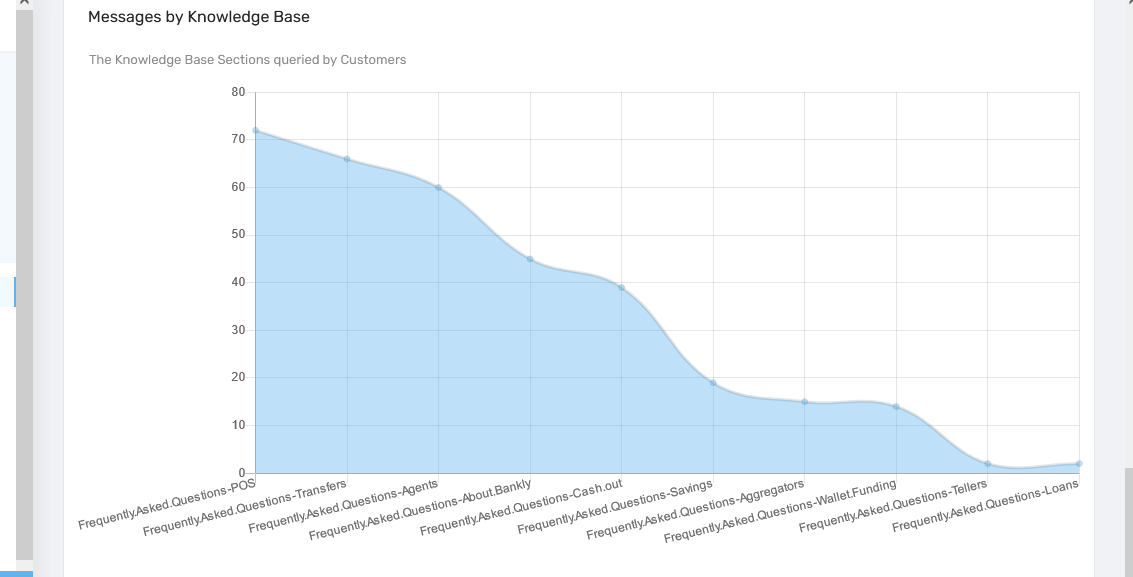
  4. Messages by Knowledge Base

Below is an explanation of each section.

1. Customer Activity

Customer activity measures how many times customers used each service offered by your digital assistant. It counts the frequency a service is used, not the number of people using it.

For example, if a customer asks the same question five times, it will be counted as five activities.
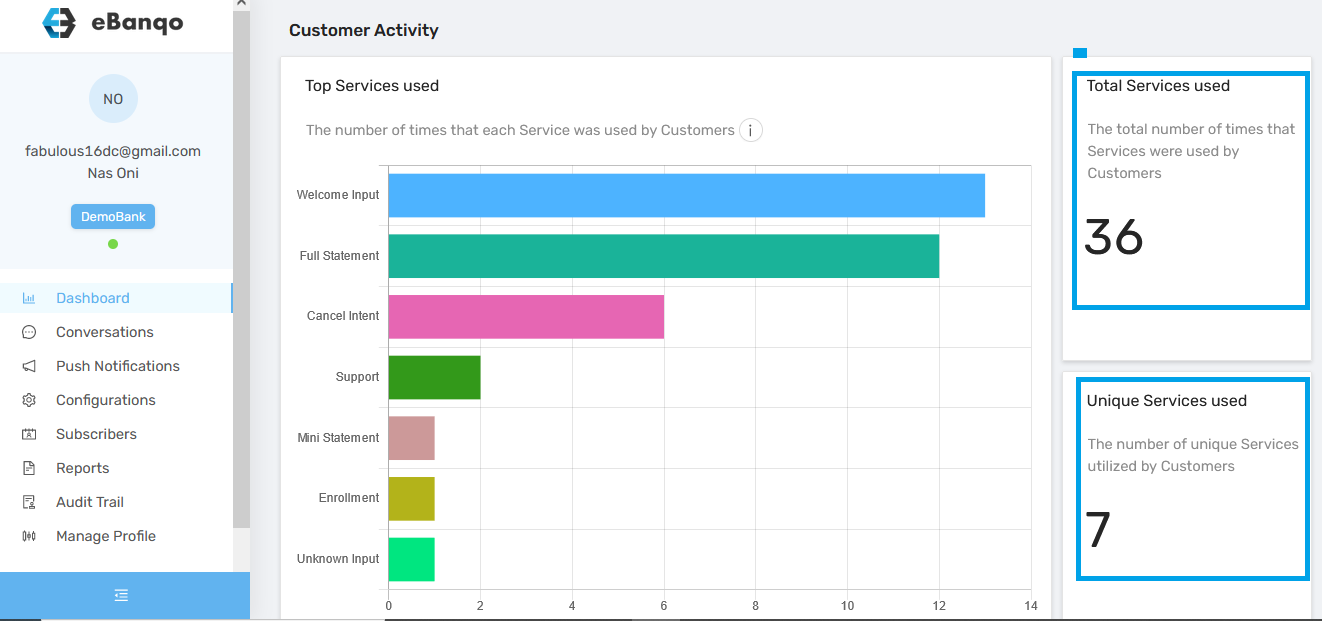
There are two statistics on the right side:

Total Services Used

This shows the number of times customers used services provided by your chatbot or assistant. If a customer repeats the same action multiple times, each instance is counted.

Unique Services Used

This counts only the services used, not how many times they were used. For example, if ten customers use the mini-statement service fifty times, it is counted as one service.

2. Customer Usage of Services

This report measures the number of customers using the services offered by the bot within a specific timeframe.

Unlike Customer Activity, it counts the number of people using the services rather than how many times the services were used.
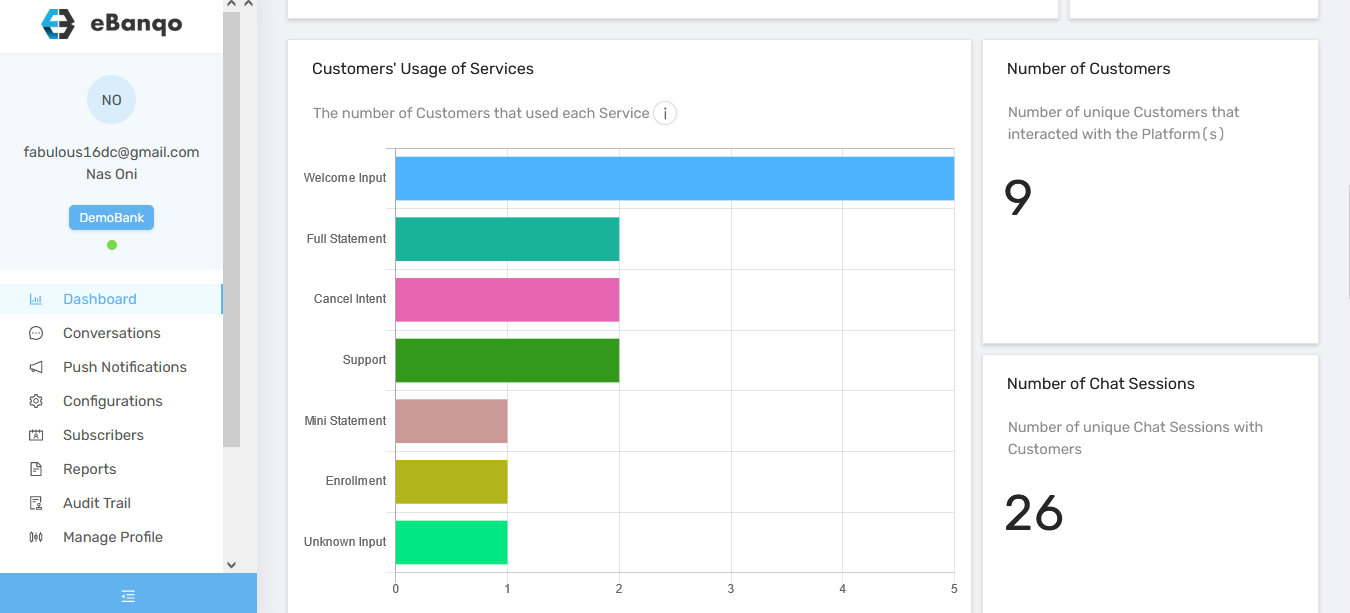
Two key statistics appear on the right:

Number of Customers

This represents the total number of individuals who used the service within the selected period.

Number of Chat Sessions

This represents how many chat sessions occurred between customers and either the chatbot or support team.

3. Messages by Service

This report counts the number of messages customers exchanged with your chatbot while completing an activity.

The purpose of this metric is to ensure that too many steps or messages are not required to complete a task.
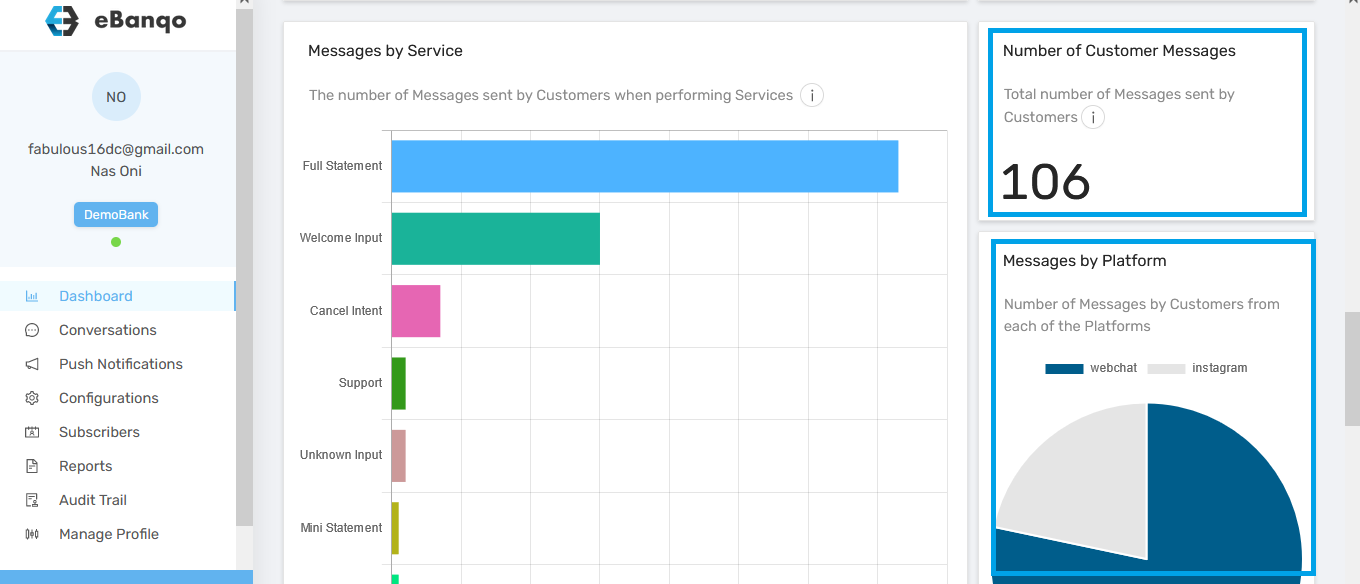
Two statistics appear on the right:

Number of Customer Messages

This is the total number of messages customers exchanged on your platform, including messages with the chatbot, support agents, and responses to system messages.

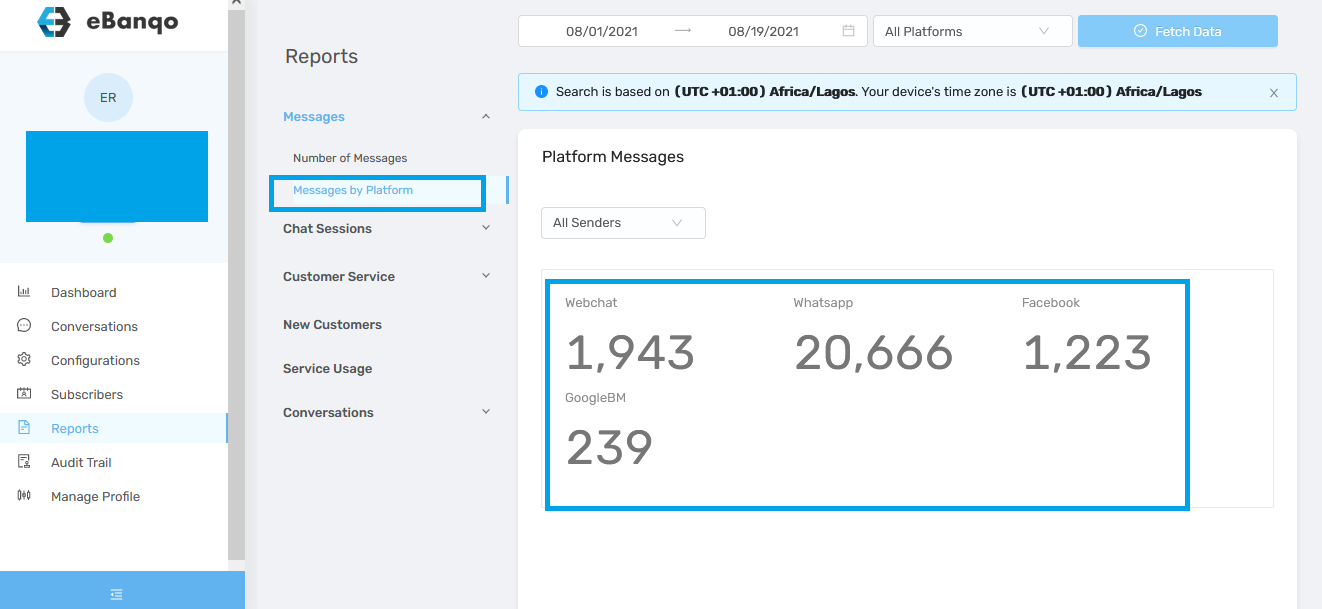
Messages by Platform

This shows the total number of messages exchanged across the different platforms where your bot is active.

4. Messages by Knowledge Base

This report shows the number of customer messages that fall into different knowledge base categories.
Reports: How to view reports

Reports give you insight into platform analytics. Some reveal your agents’ activities, while others show how often your customers use the services in your chatbot.

eBanqo Messenger has six (6) broad categories of reports:

1. Messages

Messages show the total number of messages exchanged between customers, your bot, and support agents on the platform.

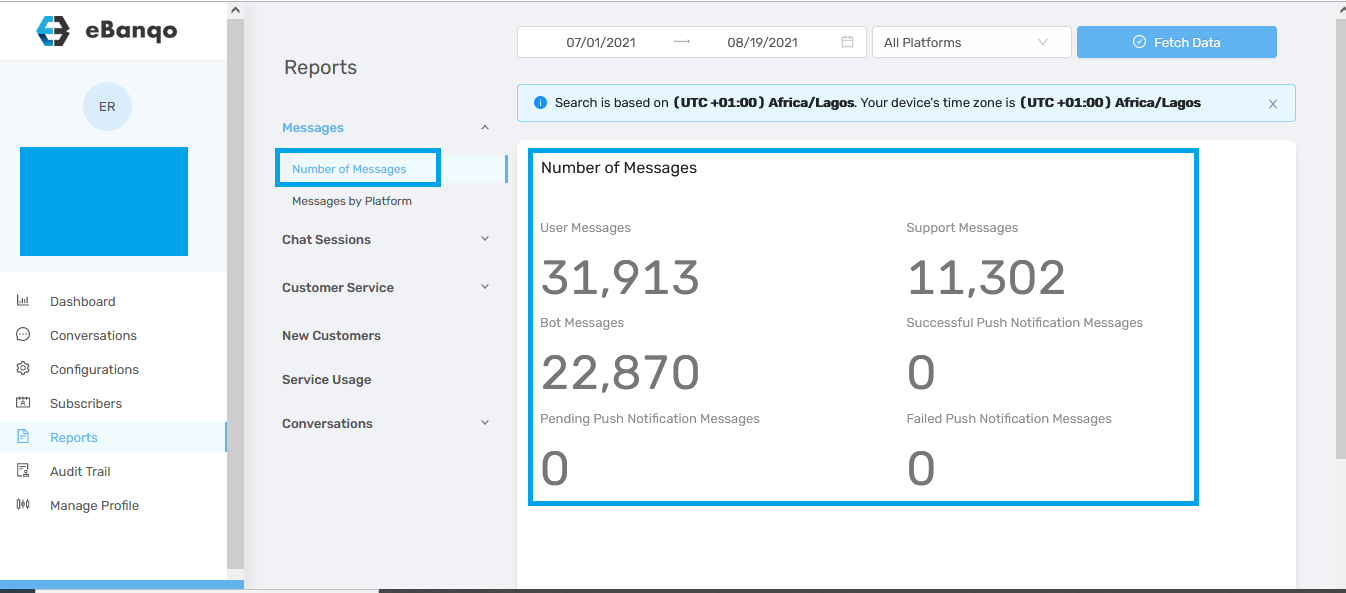
a. Number of Messages

This is the sum of all messages from a selected platform or across all platforms your bot is active on.

  • User messages – all messages from customers
  • Support messages – messages exchanged between customers and support agents
  • Bot messages – messages exchanged between customers and the chatbot
  • Successful push notifications – broadcast messages successfully sent
  • Pending push notifications – broadcast messages yet to be delivered
  • Failed push notifications – broadcast messages that were not delivered

b. Messages by Platform

This report shows the total messages exchanged on each platform where your chatbot is active.

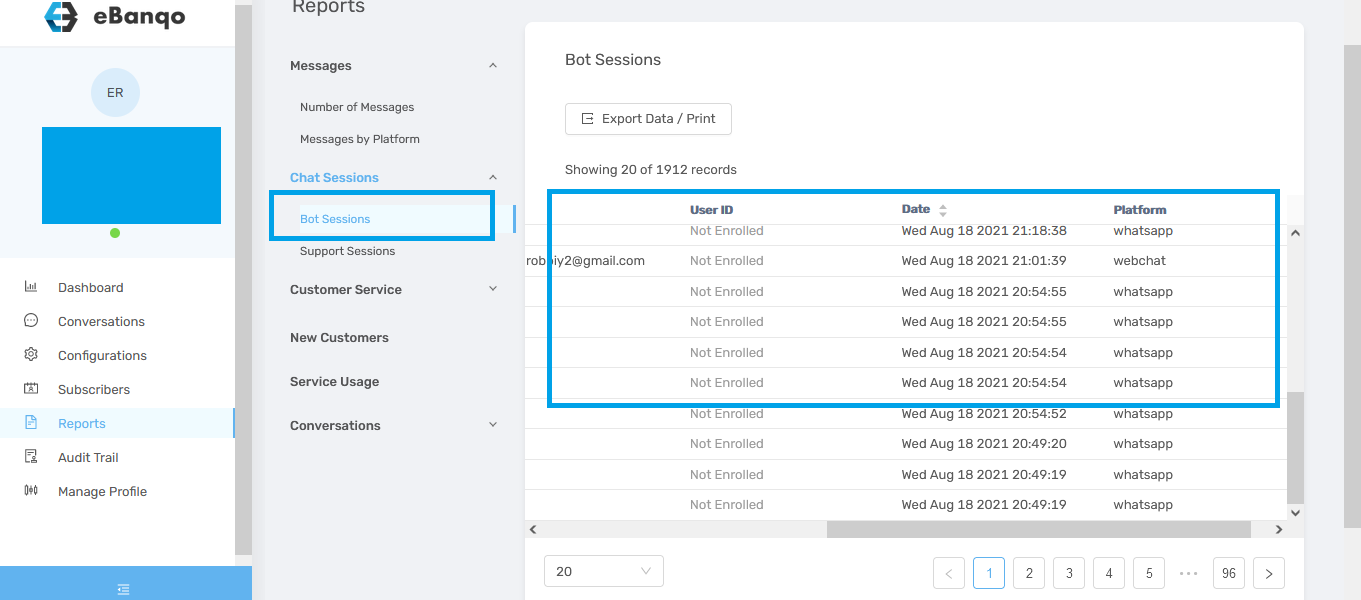
2. Chat Sessions

This report lists customers who have chatted with your bot or support team.

a. Bot Sessions – customers who chatted with the chatbot.

b. Support Sessions – customers who chatted with your support team.

Both include the customer name, platform, and last chat date.

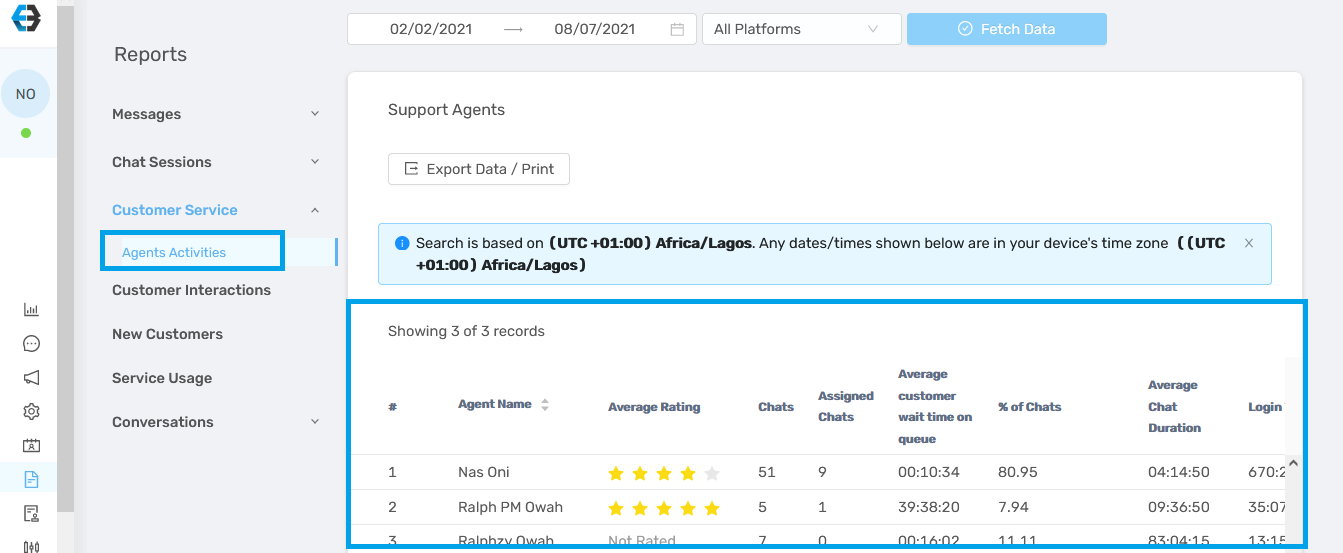
3. Customer Service

This report shows information about agent activity and performance.

It includes:

  • Agent name
  • Number of customers handled within a selected timeframe
  • Average rating
  • Login activity

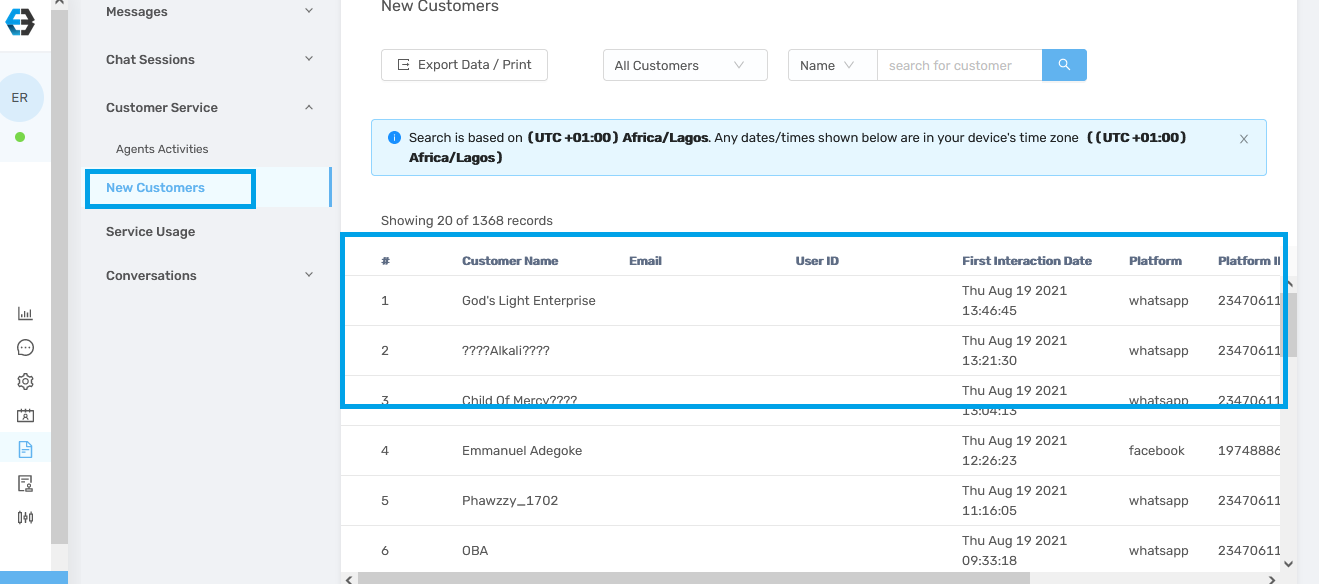
4. New Customers

This report shows the number of customers interacting with you for the first time within a selected timeframe.

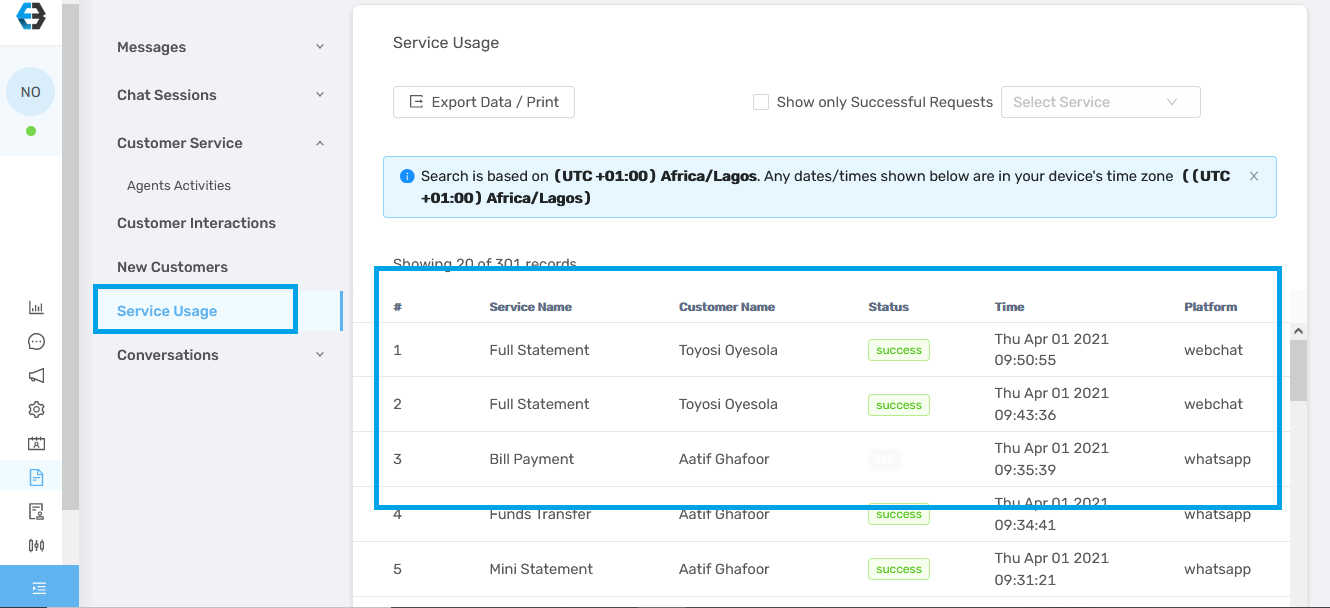
5. Service Usage

This report shows the services customers perform on your chatbot, the transaction status (successful or failed), the date, and the platform used.

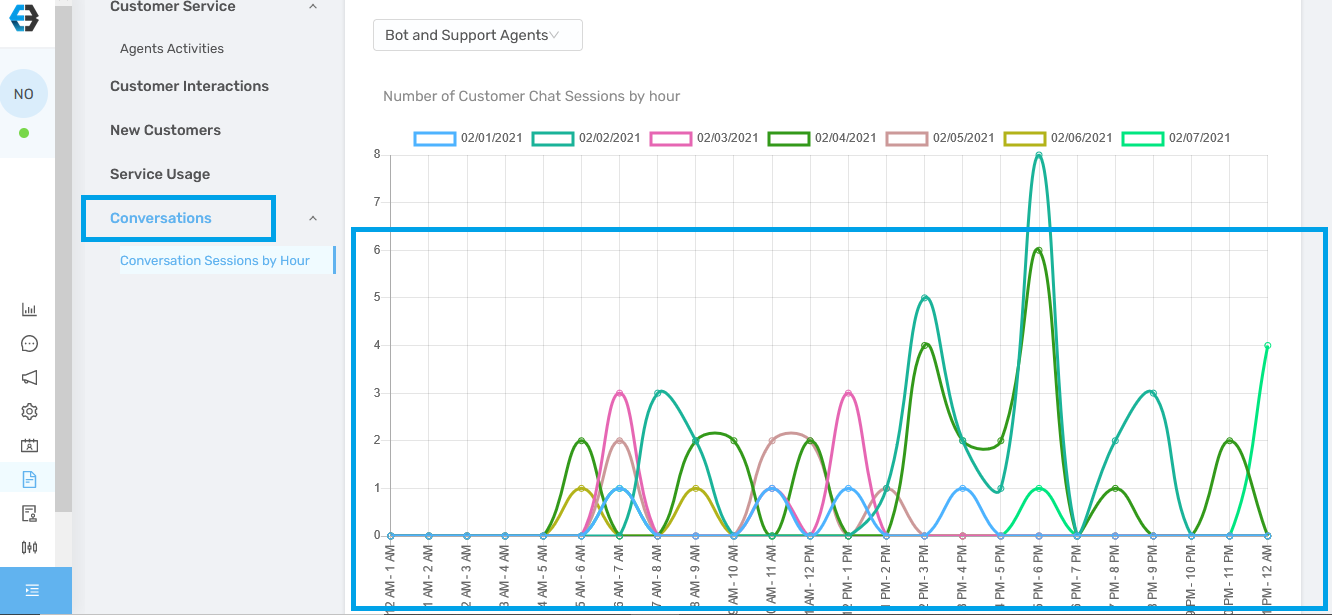
6. Conversations

This report shows conversation patterns and peak interaction hours.

How to retrieve reports

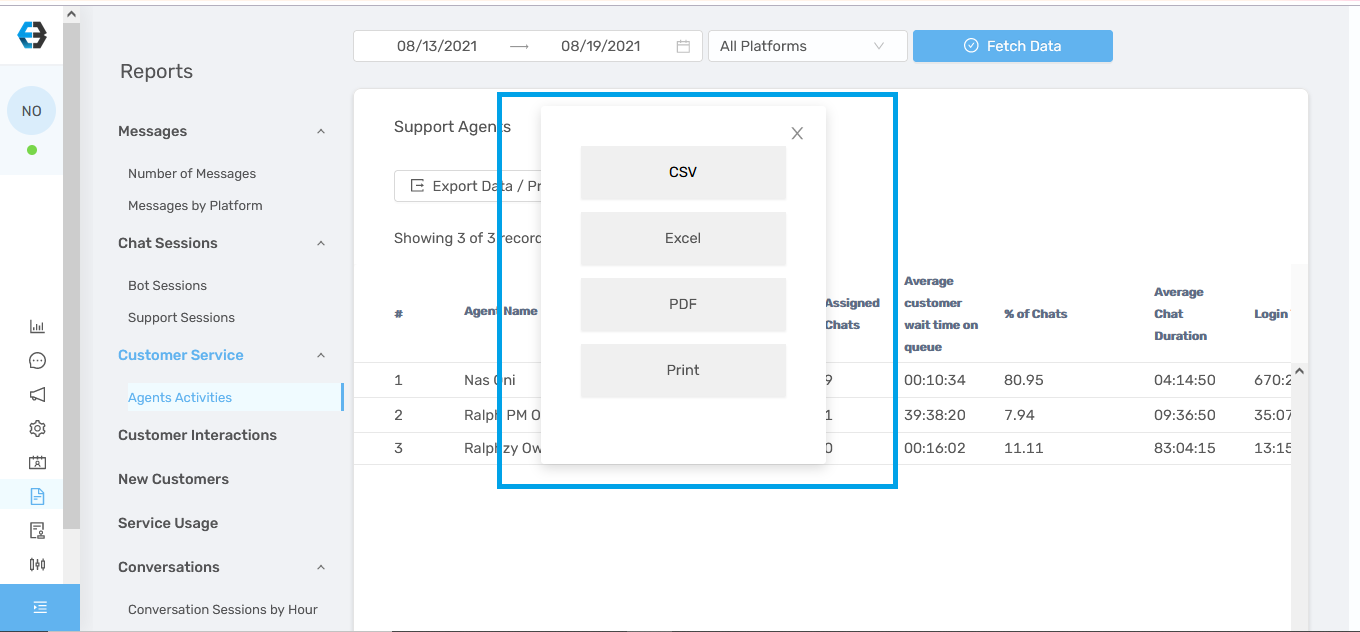
You can export reports as PDF, Excel, or CSV files.
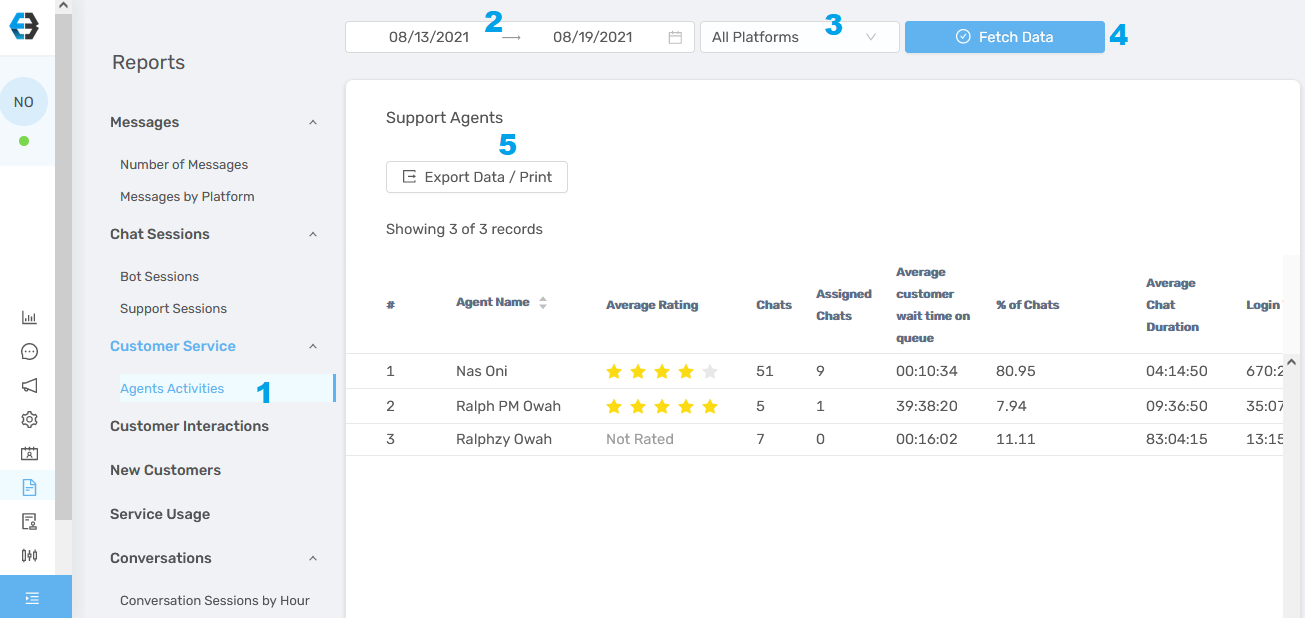
1. Log in to your account and click Reports.
2. Select the report you want to download.
3. When the report loads, export it using the following steps:

Step 1: Select the report you want.

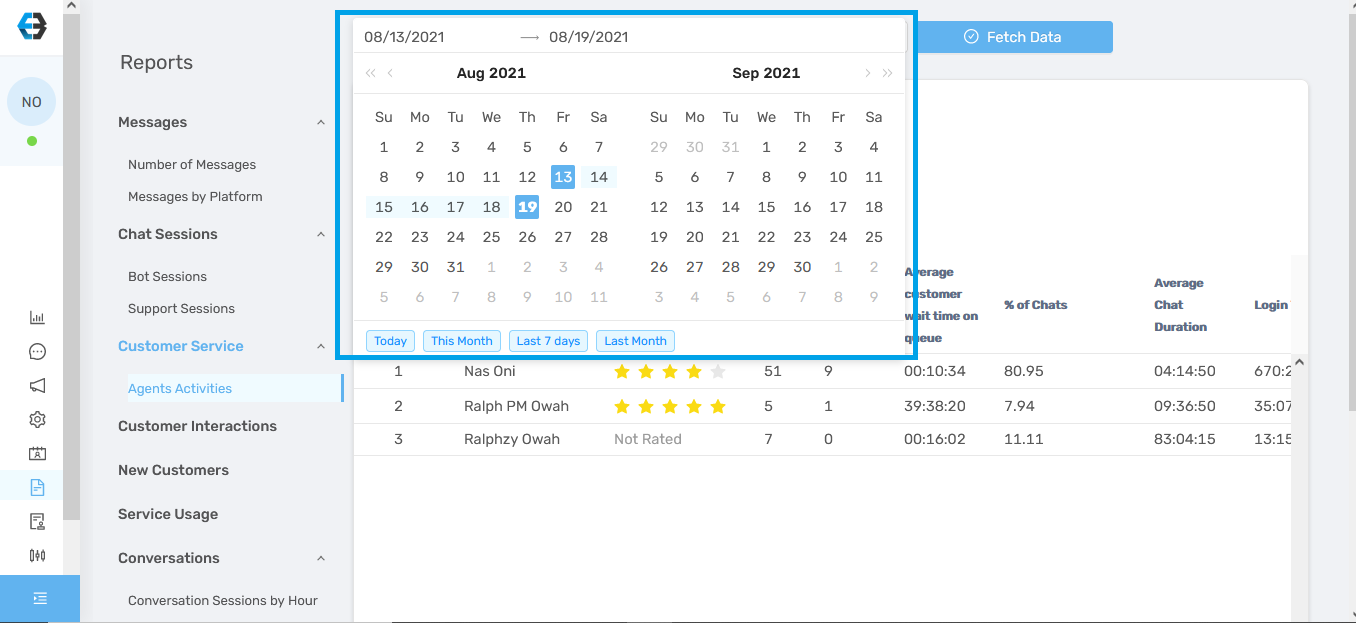
Step 2: Choose the date range.

Note: Reports older than six (6) months cannot be viewed or downloaded.

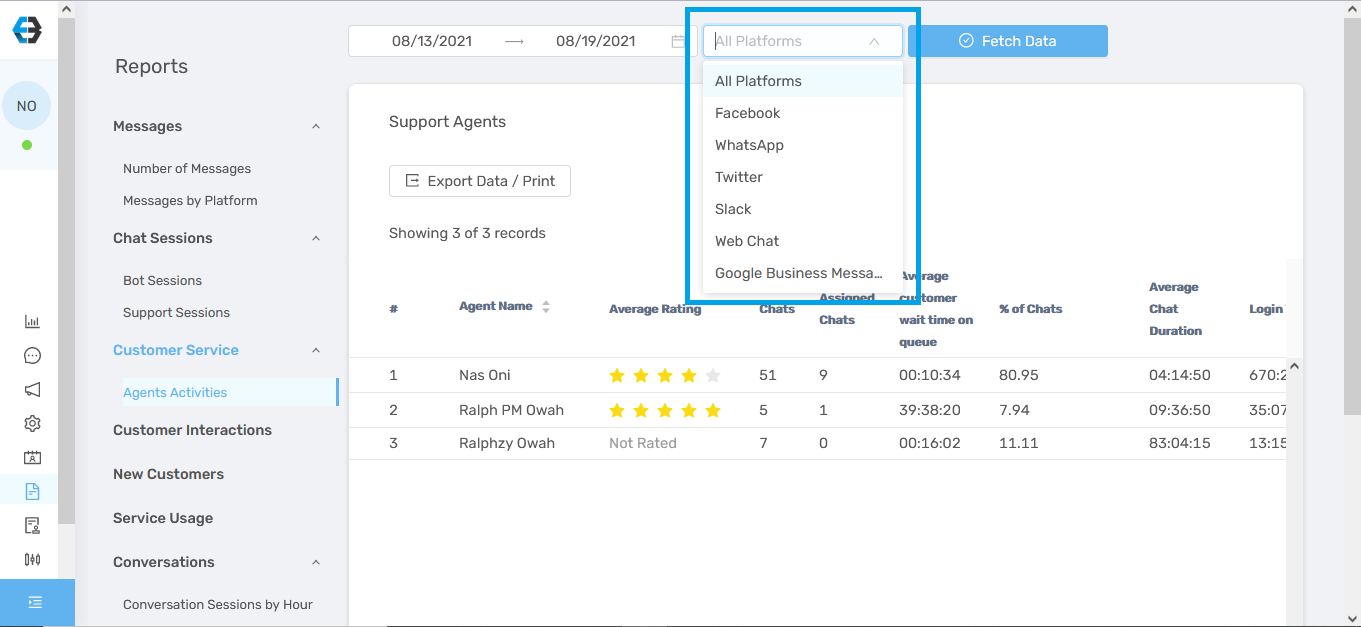
Step 3: Select the platform.

If you want reports across all platforms, choose All platforms.

Step 4: Click Fetch Data.

Step 5: Export or print the report (PDF, CSV, or Excel).

Chatting with customers

How to chat with customers on the queue

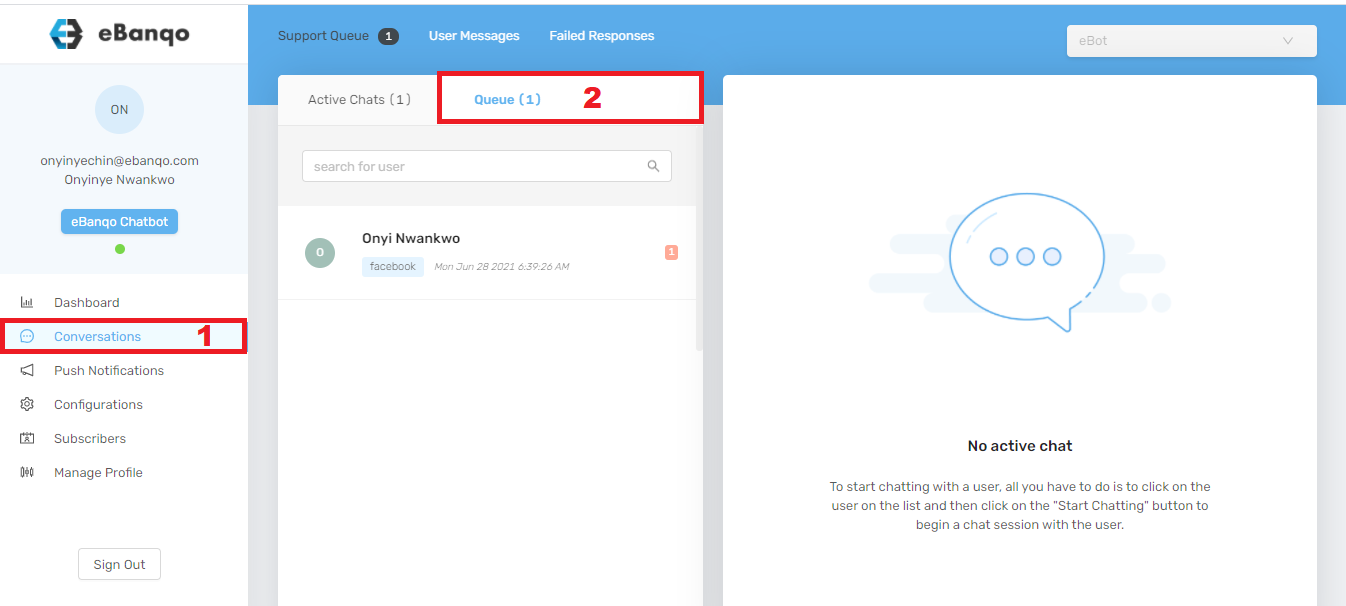
1. To chat with a customer on the queue, go to Conversations > Support Queue.

How to chat with a customer on the queue in eBanqo Messenger

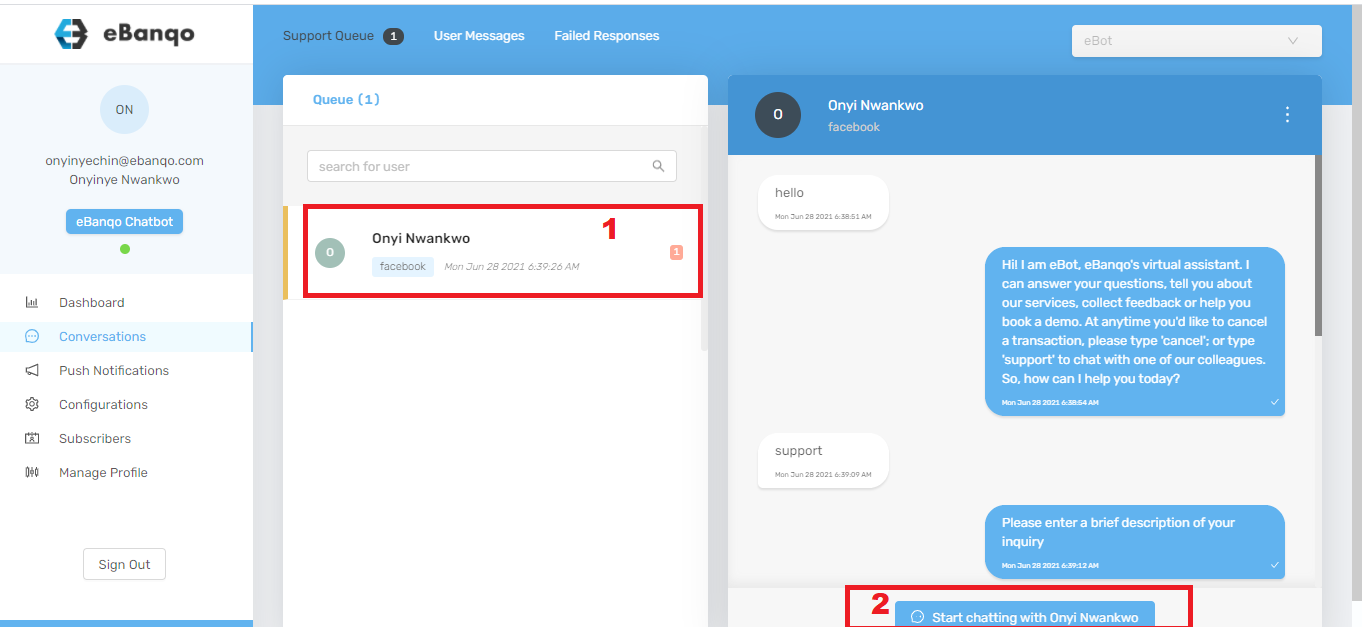
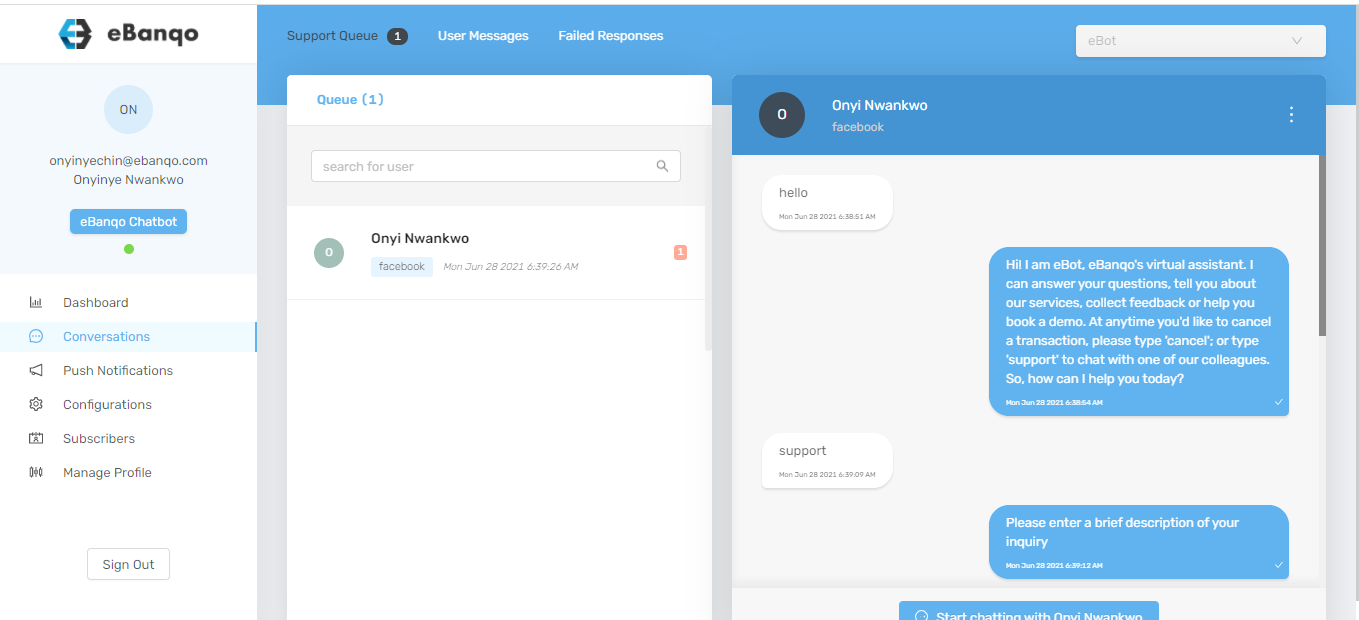
2. Select a customer on the queue to start a chat. A tab containing the customer’s chat history will open on the right side.

On the bottom-right corner, click Start chatting with <customer’s name>.

How to chat with a customer on the queue in eBanqo Messenger

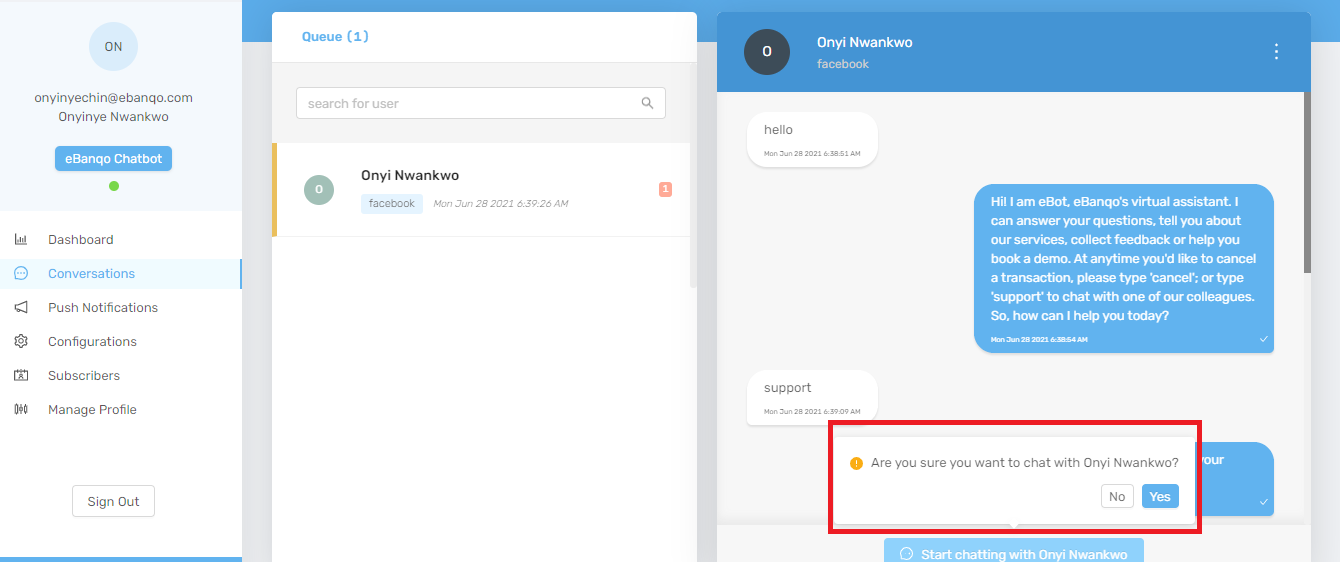
3. Click Start chatting with Onyi Nwankwo. A confirmation modal appears.

How to chat with customers on eBanqo Messenger

4. Click Yes to begin the conversation with the customer.


How to reassign a customer on the queue

You may reassign a customer to another agent if you believe another agent is better equipped to handle the inquiry.

1. Select the customer from the queue.

How to reassign a customer to another agent

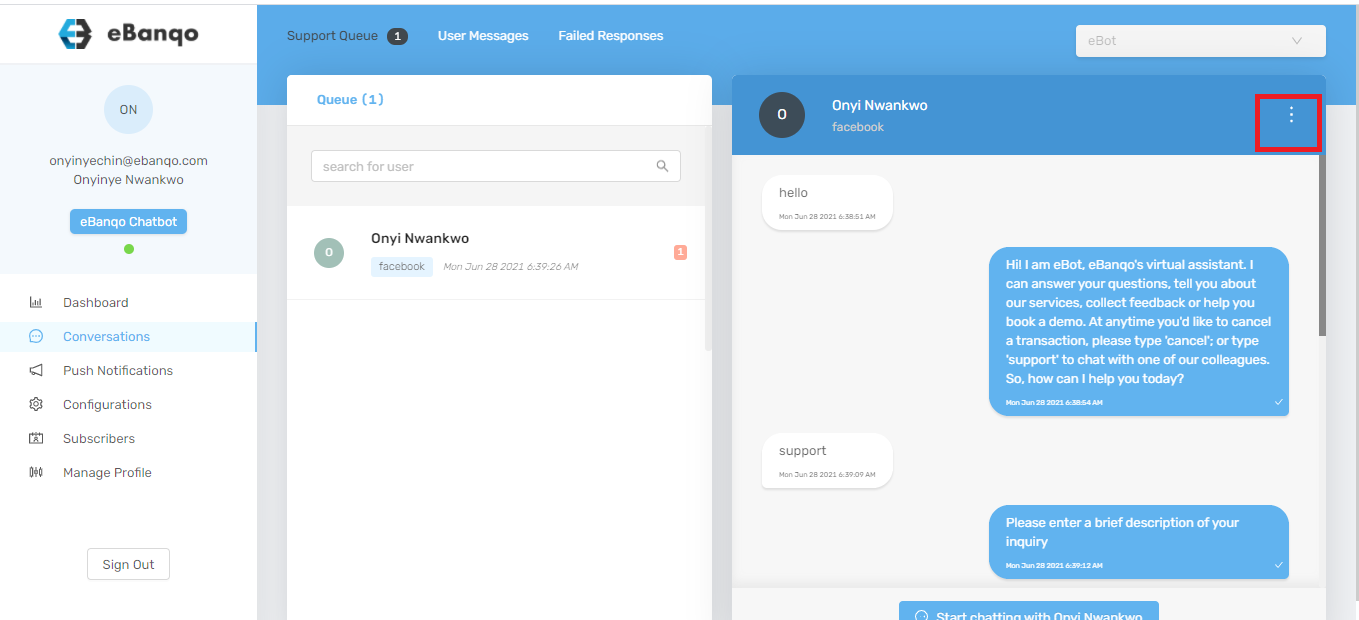
2. Click the three dots at the top-right corner of the screen.

How to reassign a customer in eBanqo Messenger

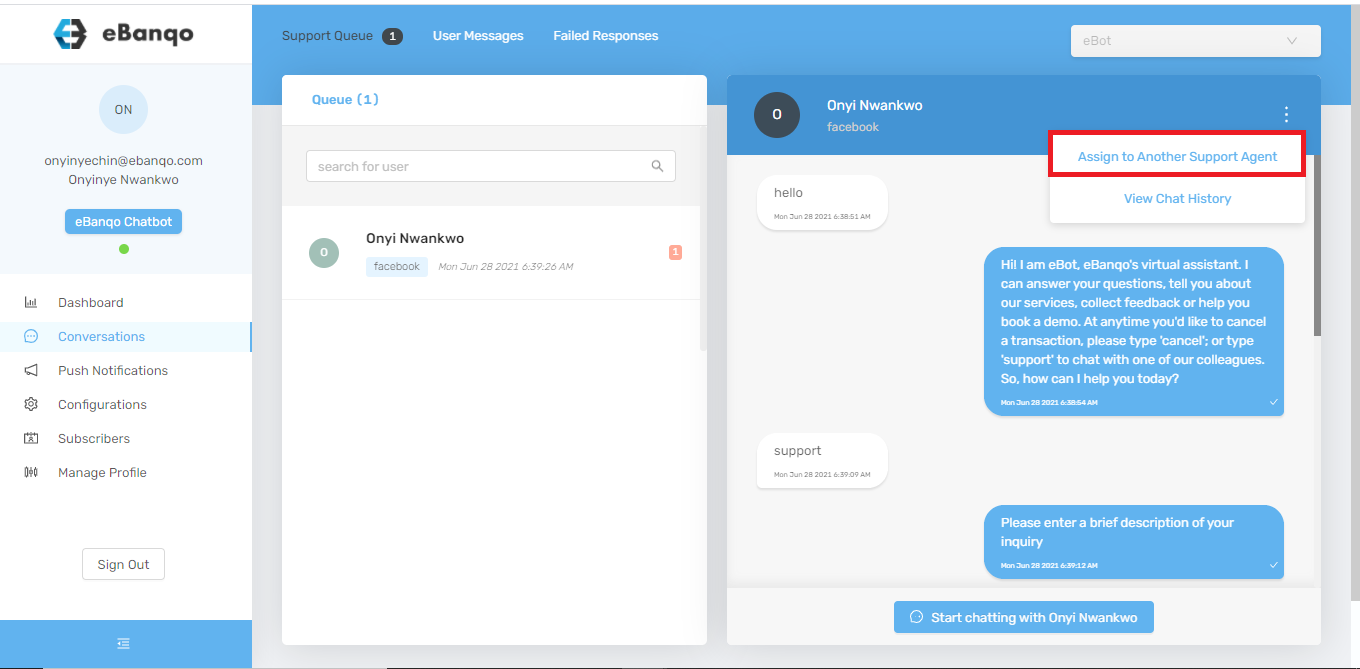
3. Select Assign to another support agent.

How to reassign a customer in eBanqo Messenger

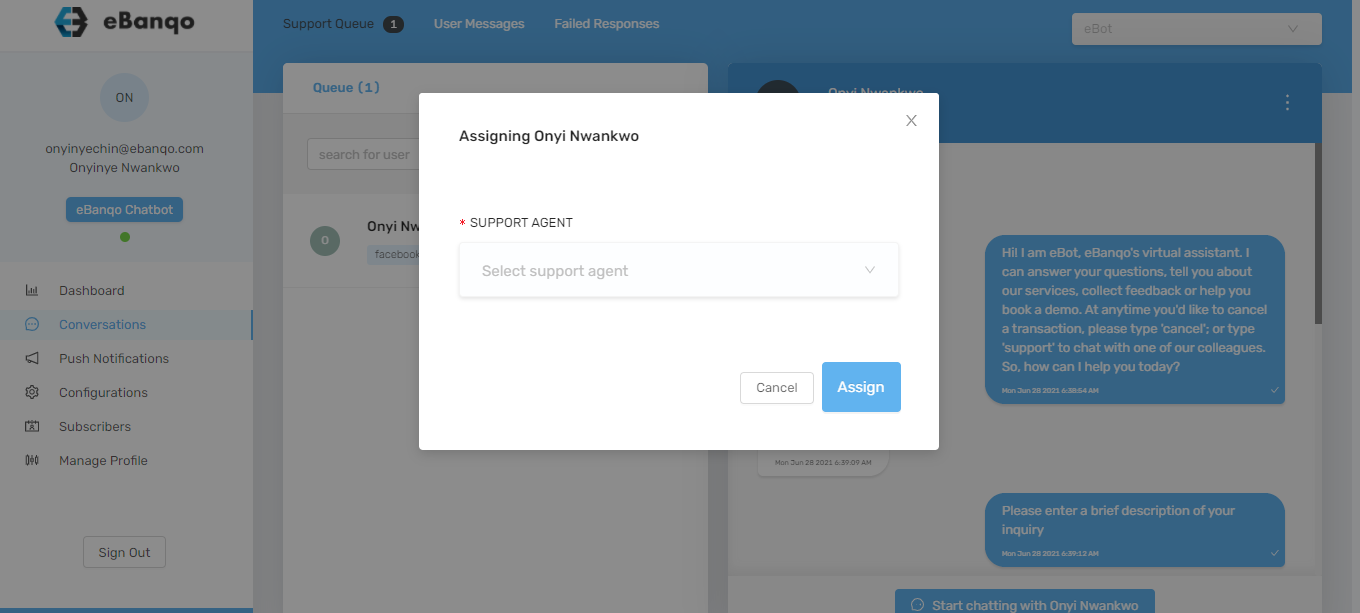
4. A modal appears. Select the preferred agent from the dropdown list or type the agent’s name. Then click Assign.

How to reassign a customer to another agent

How to end a conversation or chat

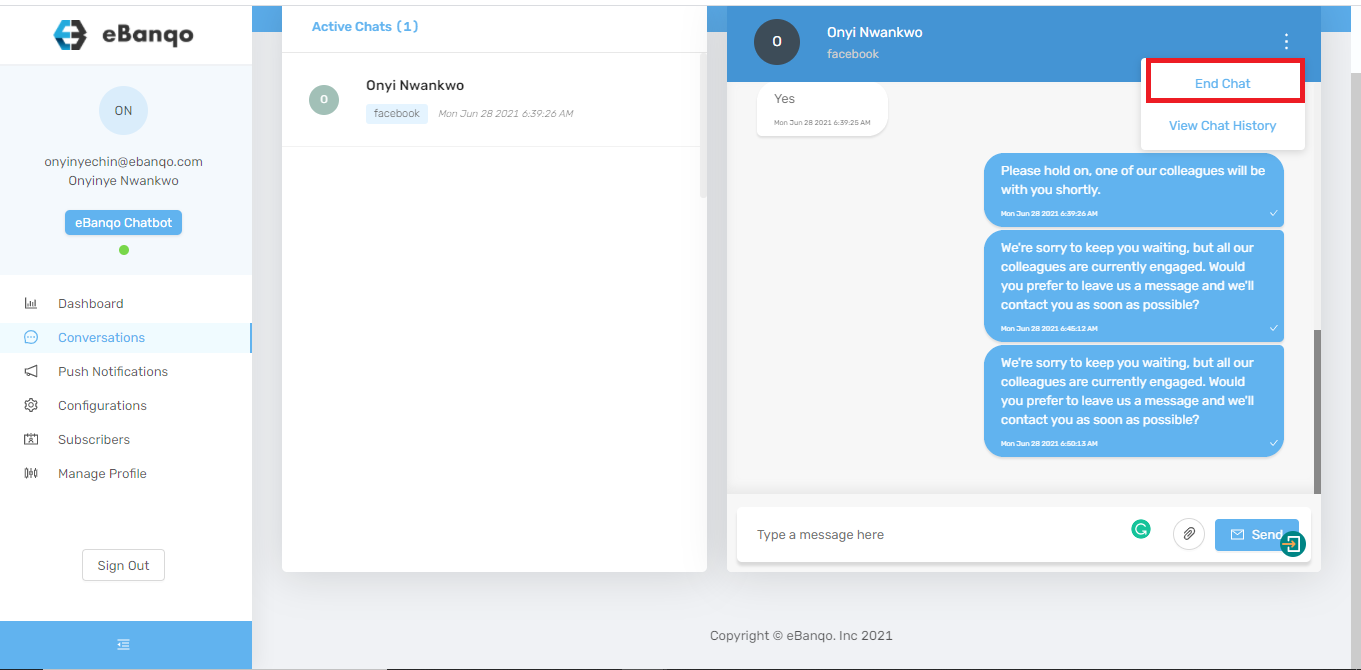
Ending a chat closes the open conversation tab. This may happen when the customer’s issue has been resolved or the customer stops responding.

1. Click the three dots at the top-right corner.

How to end a chat in eBanqo Messenger

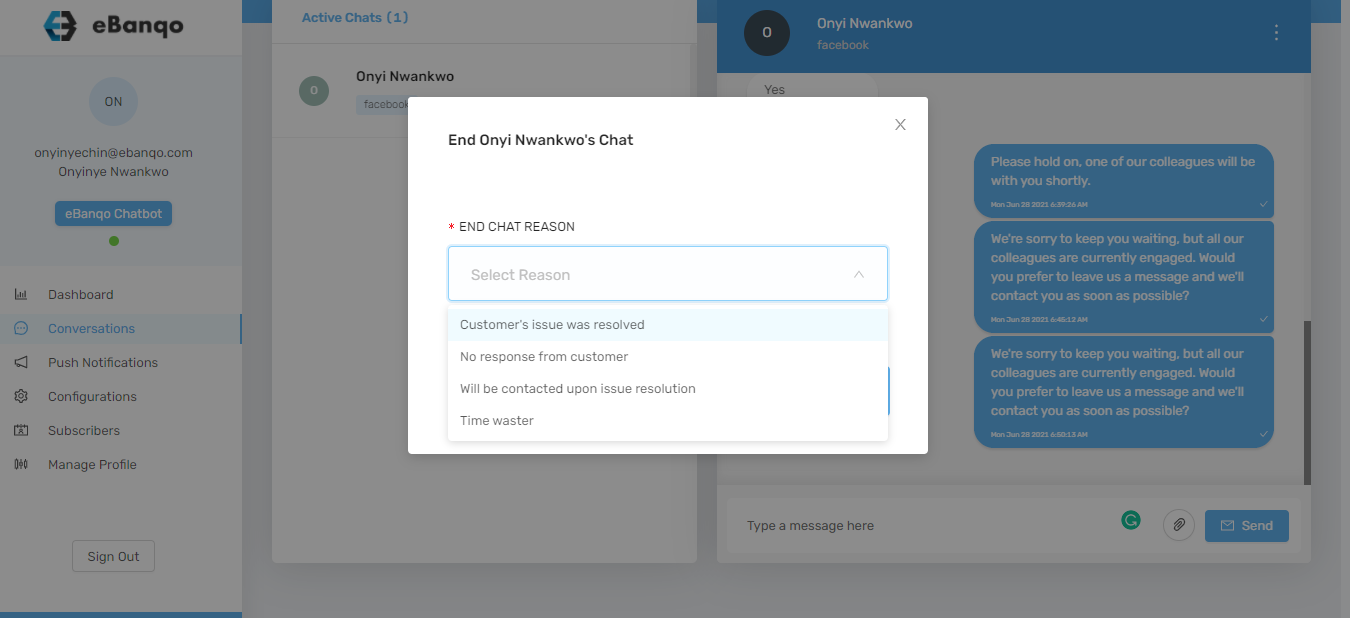
2. A modal appears. Select a reason for ending the chat from the dropdown menu.

How to end a chat in eBanqo Messenger

3. Click End Chat.

How to create a push notification

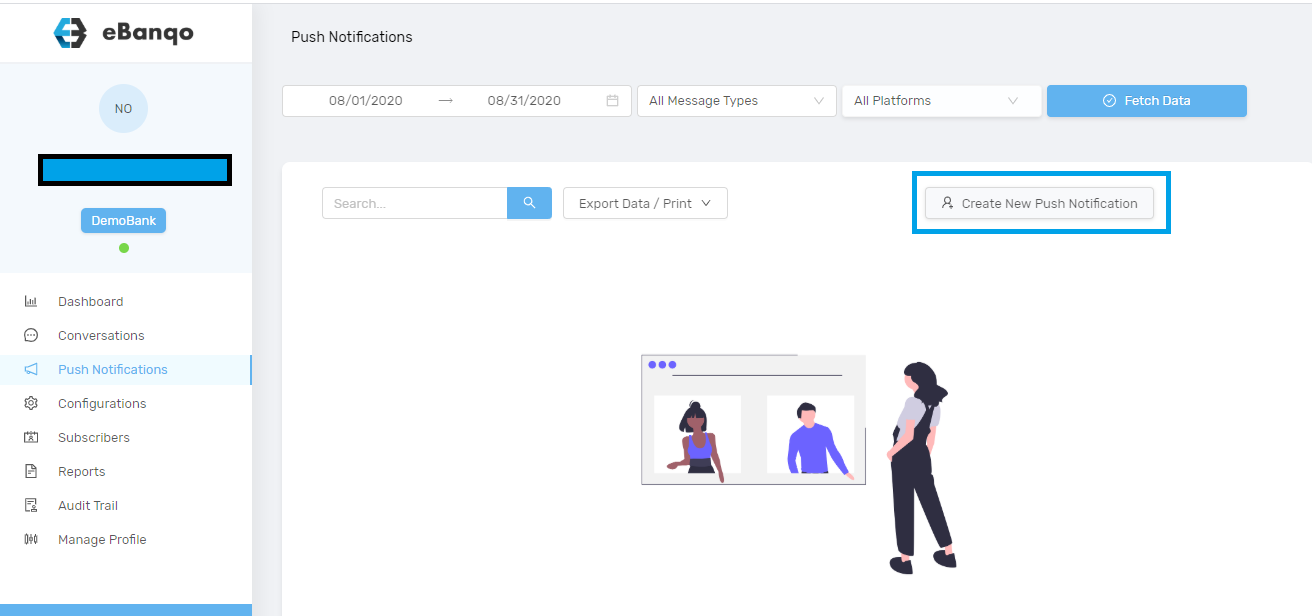
1. To create a new push notification, log in to your account.

2. Go to Push Notifications.

3. Click the Create New Push Notification button.

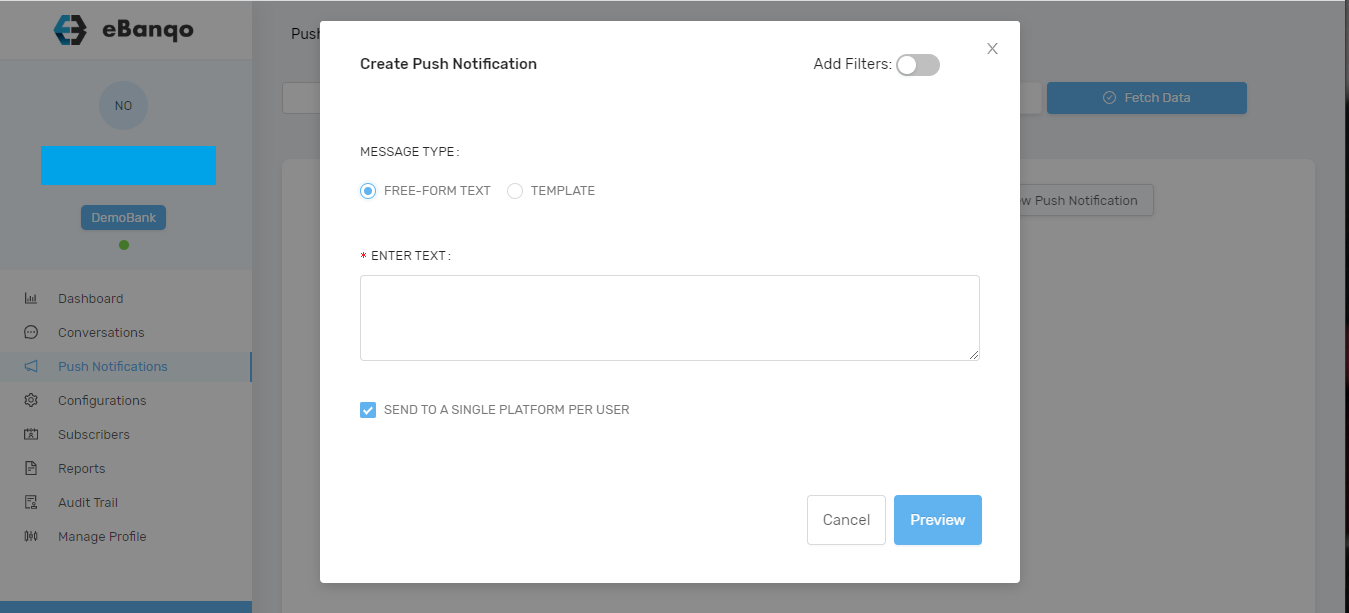
4. When you click the Create New Push Notification button, a modal opens.

5. There are two options available:

  • Freeform Text
  • Template

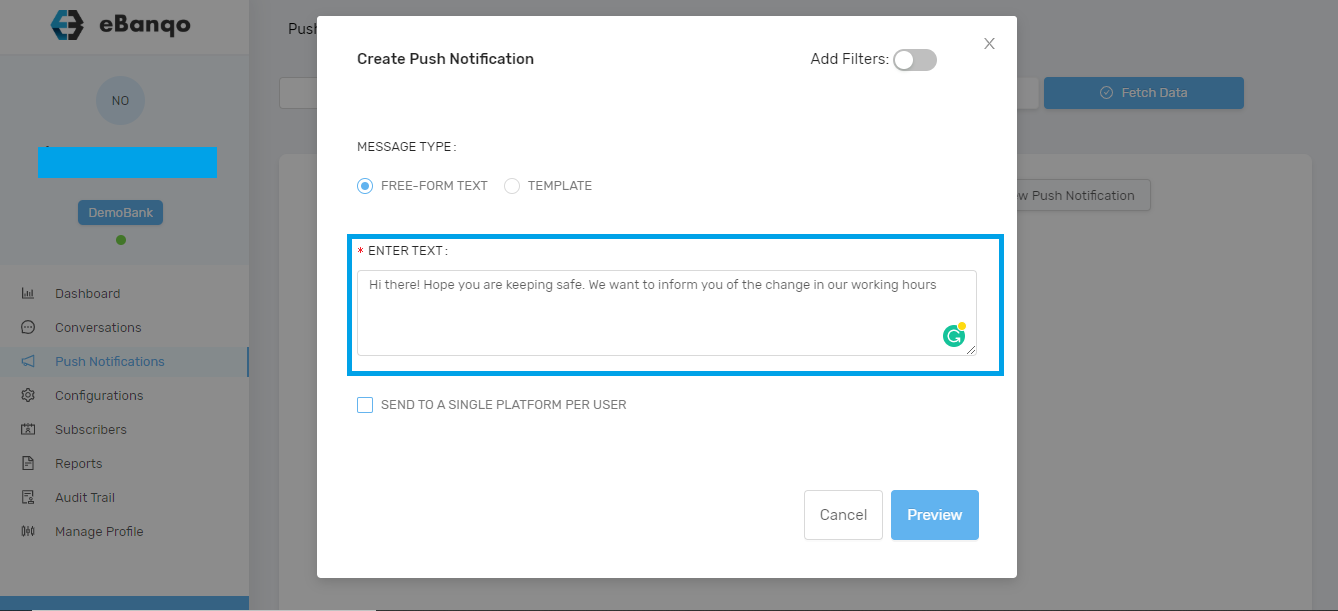
a. Freeform Text

For a freeform text, compose a new message you intend to send to your customers.

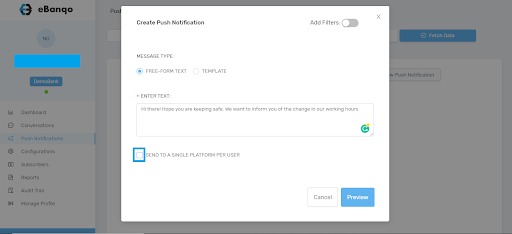
b. After entering your message, decide whether you want to send it to one platform per customer or to all the platforms each customer has used to interact with you.

To send to one platform for each customer, check Send to a single platform per user.

c. If you want customers to receive the push notifications on all the platforms they have used to contact you, leave it unchecked.

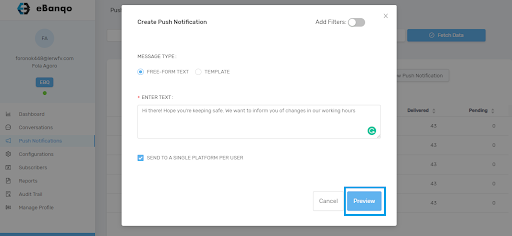
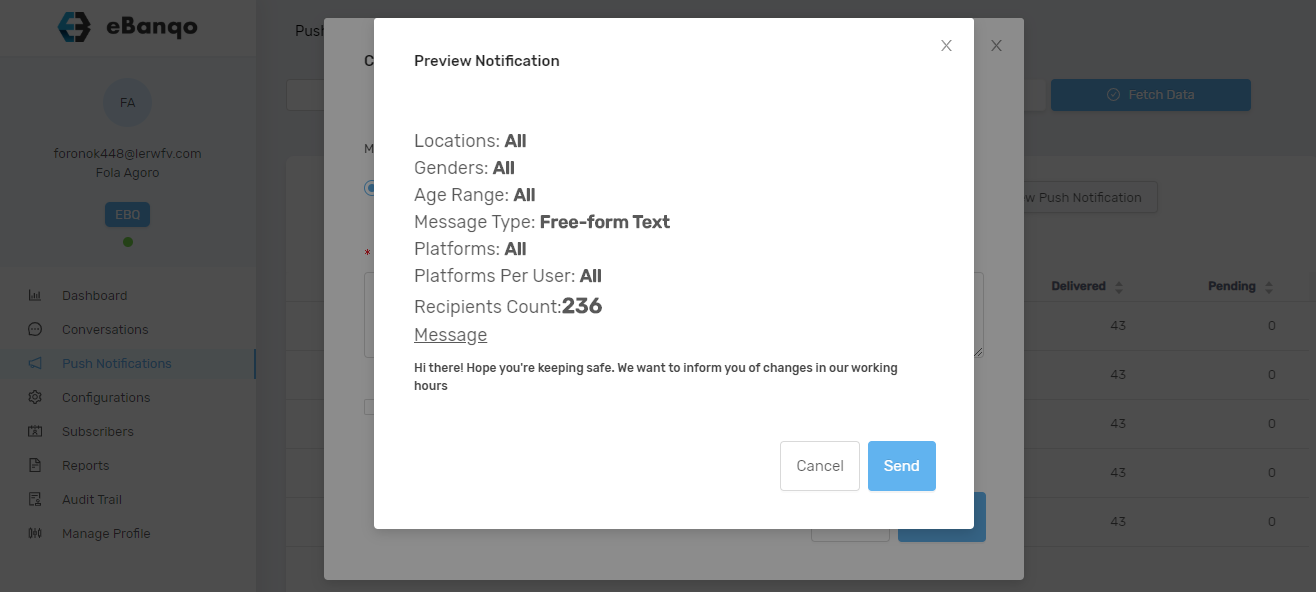
d. Preview your message before sending it by clicking the Preview button.

e. Once you click the preview button, a modal containing the details of your push notification appears.

f. If you are satisfied, click Send. If not, click Cancel to return to the editor and make changes.

Template

The option to send push notifications using a template is not yet available. Once it becomes available, this article will be updated with the steps.

How to manage a failed response

There will be instances where customers find the answer your chatbot provided unsatisfactory. This is called a failed response. When this happens, the platform logs it so you can review it later and add it to your knowledge base or as a service.

When you add a failed response as a service, you’re essentially telling the platform to trigger one of the services offered on your bot whenever a particular phrase is typed.

Follow these steps to add a failed response to your knowledge base or as a service.

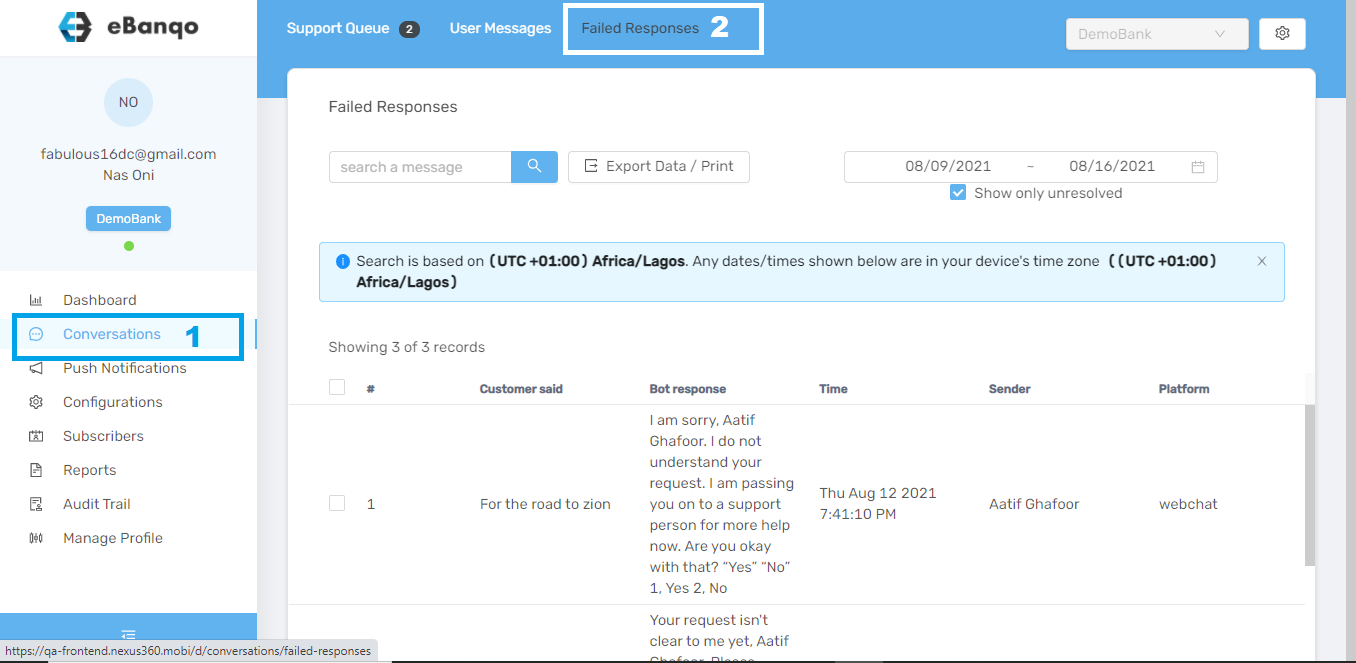
1. Go to Conversations > Failed Responses

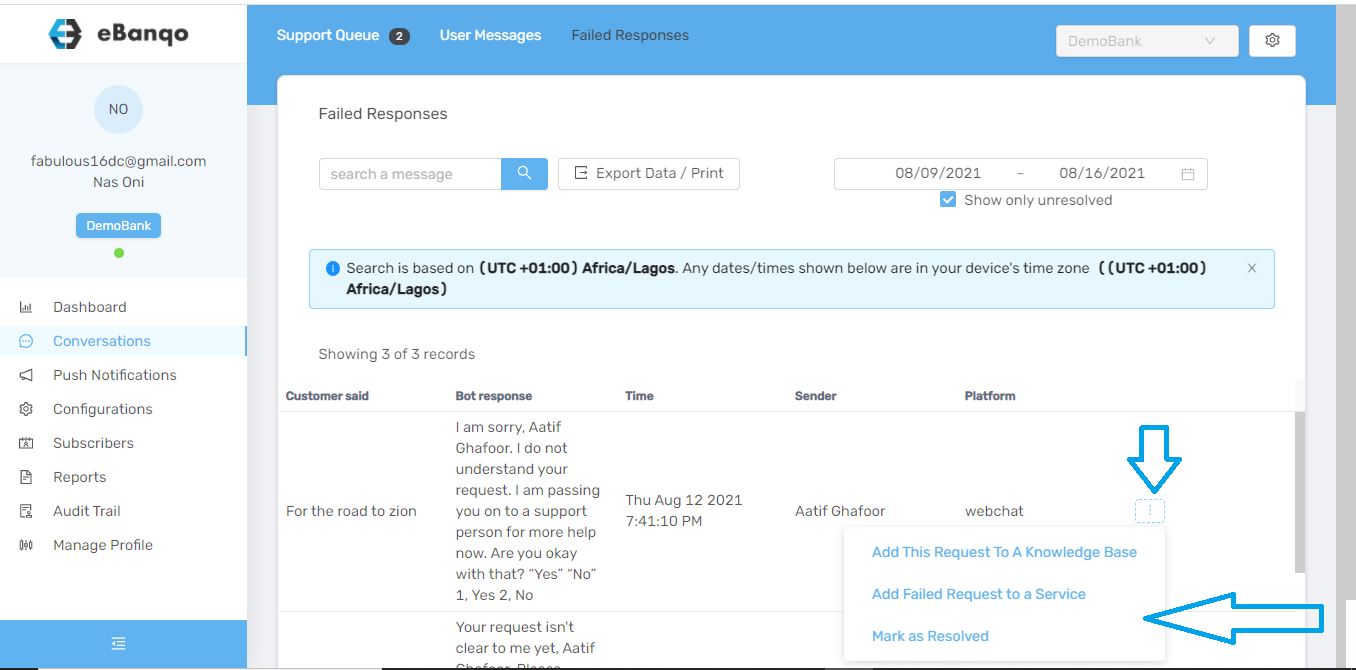
2. Go to the failed response you want to add either to your knowledge base or to a service.

To add to the knowledge base

a. Use the scroll bar at the bottom of your screen and scroll to your preferred question.

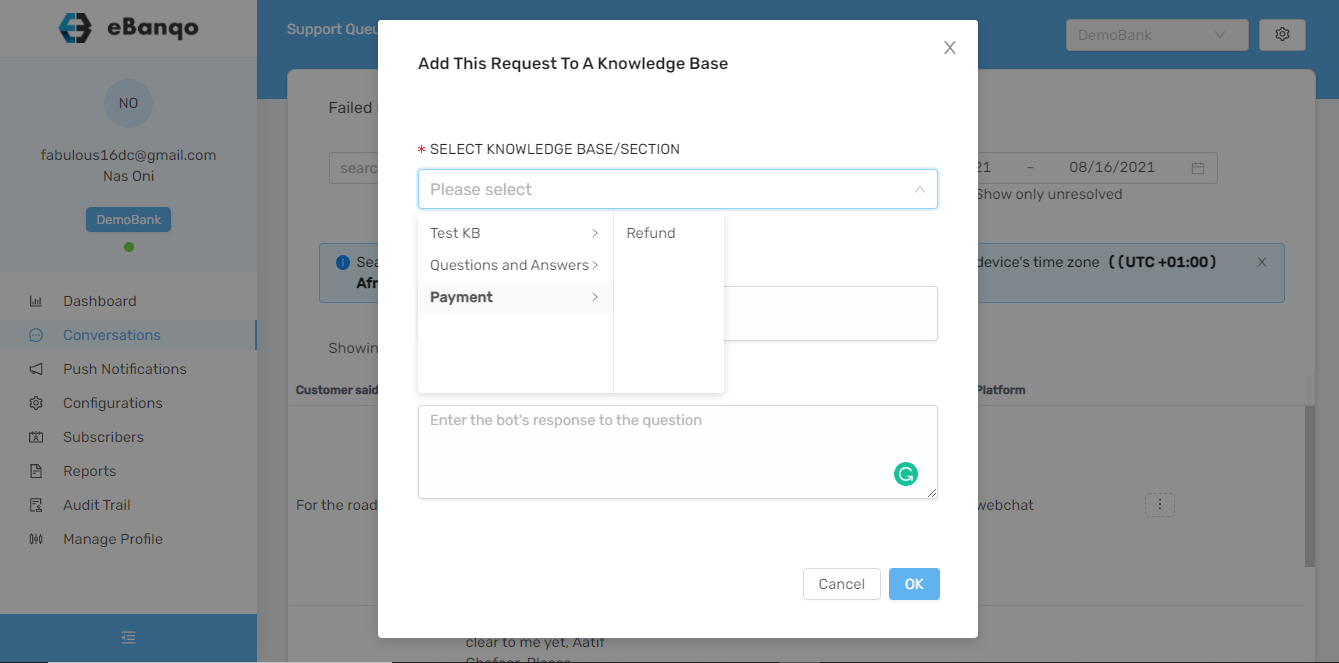
b. Click Add this request to a knowledge base.

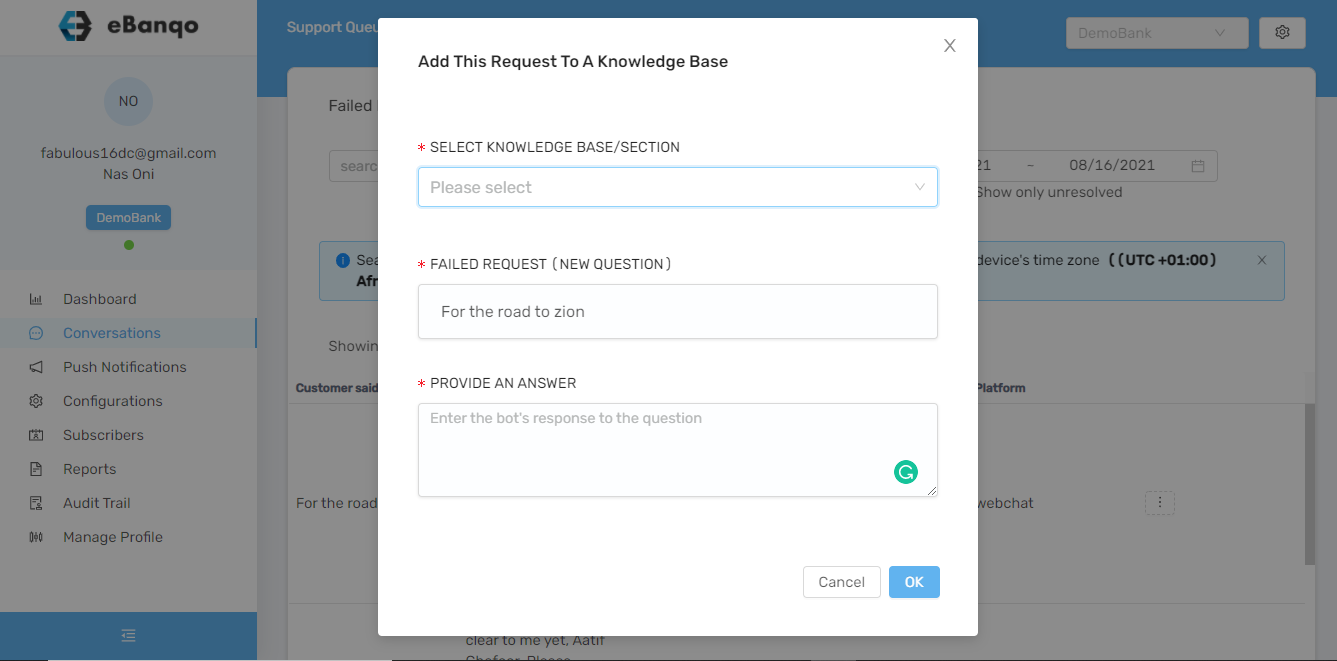
c. A modal appears.

d. Click Select Knowledge Base / Section. A dropdown containing all your knowledge bases and sections appears.

Use the arrow beside each knowledge base to add the question to a specific knowledge base section.

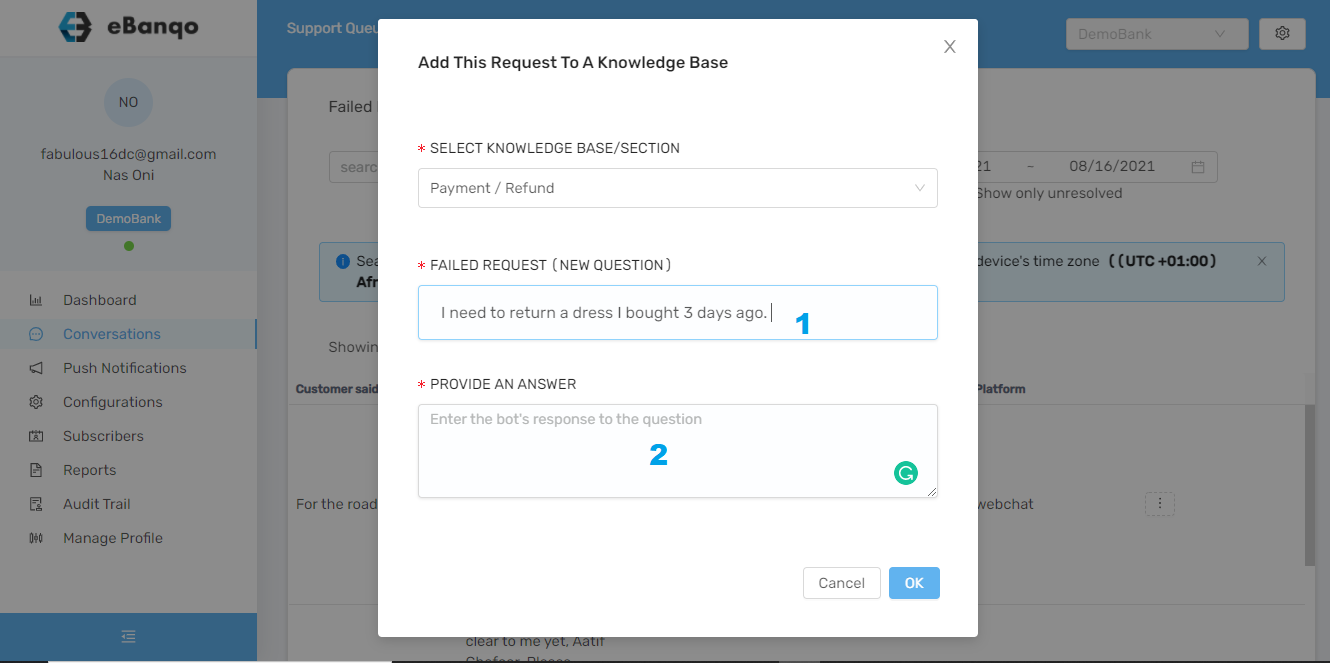
e. In the next section, you can edit the existing question and also type in your answer.

f. Click OK.

To add to a service

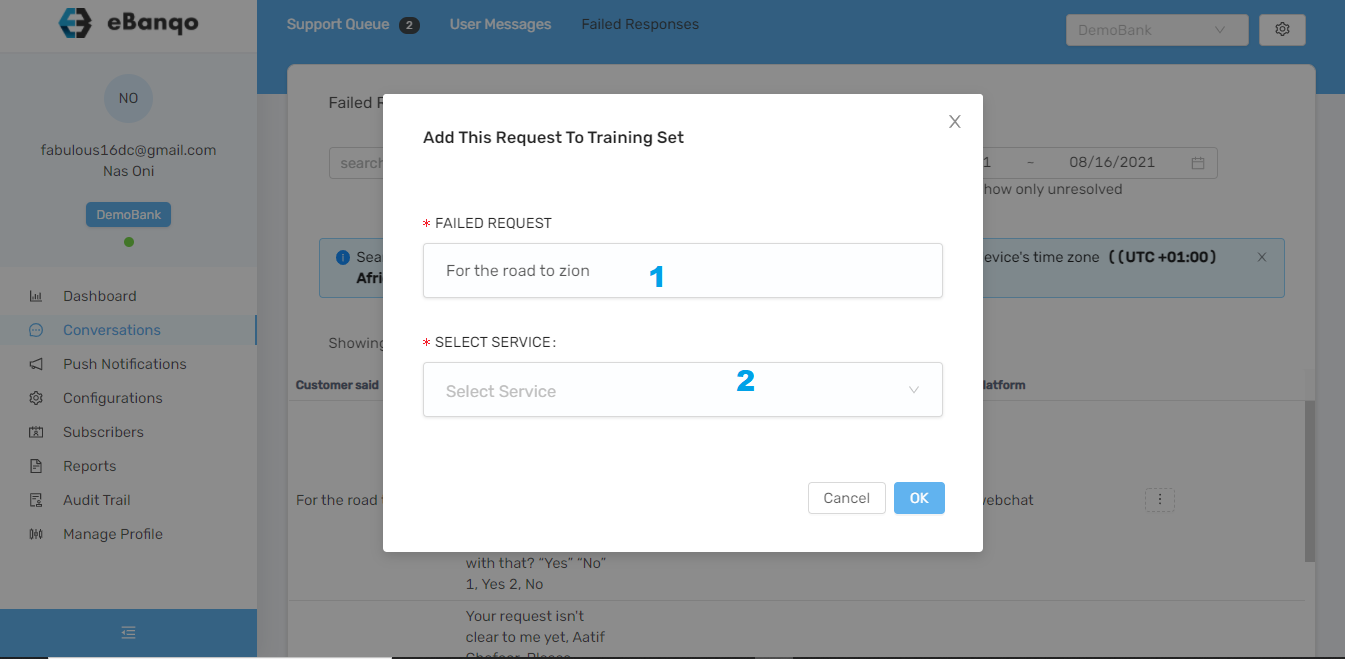
a. Select Add failed response to a service.

b. A modal appears.

1. You can edit the customer’s question if needed.

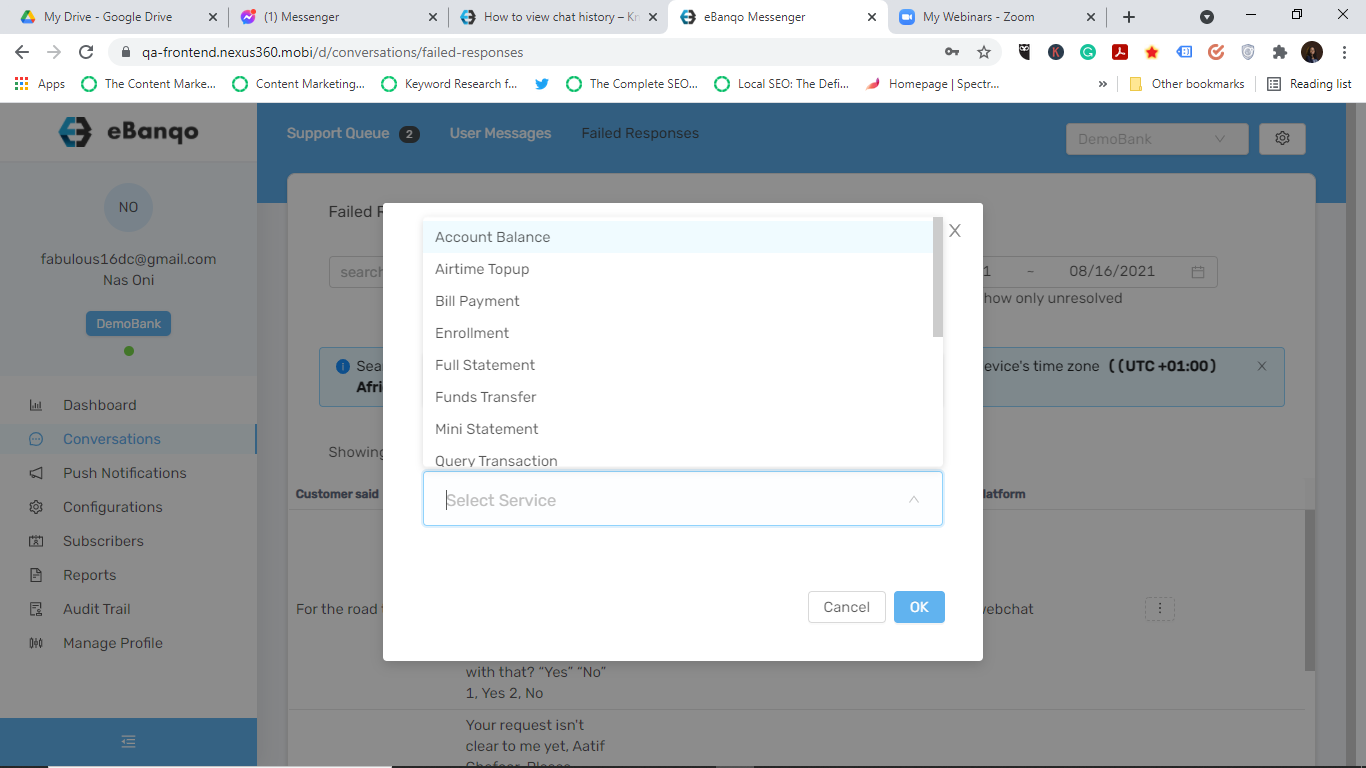
2. Select the service you want the chatbot to trigger whenever customers type this phrase.

Afterwards, click OK.

How to use Auto-assign

With Auto-assign, you can set up specialized teams in eBanqo Messenger that handle specific requests. Customers are routed to these teams based on criteria you choose. Currently, the available routing criteria are:

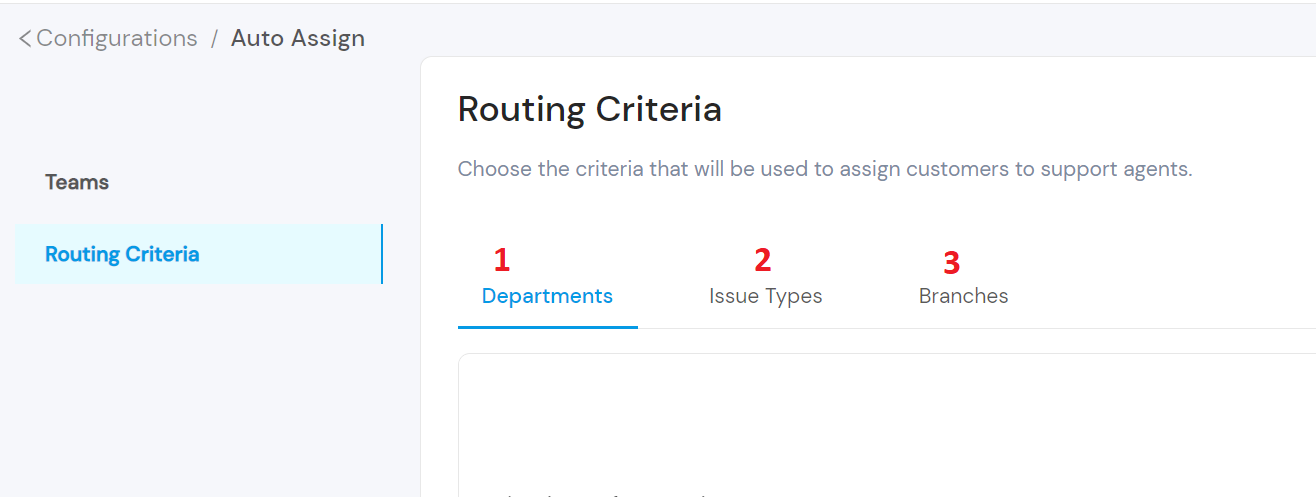
  1. Department
  2. Issue type
  3. Branches
  4. Channels
  5. Customer type

Setting a routing criteria

To set your routing criteria:

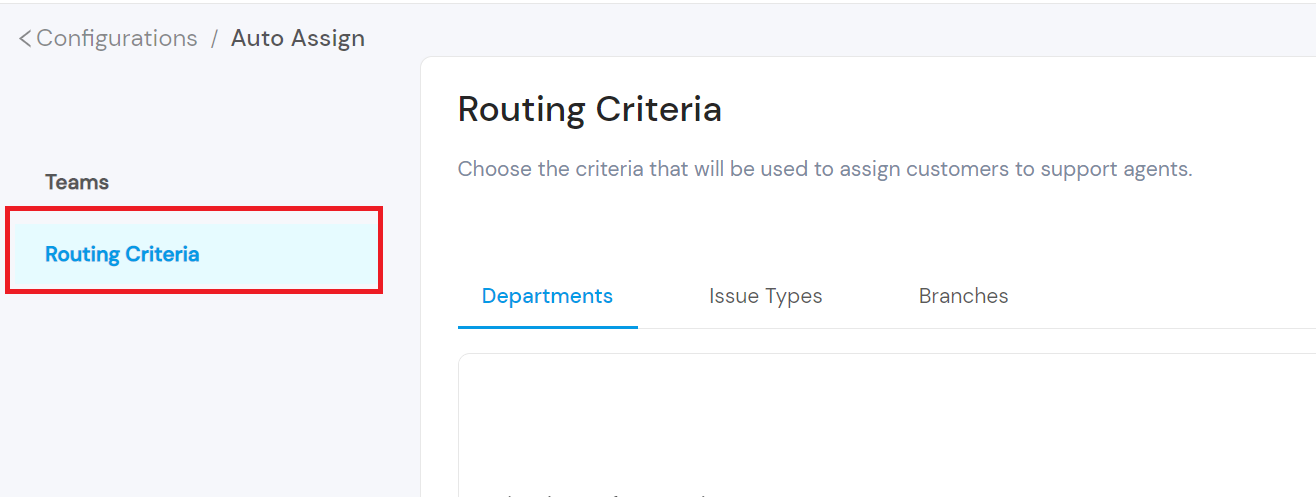
1. Go to Configurations > Auto-Assign

2. Click on Routing Criteria

Setting up auto assign in eBanqo Messenger

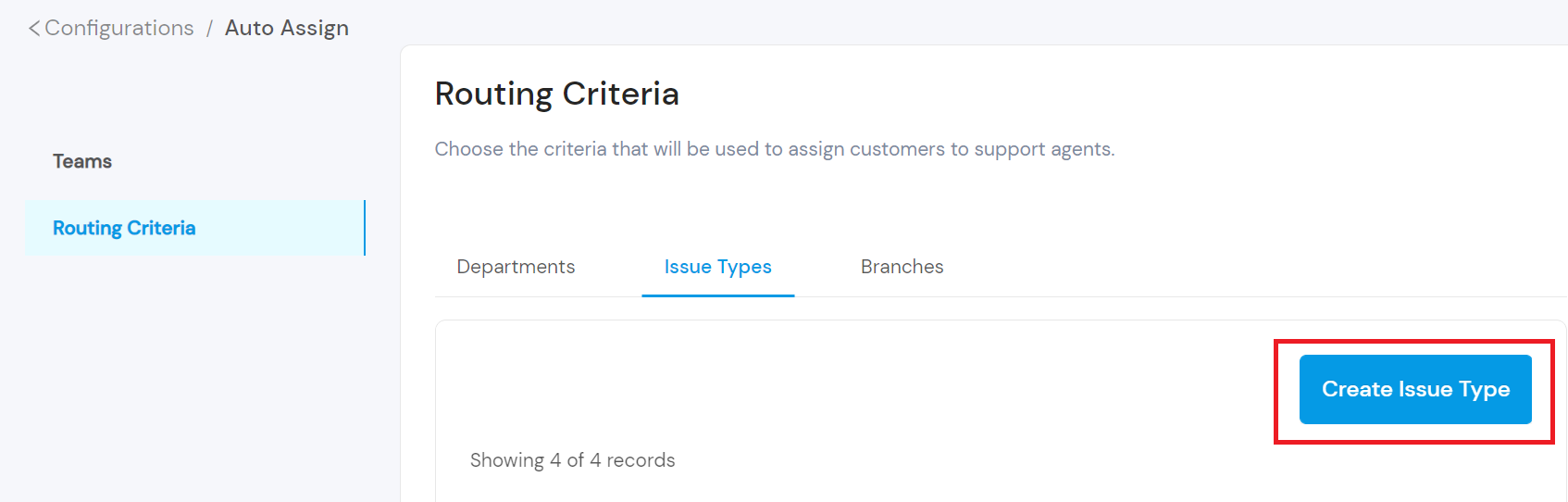
3. Choose from the routing criteria: department, issue type, or branch.

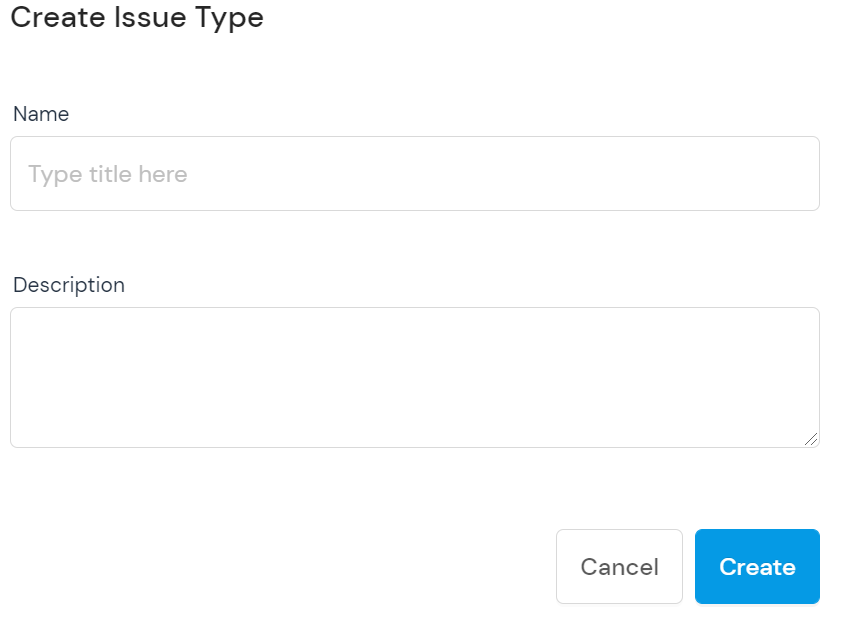
4. Move your mouse over your preferred criteria and click Create Issue Type.

Setting up auto assign

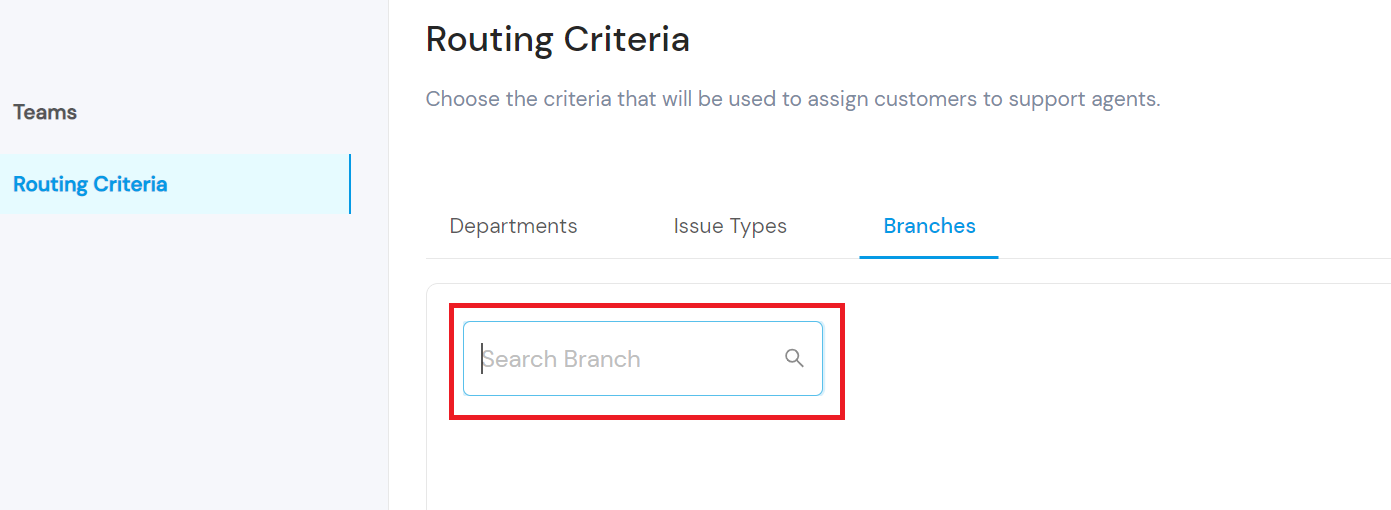
Note: The label Create Issue Type appears because the selected routing criteria is Issue Type. If you select Department, the option becomes Create Department. If you select Branch, you will be prompted to search for a branch.

The branch criteria is only available for customers using Google’s Business Messages channel.

5. Fill in the title of the issue and a short description.

How to create a team

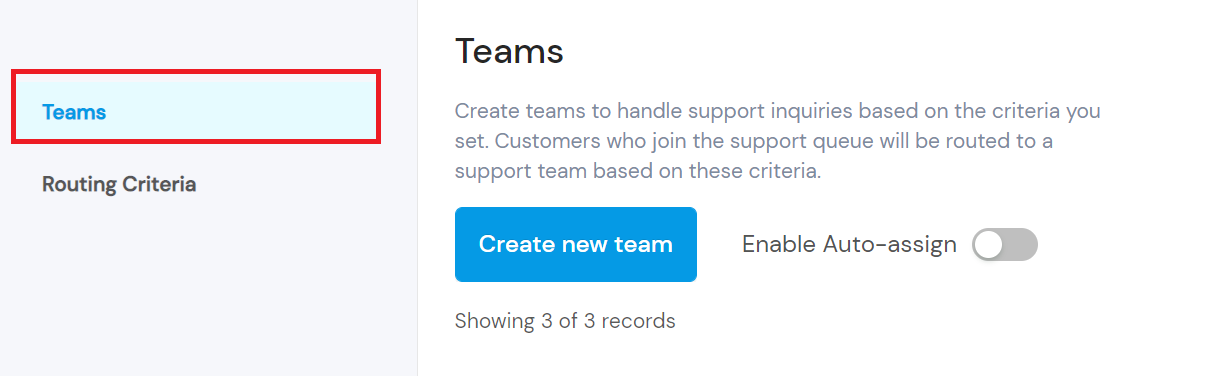
After setting your routing criteria, the next step is to create your team. Click on Teams.

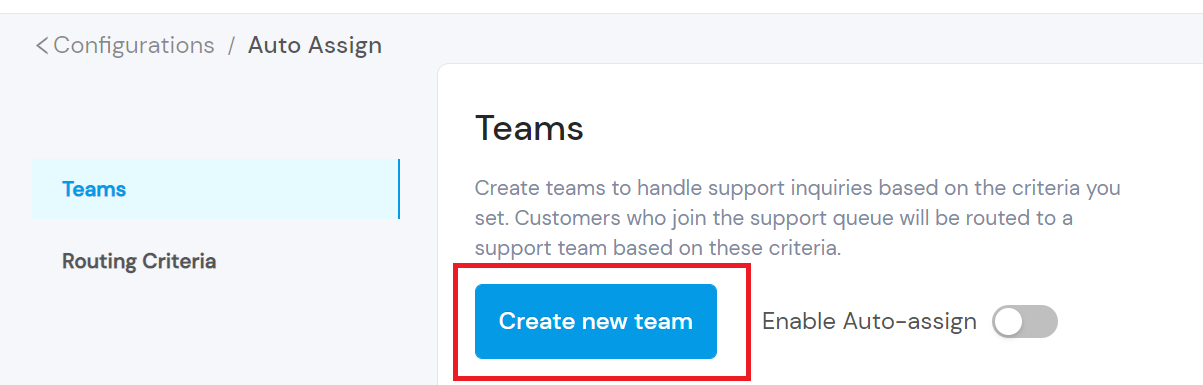
Next, click on Create New Team.

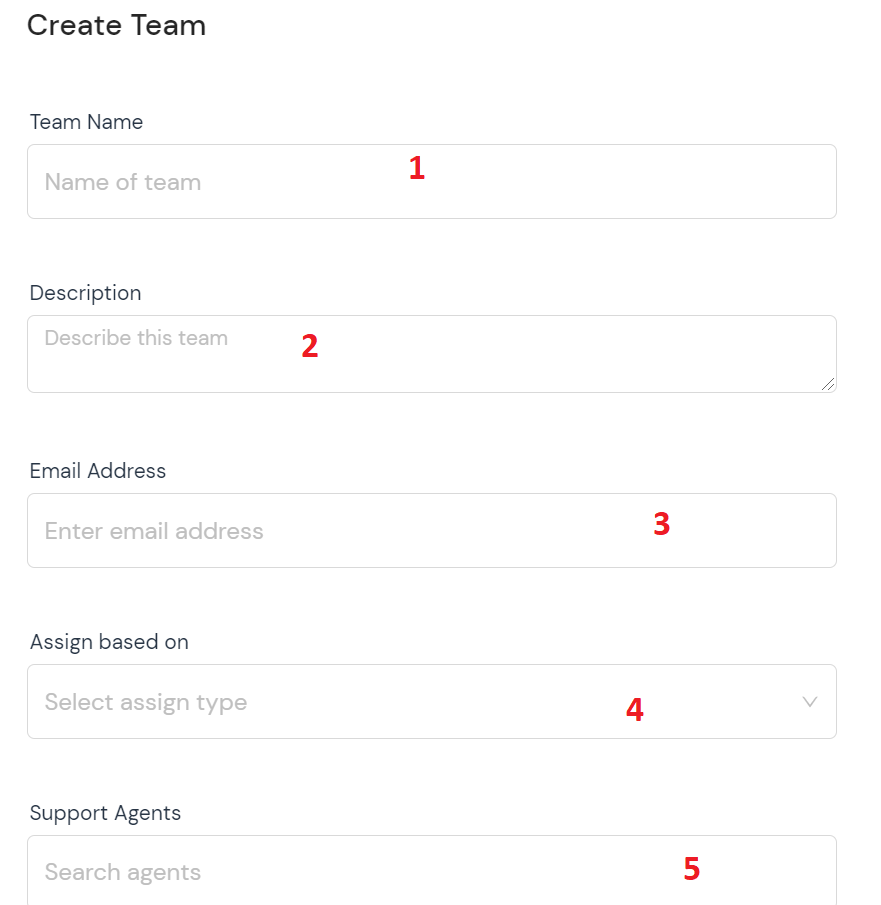
A modal opens. Fill in the information in the modal:

  1. Fill in the name of your team
  2. Provide a brief description of the team
  3. Fill in your email address
  4. Select the criteria you’re using for assignment (department, issue type, branch, channel, or customer type)
  5. Search for the agents you want to add to the team (these agents must be eBanqo Messenger users)

How to create roles in eBanqo Messenger.

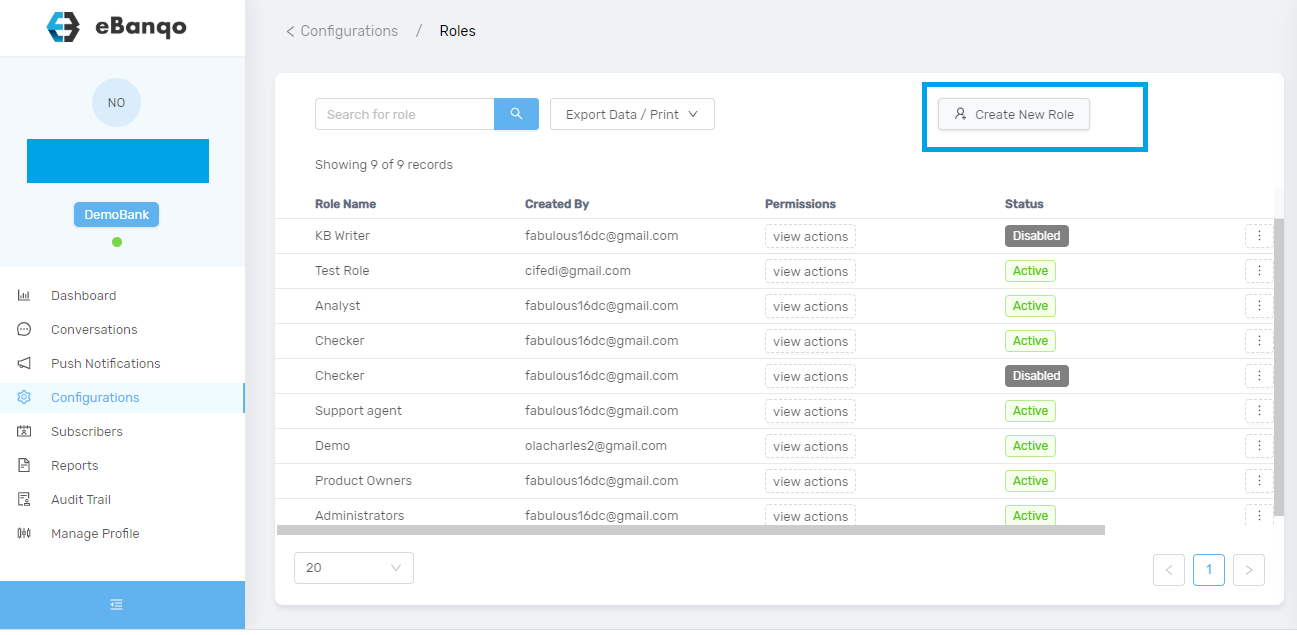
To create a new role, log into your account. Go to Configurations > Roles. Click on the Create New Role button.

How to create new roles in eBanqo Messenger

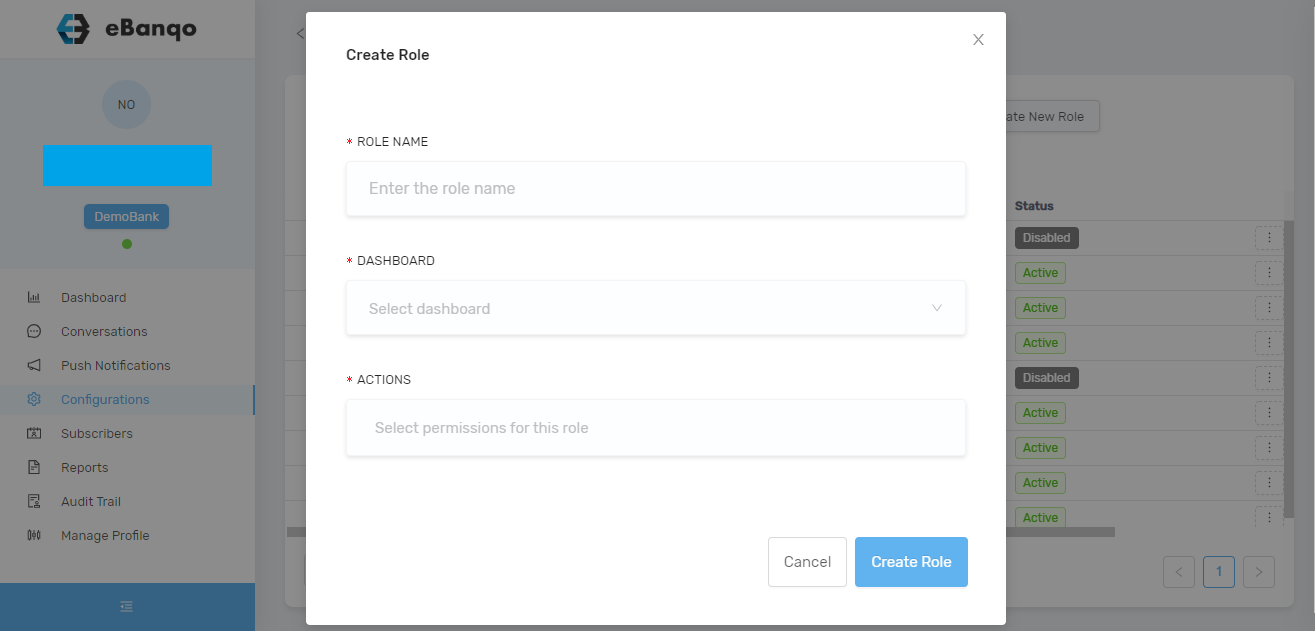
Once you click on the Create New Role button, a modal appears.

Adding a new role in eBanqo Messenger

Complete the form. Fill in the role name, select dashboard, and choose the permissions for this role. Then click on Create Role.

The new role will automatically be saved. You can view roles under Configurations > Roles.

How to edit or change permissions

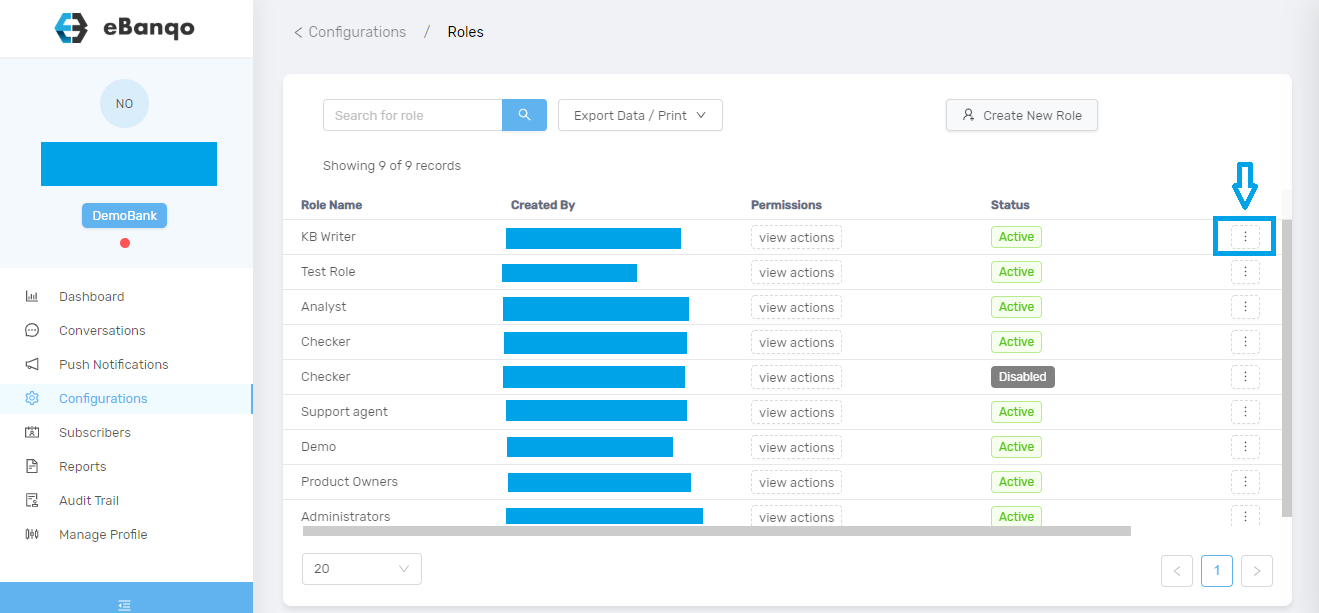
In your account, go to Configurations > Roles. Using the slider, scroll to the right and click on the three dots beside the role you want to edit.

Edit permission in eBanqo Messenger

Once you do that, a modal appears.

Editing permissions in eBanqo Messenger

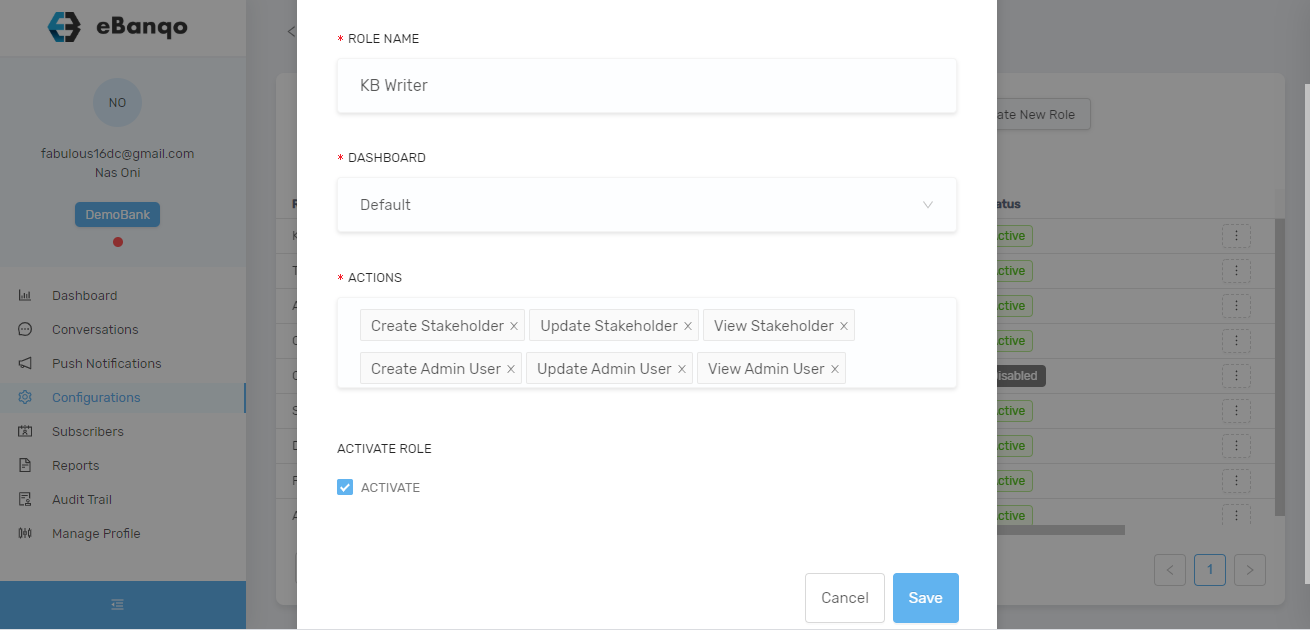
You can rename the role, change dashboard, add or remove actions. To add a new action, click on the space. A list of permissions or actions appears.

How to edit permissions in eBanqo Messenger

Select all that apply and click Save.

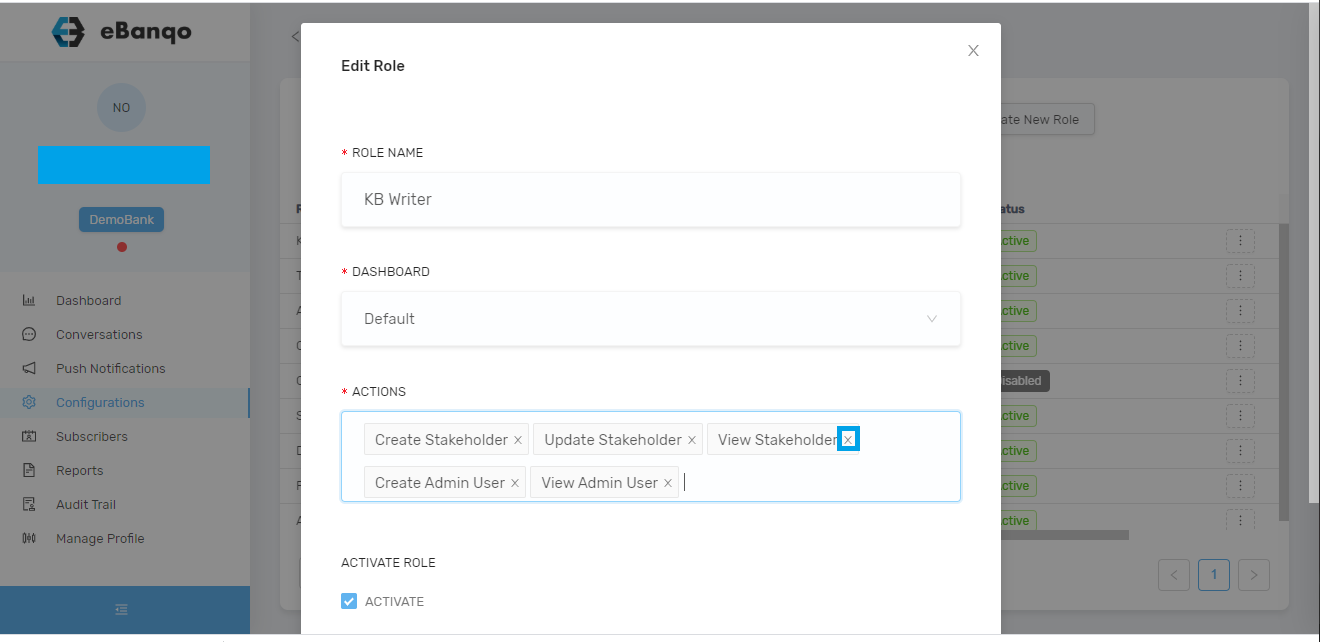
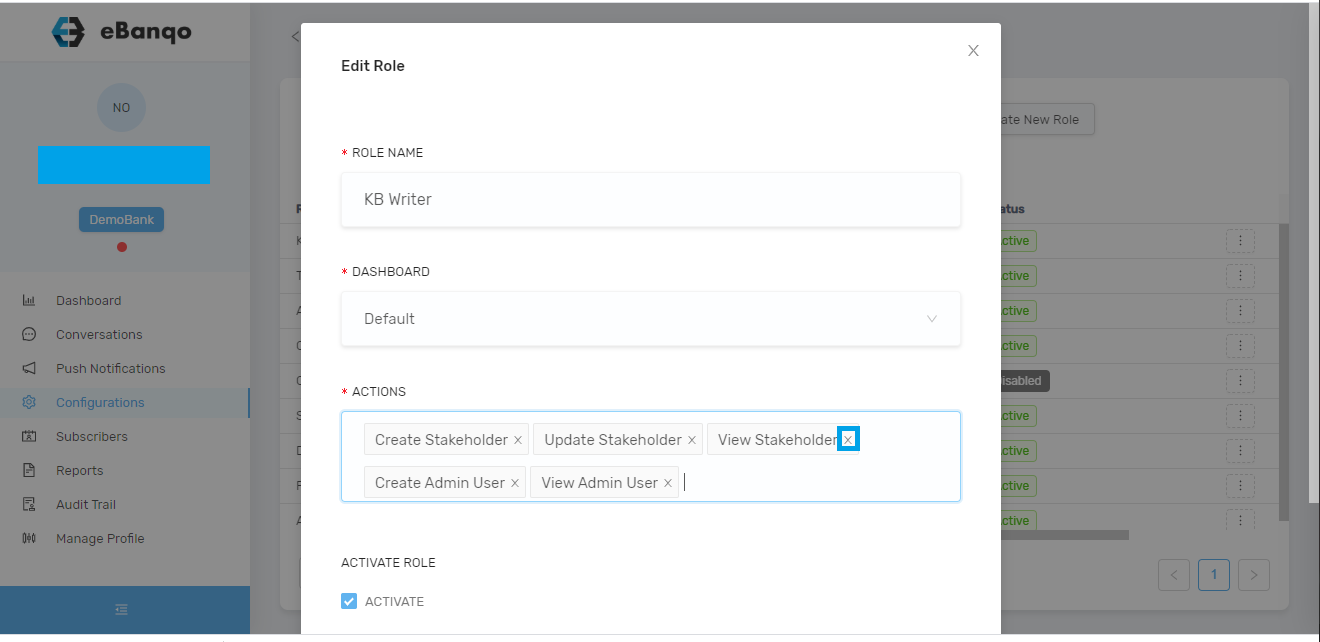
To remove an action or permission, click the x beside any action or permission you want to remove.

Removing an action when editing roles in eBanqo Messenger

Click Save.

How to disable or deactivate a role

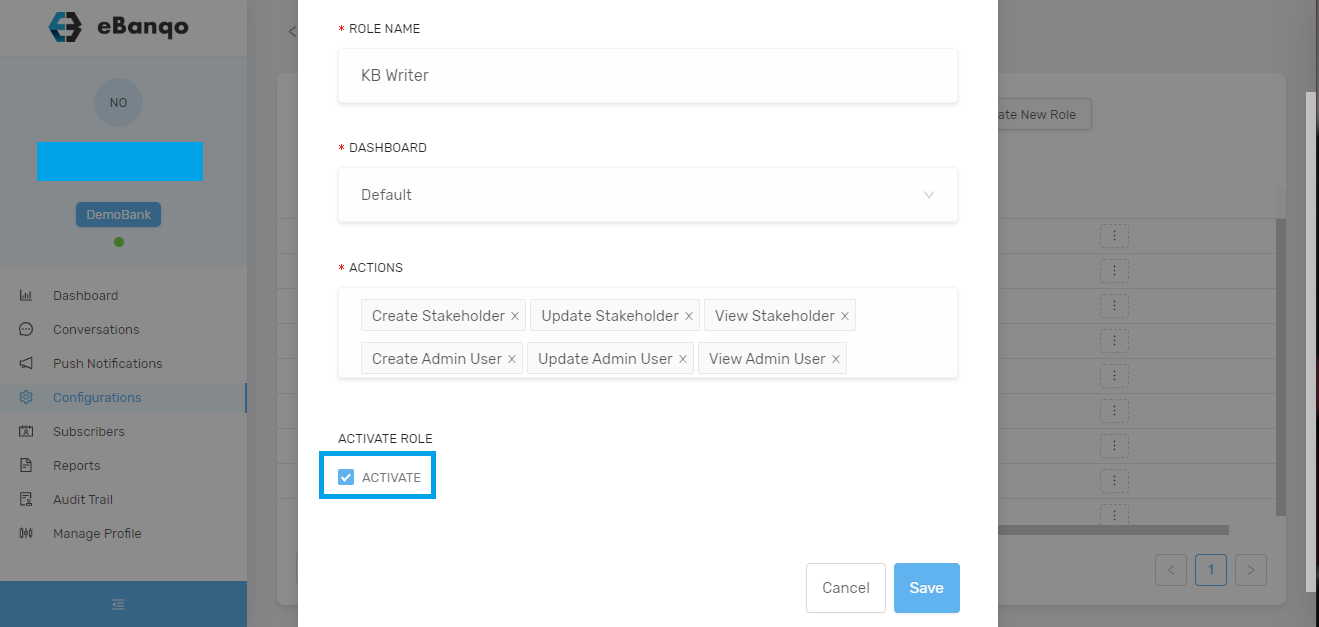
To disable or deactivate a role, go to Configuration > Role. Using the slider at the bottom of your screen, scroll to the right. Click on the three dots beside the role you want to disable. A modal will appear.

Image showing how to disable a role

Uncheck Activate to disable or deactivate a role.

Click on Save.